


For most stores, a purpose-built bulk find-and-replace app with preview and undo is the fastest, safest choice for changing text across many products at once. Alternatives include a CSV export and reimport for controlled overwrites, Shopify’s native bulk editor for simple field edits, and the GraphQL API for automated, high-volume changes. Merchants who want AI-generated descriptions alongside a review step can also look at MerchUp AI.
TL;DR:
- Before a content replacement, choose an app with line by line preview, undo history, and collection filters, then test a small tagged group.
- For CSV imports, preserve product handles and inspect every column: overwrite mode can replace matching fields, while blank optional cells may erase existing values.
- Shopify’s native bulk editor handles prices, SKUs, inventory, and tags but cannot find and replace text in product descriptions, blog posts, or store pages.
- For automated API updates, stores with more than 50,000 product variants face a limit of 1,000 updates per day, so developers must schedule chunked batches.
- Translated product content does not update automatically, so run a separate replacement for each locale and check hardcoded currency amounts market by market.
Which approach fits your store: apps, CSV, bulk editor or API
The right method depends on how many products you’re touching, how comfortable you are with spreadsheets or code, and how much risk you can tolerate.
- Apps: best for content edits across descriptions, titles or tags, with a visual preview before anything goes live.
- CSV export and import: suited to controlled, offline overwrites, especially when you’re also restructuring data.
- Shopify’s bulk editor: quick for numeric or short fields like price, SKU and inventory, but not built for text replacement.
- GraphQL API: the route for developers automating changes across thousands of products on a schedule.
Apps and the bulk editor tend to work well for larger catalogues. CSV and the API can suit still larger catalogues because they bypass the admin interface entirely. As a rule of thumb: reach for an app when editing content, CSV when you need a controlled overwrite, and the API when you’re automating.
What to check before choosing a find-and-replace app
Not all bulk-edit apps handle risk the same way, so a few features separate the safe ones from the ones that can quietly break your catalogue.
- Preview screens: a line-by-line before-and-after view lets you catch a bad match before it touches a live page.
- Undo and history: a usable log records what changed, when and on which products, so a mistake takes seconds to reverse rather than hours.
- Regex, whole-word and case-sensitive matching: regex suits patterns like phone numbers or SKUs, whole-word matching stops “cat” from catching “category”, and case sensitivity separates “Sale” from “sale”.
- Scoped filters: limiting a run to a collection, tag or vendor keeps the blast radius small while you test.
- Pricing: many apps offer a free tier with a cap on operations, then move to a subscription once you exceed it.
Pro Tip: Run your first replacement on a single collection or a handful of tagged products before applying it store-wide.
Running a safe CSV find-and-replace workflow
A CSV workflow works well for merchants who prefer editing offline or who need to make structural changes alongside the text swap. Shopify’s own guidance on CSV imports explains that the “Overwrite products with matching handles” option replaces values in matching columns, including columns you didn’t mean to touch, so keeping the handle column intact and understanding which fields you’re overwriting matters before you upload anything.
- Export your products and keep the handle column untouched, since it’s what Shopify uses to match rows on reimport.
- Open the file in a plain text editor or a spreadsheet tool that won’t convert straight quotes into smart quotes, and run your find-and-replace there.
- Test the edit on a small sample of rows first, checking the output carefully before touching the full file.
- Reimport with the overwrite option only once you’re confident the sample worked, and validate a handful of live products straight after.
Common pitfalls include broken image URLs, variant rows getting out of sync with their parent product, and blank non-required columns wiping existing values you didn’t intend to clear. Smart quotes and stray extra quotes added by spreadsheet software cause a good share of import errors, and swapping them for straight quotes in a text editor resolves most of them.
Pro Tip: Keep your original export untouched in a separate file so you always have a clean copy to restore from.
Where Shopify’s built-in bulk editor stops being useful
Shopify’s native bulk editor is genuinely useful for some fields and genuinely limited for others. Community discussion on the native bulk editor confirms it supports editing price, SKU and inventory across many products at once, but it doesn’t support find-and-replace for long text fields such as descriptions.
- Works well for: price, compare-at price, SKU, inventory quantity and tags.
- Doesn’t cover: product descriptions, blog posts or store pages, where find-and-replace isn’t available at all.
- How to open it: select products from your admin, click “Edit products”, then add the columns you need from the field picker.
Use the bulk editor for numeric or short-field changes. For anything involving sentences or paragraphs, you’ll need an app or the CSV route instead.
Using the Shopify Admin GraphQL API for bulk updates
Developers comfortable with APIs can automate find-and-replace using the Admin GraphQL API’s productVariantsBulkUpdate mutation alongside productUpdate, which together handle large, scheduled or trigger-based changes across a catalogue without touching the admin UI by hand.
- Requires the
write_productsaccess scope and a developer familiar with GraphQL and Shopify’s app authentication. - Suits large automated jobs: syncing descriptions from an external system, or rewriting a recurring phrase across a product feed.
- Subject to Shopify’s resource-based rate limits, which govern how many update calls you can make in a given window.
Stores with more than 50,000 product variants are limited to 1,000 updates per day, which means a very large catalogue needs its update job chunked and scheduled rather than run in one pass.
Test any mutation on a handful of products first, then chunk the full run into batches that respect the limit, logging each batch so a failure partway through doesn’t leave you guessing which products were missed.
A checklist to run before any bulk text change
A short routine catches most mistakes before they reach a live page.
- Export a full CSV backup of the products you’re about to change.
- Run the replacement on a small group of products first and check the results manually.
- Use the app’s preview screen or a per-line confirmation step before applying anything further.
- Spot-check several live product pages after the run, and keep the backup CSV in case you need to restore.
Pro Tip: Check one product on both desktop and mobile after a bulk run, since text that fits a template on one can overflow on the other.
Everyday find-and-replace jobs Shopify merchants run
Most bulk text changes fall into a handful of recurring jobs rather than one-off edge cases.
A rebrand is one of the most common: swapping an old company name for a new one across every product title, description and meta field at once. Seasonal promotions follow a similar pattern, replacing an old collection name with a new one across many listings without manually opening each one.
Supplier or sourcing changes often force a text swap too, such as updating a materials line from “genuine leather” to “vegan leather” across an entire category after a product reformulation. Standardising measurements is another frequent job, for example converting every instance of “cm” to “centimetres” for consistency, or fixing a recurring typo that slipped into a template and got copied across many products.
Compliance updates show up periodically as well, like adding a required care instruction or safety line to every product in a regulated category. Store-wide tone changes, such as swapping a casual phrase for a more formal one after a brand refresh, round out the list. In each case, the job is the same: find a string, confirm where it appears, replace it consistently, and verify the result before moving on.
Keeping bulk edits fast on large catalogues
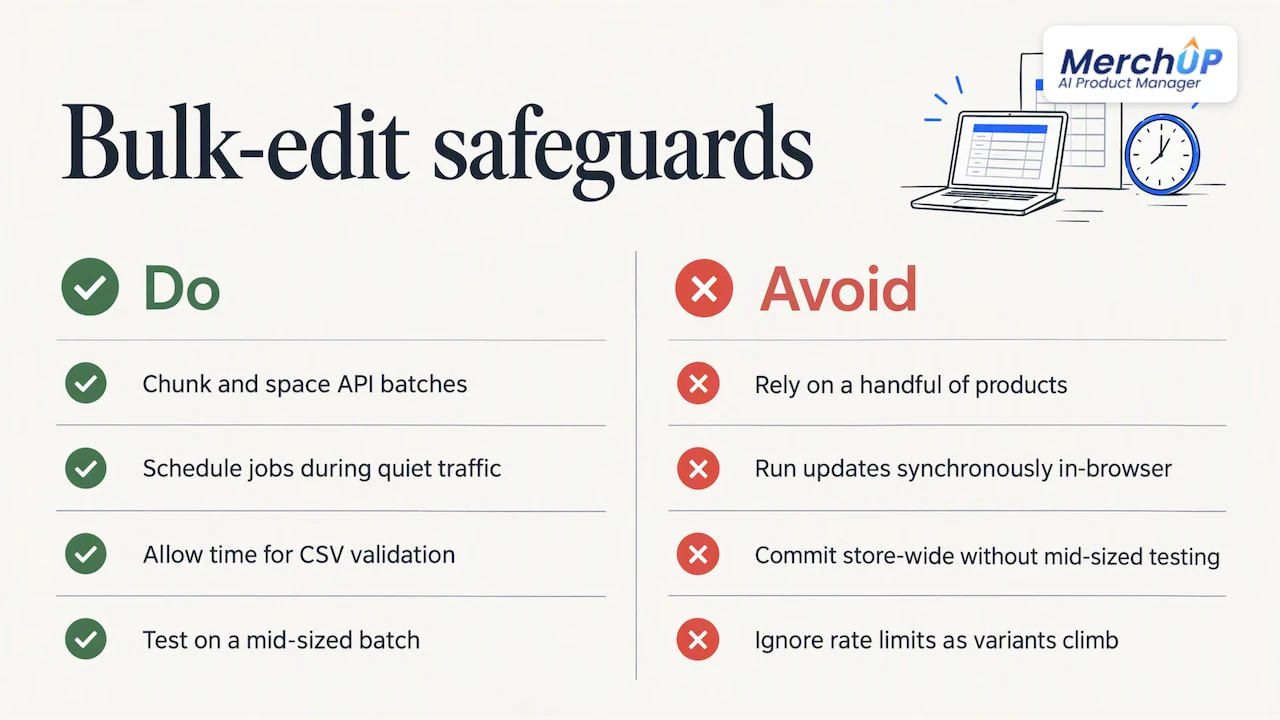
Catalogue size changes how a find-and-replace job behaves in practice, not just how long it takes. A run across a small group of products finishes quickly in many apps or in the bulk editor. For larger catalogues, the bottleneck shifts to how the tool processes changes: apps that queue updates in the background tend to hold up better than ones that try to apply everything synchronously in the browser tab.
CSV imports handle large catalogues well because Shopify processes the file as a batch job rather than row by row through the admin interface, but very large files can take noticeably longer to validate and import, so building in time for that step matters when you’re planning a release.
For API-driven updates, the rate limit is the real constraint on large stores, which is why chunking batches and spacing them out matters more as variant counts climb. Running a large job during a quiet traffic window also reduces the chance that a sync delay shows a customer stale pricing or an unfinished description mid-update.
Whichever method you use, test the full workflow on a mid-sized batch, not just a handful of products, before committing to a store-wide run. A small sample behaves differently from a large batch once queuing, validation and rate limits enter the picture.
Find-and-replace across multi-language and multi-currency stores
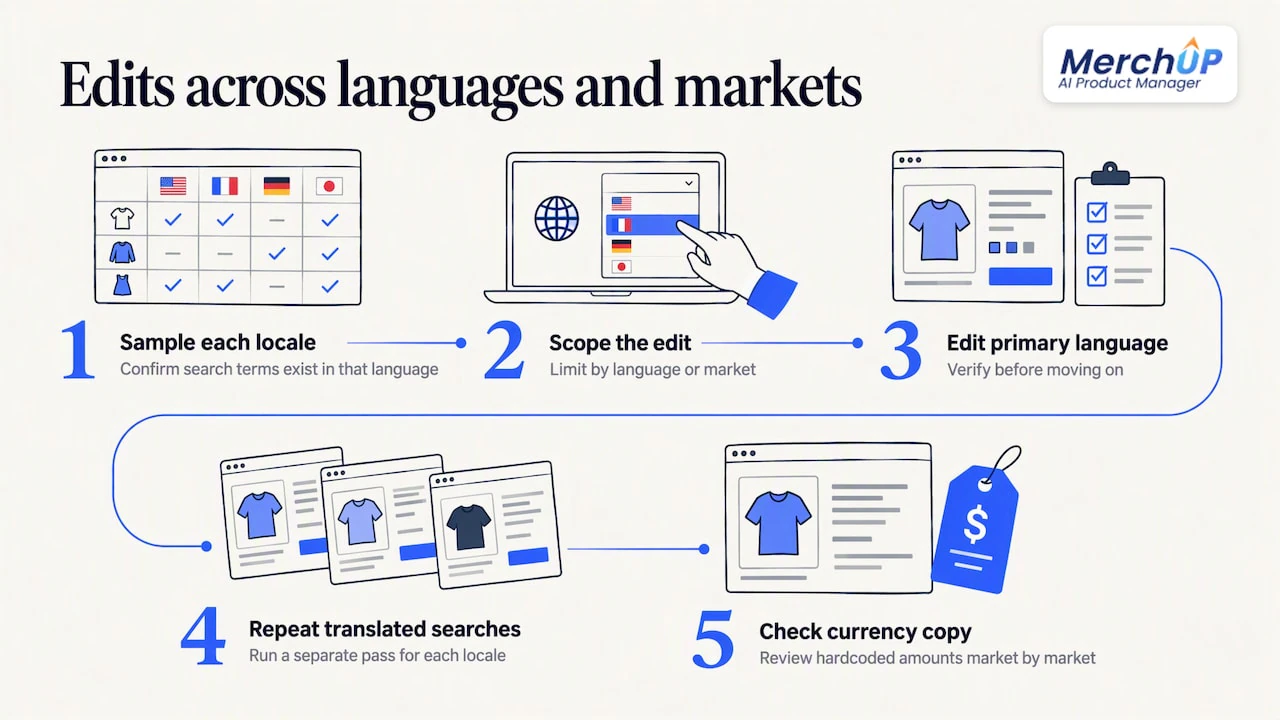
Multi-language stores add a layer most find-and-replace tools don’t handle automatically: a change made to your default language content doesn’t propagate to translated versions, so each locale needs its own pass. Run the replacement on your primary language first, verify it, then repeat the same search terms translated appropriately for each additional language your store supports, since a literal string match in English won’t catch the German or French equivalent.
Multi-currency stores are less affected by text replacement itself, since currency conversion in Shopify is typically handled by pricing rules rather than text in the description, but watch for hardcoded currency symbols or amounts written directly into product copy, such as a currency amount written directly into a description. Those need to be checked market by market rather than assumed to update automatically.
Scoping your find-and-replace by market or by language, where your app or workflow supports it, keeps a global rename from accidentally altering a translated field that uses different wording on purpose. When in doubt, export a sample from each locale and confirm the match terms actually exist in that language’s content before running anything store-wide.
What actually saves time once you’ve done this a few times
I favour apps with preview and undo for nearly all content edits, because the few minutes spent checking a before-and-after screen are nothing against the hours lost restoring a botched description across hundreds of products. CSV earns its place for migrations and genuinely structural overwrites, not routine wording changes. Whatever the method, keep a changelog and have a second person glance at the sample run before it goes store-wide: a reviewer catches what a tired set of eyes misses.
— Jamie Moss
MerchUp AI: generate descriptions and publish with a review step
Rather than hand-editing text string by string, we turn a product photo into a complete Shopify listing, writing the description into a designed template and generating AI product photos alongside it. Every change sits in a review step with full history before it goes live, and our SEO tool writes meta titles, descriptions and image alt text from your own Google Search Console data in one click, with results checked against live Google.

Plans start with a free plan, with paid tiers from £12.99 a month. See the workflow in the MerchUp AI tutorial to decide if it fits how you manage your catalogue.
FAQ
What is the best search and filter app for Shopify?
The right search and filter app depends on your catalogue size and whether you need features like synonym matching or merchandising rules, which varies by store. For find-and-replace specifically, look instead at a bulk-edit app with preview and undo rather than a storefront search app, since the two solve different problems.
How do I replace an image on Shopify?
You can replace a single product image directly in the product editor, or use the Media Editor for basic adjustments. Bulk replacing images across many products usually needs an app or a careful CSV workflow, since image paths can break if handled incorrectly.
How do I bulk edit the description of a product in Shopify?
Shopify’s native bulk editor doesn’t support find-and-replace for descriptions, so you’ll need an app with that feature or a CSV export, edit and reimport. Our guide on bulk editing descriptions in Shopify walks through both routes in more detail.
Does Shopify allow duplicate SKUs?
Shopify doesn’t enforce SKU uniqueness at the platform level, so duplicate SKUs are technically possible, though they can cause confusion in inventory tracking and reporting. Keeping SKUs unique is good practice regardless, especially before running any bulk edit that matches or filters products by that field.
Sources
- Community
- Shopify
- Shopify Help Center | Bulk editing
- Shopify Help Center | Solutions to common product CSV import problems
Authoritative Shopify resources for reference
- Shopify Help Center: using CSV files
- Shopify Help Center: bulk editing
- Shopify Admin GraphQL API docs


Comments
No comments yet — be the first to share what you think.