


For fewer than 50 products, use Shopify’s native bulk editor. For 50 to 500 products, export a CSV, edit the Body (HTML) column, and re-import. For larger catalogues or recurring rewrites, use an AI-assisted tool like Merchup AI.
Three things to know before you start:
- The native bulk editor has a hard 50-product page limit and no undo button, so it suits quick fixes, not catalogue-wide changes.
- CSV export/import handles any volume but requires careful UTF-8 encoding and HTML preservation to avoid corrupted descriptions.
- Apps and AI tools add find-and-replace, preview, rollback, and AI drafting, which become worth the subscription cost once your SKU count or update frequency grows.
Which method should you use to bulk edit descriptions in Shopify?
Four practical routes exist for Shopify bulk description editing, and the right one depends almost entirely on how many products you need to touch and how often.
| Method | Best for | Scale | HTML-aware editing | Find-and-replace | Risk |
|---|---|---|---|---|---|
| Native bulk editor | Quick fixes, small batches | Up to 50 per page | No | No | Low |
| CSV export/import | Large one-off changes | Unlimited | Yes (manual) | Yes (in spreadsheet) | Medium |
| Google Sheets sync | Recurring updates | Unlimited | Partial | Yes | Low-medium |
| App / AI tool | Large catalogues, frequent rewrites | Unlimited | Yes | Yes | Low |
The decision is straightforward. Under 50 products and a one-off change? Go native. A few hundred products with a deadline today? CSV. Updating descriptions every month or rewriting copy at scale? An app with AI generation pays for itself within the first session.
Pro Tip: Before touching any method, export a full product CSV as a dated backup. Name it something like products-backup-2026-06-15.csv. If anything goes wrong, that file is your undo button.
How to use Shopify’s native bulk editor step by step
The native bulk editor is the right tool for small, fast edits: correcting a supplier name across a product range, adding a compliance sentence to a category, or testing a new description format on a handful of listings. Shopify’s documentation confirms the editor is accessed directly from the Products admin panel.
- Go to Products in your Shopify admin.
- Tick the checkbox next to each product you want to edit (or tick the header checkbox to select all on the current page).
- Click Bulk edit (the button appears in the action bar once products are selected).
- Click Columns (top right of the editor table), then Add fields.
- Find and add Description. If you also want to update meta descriptions, add SEO description at the same time.
- Click into any description cell and type your changes directly.
- Click Save when finished.
A few limits to keep in mind:
- The editor shows 50 products per page. To edit more, save the current page, navigate to the next, and repeat.
- There is no undo. Once you save, the previous content is gone unless you have a backup.
- The editor does not support find-and-replace or HTML-aware editing. What you type is what goes in.
Pro Tip: Always test on a 5–10 product sample first. Save that subset, check the live product pages, and only then proceed to the rest of the batch. This catches formatting issues before they spread.
The Shopify community thread on bulk editing product descriptions confirms what most experienced merchants already know: the native editor is fine for small jobs but becomes genuinely painful above 50 products, where the lack of find-and-replace and the page-by-page workflow eat time fast.

How to bulk edit product descriptions via CSV export and import
CSV is the right tool when you need to update hundreds or thousands of descriptions in one go, run a find-and-replace across the whole catalogue, or make variant-level edits the native editor cannot reach.
- In your Shopify admin, go to Products, then click Export.
- Choose All products (or apply a filter first to export a subset), select CSV for Excel, Numbers, or other spreadsheet applications, and click Export products.
- Open the CSV in a spreadsheet application. The column you want is Body (HTML). This contains your product descriptions as raw HTML.
- Make your edits. Use your spreadsheet’s find-and-replace function for global changes. If you are rewriting descriptions, paste new content into the relevant cells.
- Save the file as CSV UTF-8 (not the default CSV format in Excel, which can corrupt special characters). In Excel: File → Save As → CSV UTF-8 (Comma delimited).
- Back in Shopify, go to Products → Import. Upload your edited CSV and tick Overwrite existing products that have the same handle. This is what tells Shopify to update rather than duplicate.
- Click Import products and wait for the confirmation email.
Common errors and how to avoid them:
- Encoding corruption: Always save as UTF-8. Opening and re-saving a CSV in standard Excel format replaces accented characters and special symbols with garbled text.
- Broken HTML: If you edit the
Body (HTML)column in Excel, avoid letting the spreadsheet auto-format HTML tags. Use a plain-text editor like VS Code for complex HTML edits, then paste back. - Handle mismatches: The
Handlecolumn is Shopify’s unique product identifier. Never change it. If handles do not match, Shopify creates duplicate products instead of updating existing ones. - Lost metafields or tags: A standard product CSV does not include all metafields. If your descriptions reference metafield data, check that those fields are preserved separately.
Before any large CSV import, run a test import on 10 products. Check those live pages before uploading the full file. A single encoding error in a 2,000-row CSV can corrupt every description simultaneously, and there is no bulk undo inside Shopify’s admin.
When does a dedicated app make sense for bulk description editing?
Once your catalogue grows past a few hundred SKUs, or once description updates become a recurring task rather than a one-off project, the CSV workflow starts to cost more time than it saves. That is the point where a dedicated app earns its keep.
The capabilities that matter most when evaluating a Shopify bulk editor app:
- HTML-aware find-and-replace: Replace a phrase across all descriptions without stripping or corrupting surrounding tags.
- Prepend and append: Add a compliance note or promotional sentence to the start or end of every description without touching the rest of the content.
- Preview with before/after view: See exactly what a description will look like before committing the change.
- Variant-level access: Edit descriptions at the variant row, not just the parent product.
- Undo and history: Roll back a batch edit if something goes wrong.
- Scheduling: Queue description changes to go live at a specific time, useful for seasonal copy or product launches.
- AI-assisted generation: Draft descriptions from product attributes at scale, then review before publishing.
The use cases where apps justify their cost most clearly:
- Seasonal copy changes across hundreds of products (summer vs. winter messaging).
- Compliance or legal appendix updates that must appear on every product in a category.
- Supplier renames or brand refreshes that touch product names and descriptions simultaneously.
- Post-migration cleanups where descriptions imported from another platform need reformatting.
On pricing: most mature bulk editor apps charge a monthly fee tied to SKU count or feature tier, with free trials ranging from 7 to 14 days. Before subscribing, check whether the free plan covers your current SKU count, whether AI generation credits are included or billed separately, and whether there is a rollback or history feature on the plan you intend to use.
Pro Tip: Run your first bulk edit on the app’s trial plan using a 20-product test group. Verify the live pages, check the HTML source, and confirm the undo function works before committing to a paid tier.
How to use AI to rewrite descriptions at scale without losing SEO value
AI is genuinely useful for bulk description rewrites, but only when used as a drafting layer, not a publish button. The effective workflow, confirmed by community practitioners working with AI-generated descriptions, is: generate, sample QA, then publish.
A practical checklist for AI-assisted bulk rewrites:
- Build a template first. Define the structure: opening benefit statement, key specifications, use-case sentence, call to action. Every AI-generated description should follow it.
- Use dynamic tokens. Feed the AI the product title, vendor, material, and any relevant metafields as variables. This prevents hallucinated specs.
- Set length constraints. A 120-word cap keeps descriptions scannable and avoids keyword stuffing.
- Place the primary keyword within the first 100 words. This is where product description SEO guidance consistently points, and it holds for bulk-generated content too.
- Run a uniqueness check. Batch-generated descriptions can drift toward identical phrasing. A quick duplicate-content scan before publishing catches this.
- Keep an audit trail. Log which AI prompt and template version generated each batch. If descriptions need correcting later, you can regenerate consistently.
AI drafts descriptions fast. It does not know your products. Always sample-check at least 10% of any AI-generated batch for hallucinated specifications, incorrect dimensions, or wrong materials before publishing. One wrong spec on a product page costs more in returns and customer trust than the time saved in drafting.
For stores building AI product descriptions at scale, the template design step is where most of the quality control actually happens. A well-structured template constrains what the AI can get wrong.
Best practices for SEO, QA, and safe rollouts
A bulk edit that goes wrong at scale is harder to fix than a single bad description. These practices keep rollouts safe and protect your search rankings.
Pre-rollout checklist:
- Export a dated backup CSV before touching anything.
- Run a visual spot-check on 10 live product pages after each batch saves.
- Validate HTML in edited descriptions using a tool like the W3C Markup Validation Service or an HTML tidy utility.
- Run a duplicate-content check across the updated descriptions before the full rollout.
- Confirm meta descriptions are populated for every updated product. The native bulk editor lets you add the SEO description column alongside the main description column.
SEO practices during bulk edits:
- Place the primary keyword naturally within the first 100–150 words of each description.
- Avoid identical boilerplate across many pages. Search engines treat near-duplicate content as thin, which can suppress rankings across the affected pages. Use the Shopify SEO checklist as a post-edit verification step.
- Where your theme supports it, preserve or add schema markup (Product schema with description property) to help search engines parse the updated content.
Release strategy:
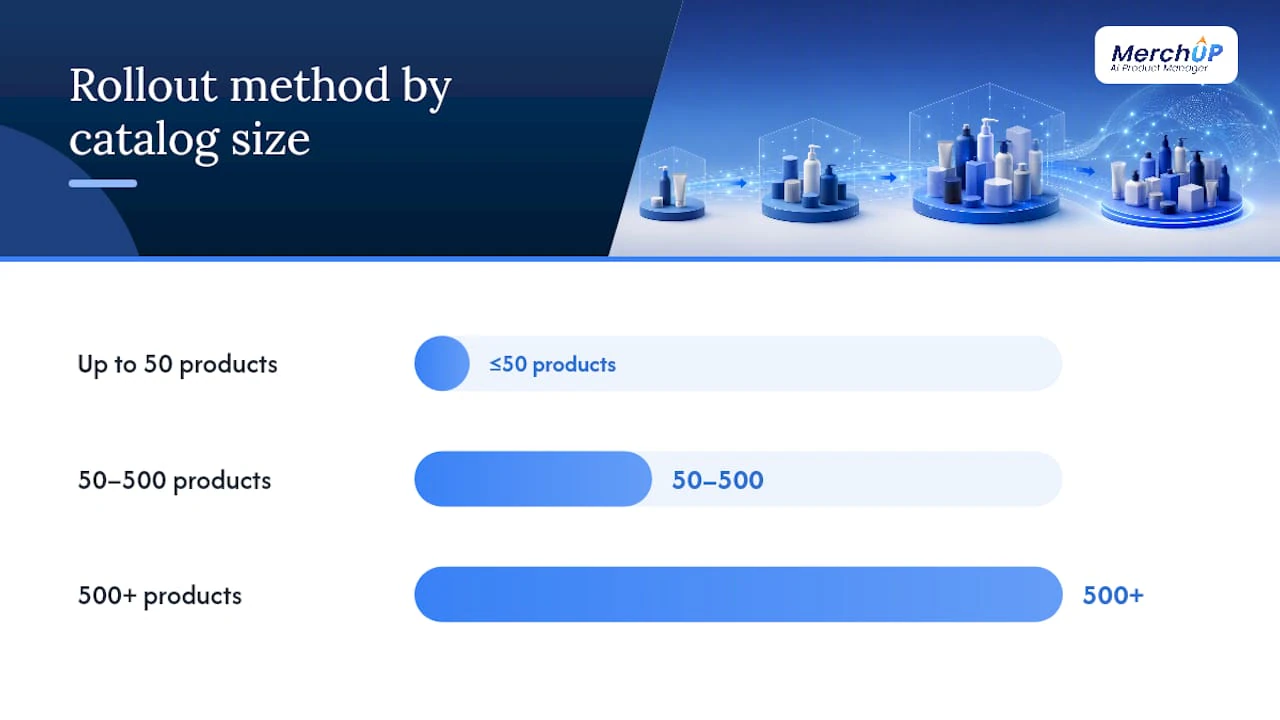
| Threshold | Recommended approach |
|---|---|
| Up to 50 products | Native bulk editor, single save |
| 50–500 products | CSV import in batches of 100–200 |
| 500+ products | App with staged rollout and rollback |
| Recurring updates | Google Sheets sync or app with scheduling |
Stage edits in batches and check the store’s activity log after each one. Shopify’s activity log records who changed what and when, which matters when multiple team members have admin access.
Pro Tip: After any bulk description update, check Google Search Console for crawl errors or indexing drops over the following 48–72 hours. A sudden spike in 404s or a drop in indexed pages usually points to a handle or URL change that happened during the edit.
Common errors and quick fixes
Encoding errors
Symptom: Descriptions show ’ instead of apostrophes, or é instead of é.
Fix: Re-open the original exported CSV in a plain-text editor (VS Code, Notepad++), confirm the encoding is UTF-8, make edits there, and save explicitly as UTF-8 before importing.
Mismatched handles
Symptom: Import creates duplicate products instead of updating existing ones.
Fix: Never edit the Handle column. If handles were accidentally changed, use the original backup CSV to cross-reference and restore them before re-importing.
CSV column name mismatches
Symptom: Import completes but description fields are blank or unchanged.
Fix: Shopify expects the column header to read exactly Body (HTML). Check for trailing spaces, smart quotes, or accidental reformatting by Excel.
HTML parsing errors
Symptom: Descriptions display raw HTML tags on the storefront, or formatting breaks entirely.
Fix: Run the Body (HTML) content through an HTML validator before import. Common culprits are unclosed <div> tags, smart quotes replacing straight quotes inside attributes, and line breaks converted to <br> tags by Excel.
Native editor save failures
Symptom: The browser times out or the save button produces no response on large selections. Fix: Reduce the selection to 20–30 products per save. Clear browser cache, use Chrome or Firefox, and avoid editing in multiple tabs simultaneously.
When to revert:
- Restore from your dated backup CSV using the same import process with overwrite enabled.
- If only a few products are affected, use the product’s individual edit page to paste back the original description manually.
- If the issue is widespread and the backup import fails, pause further edits and contact Shopify Support or your app’s support team before making additional changes.
An operator’s perspective on catalogue-wide rewrites
Managing a catalogue rewrite across several hundred products taught me one thing clearly: the method that saves the most time is not the one that edits the fastest. It is the one that fails the least. A CSV import that corrupts 200 descriptions takes far longer to fix than the time saved by skipping the test import step.
The rollback feature in a dedicated app is not a nice extra. On a catalogue of any real size, it is the feature that makes the whole process viable.
Test small batches. Keep dated backups. Those two habits remove most of the risk from bulk editing at scale.
Merchup AI handles large-scale rewrites without the manual overhead
Updating hundreds of descriptions via CSV is manageable once. Doing it every quarter, or every time a supplier changes their product range, is where the manual process breaks down.
Merchup AI connects directly to your Shopify store and lets you generate, edit, and bulk-publish product descriptions without leaving the platform. The AI drafts descriptions from your product attributes using customisable templates, a visual editor handles formatting, and the activity log tracks every change so you can see exactly what was updated and when. For stores running recurring description updates or managing catalogues above a few hundred SKUs, that combination of AI generation and direct Shopify integration removes the export/import cycle entirely.
Plans are credit-based with monthly and annual options. Review the full pricing and feature tiers before trialling, particularly the credit allowance per plan and whether rollback is included. Start a trial at Merchup AI and run your first batch on a 20-product test group to verify the output before committing to a full rollout.


Comments
No comments yet — be the first to share what you think.