


Edit your Wix product descriptions inside Wix Stores via your site dashboard: go to Store Products, select a product, click Edit Product, and update the short description, long description, and SEO fields. Three steps to do it right now:
- Open your Wix dashboard, navigate to Store Products, and click the product you want to edit.
- Update the short description field first (the buyer-facing hook that appears above the fold and often feeds the meta description).
- Click Save, then Publish to push changes live.
Pro Tip: Edit the short opening line before anything else. It is the first thing a shopper reads on the product page and the text Wix frequently pulls into your meta description. Getting that one sentence right pays dividends in both conversions and search click-through.
How do you add or edit a product description in Wix Stores?
The path is straightforward, but knowing which field does what saves you from publishing the wrong copy in the wrong place.
- Open your site dashboard and click Store Products in the left-hand menu.
- Select the product you want to edit. The product editor modal opens.
- Edit the product title at the top. Keep it descriptive and include your primary keyword naturally.
- Update the short description (the text box directly below the title). This is the above-the-fold copy shoppers see first.
- Scroll to the long description / additional info area for full product details, specs, and supporting copy.
- Click the SEO (Google) tab within the product editor to edit the meta description, URL slug, and structured data fields.
- Edit image alt text by clicking each product image and updating the alt text field.
- Save and preview using the desktop and mobile preview in the Wix Editor before publishing. The mobile view in particular catches formatting issues that look fine on a desktop but collapse badly on a phone.
Per the Wix Stores product page customisation guide, you can also show or hide individual product page elements (price, SKU, quantity selector, related products) and adjust layout and image display directly from the product page settings in the Wix Editor.
Pro Tip: Use the Wix Editor’s product preview on both desktop and mobile before hitting Publish. A description that looks clean on a 1440px screen can become a wall of text on an iPhone. Check it.
What can Wix product descriptions do, and where does it fall short?
What Wix supports natively
Wix Stores gives you a solid set of native tools for product content:
- Short description field: plain or lightly formatted text, shown above the fold on the product page.
- Long description / additional info: rich text editor with bold, italic, bullet lists, and hyperlinks.
- SEO fields: meta description, URL slug, and structured data via the SEO panel.
- Image alt text: editable per image in the product editor.
- Show/hide elements: toggle visibility of price, SKU, quantity picker, related products, and more from the product page settings.
- Layout and image display settings: choose image position, thumbnail style, and zoom behaviour in the Wix Editor.
Known limitations
The most significant gap is one that trips up a lot of store owners: Wix Stores does not support inline images inside the standard product description body. You cannot drop a lifestyle photo or a size-guide graphic mid-description the way you might in a custom HTML block elsewhere. Wix has officially acknowledged this as a feature request, and community threads show it has been raised repeatedly without a native fix as of 2026.
Practical workarounds
- Add a gallery or media section to the product page template, placed below the description, using the Wix Editor’s section tools.
- Use Wix CMS dynamic pages to build a custom product template that includes additional media fields alongside the standard product data. This requires some familiarity with the Wix CMS but gives you full layout control.
- Custom fields via the CMS: advanced users can reference CMS data items to add structured fields such as
RICH_TEXTorMEDIA_IMAGEto a product collection, then render them on a dynamic page. - Community solutions: the Wix Studio forum thread on adding descriptions to category pages covers CMS-powered approaches for richer layouts.
The inline image limitation is real, but the workarounds above cover most practical use cases without requiring a full rebuild.
How to write Wix product descriptions that actually convert
The most common mistake is listing features instead of connecting them to outcomes. Shoppers do not buy a 400-thread-count duvet; they buy a better night’s sleep. Shopify’s product description guidance makes this point clearly: lead with benefits, not specs.
The copy template
Hook (one sentence): What does this product do for the buyer? Three benefit-led bullets: Feature → what it means for them. One closing line: Key spec or micro-CTA.
Two short examples
Lifestyle product: linen throw blanket
Wrap up in something that gets softer with every wash. Made from 100% stonewashed European linen, this throw regulates temperature year-round so you stay comfortable without overheating. Machine washable, no ironing needed, and available in four muted tones that work with any interior. Dimensions: 130 × 170 cm.
- Stonewashed linen: breathable and naturally temperature-regulating
- Pre-washed finish: soft from day one, improves with use
- Machine washable at 40°C: no specialist care required
Technical product: USB-C docking station
One cable. Every port you need. This compact docking station adds dual HDMI, four USB-A ports, Gigabit Ethernet, and 100W pass-through charging to any USB-C laptop. Plug-and-play on Windows and macOS, no drivers required. Dimensions: 14 × 6 × 2.5 cm.
- Dual HDMI outputs: run two external monitors at up to 4K/60Hz
- 100W power delivery: charges your laptop while you work
- Plug-and-play: works immediately on Windows 10/11 and macOS 12+
Formatting rules for Wix templates
- Keep the short description under approximately 150 characters for visibility in product list templates where text is truncated.
- Use bullet points for specs so the page stays scannable on mobile. Long paragraphs collapse into unreadable blocks on smaller screens.
- Add alt text on every product image for accessibility and SEO.
- Benefits-first language and scannable bullets consistently outperform feature-list paragraphs in conversion tests.
Pro Tip: For high-traffic SKUs, A/B test the opening hook or the micro-CTA. Change one variable at a time and run the test for at least two weeks before drawing conclusions. You can use Wix’s built-in analytics or connect Google Analytics 4 to track add-to-basket rate per product page.
SEO checklist for Wix product pages
Good copy and good SEO are not separate tasks on a product page. The Wix SEO guidance for product pages covers the exact fields to edit and where to find them. Work through this list before publishing any product:
- Product title: include your primary keyword naturally in the first few words. This feeds the page’s
<title>tag. - Short description / first sentence: place the keyword in the opening line. Wix often uses this text as the default meta description.
- Meta description (SEO panel): write a benefit-led sentence of 140–160 characters. Access it via the product editor’s SEO (Google) tab. For deeper keyword placement guidance, a dedicated SEO resource covers research and technical placement in detail.
- URL slug: edit it in the SEO panel. Use a clean, keyword-rich slug (e.g.
/linen-throw-blanket-130x170) rather than the auto-generated default. - Image alt text: describe the image concisely and include the product name. Do this for every image, not just the hero shot.
- Structured data: Wix adds basic product schema automatically. Check that price, availability, and currency are correct, as errors here affect rich results in Google Search.
- Google Search Console: connect your Wix site to Search Console and monitor clicks, impressions, and average position for product pages. Filter by URL to see individual product performance.
Pro Tip: Write the meta description as a benefit-led sentence that could double as your short description. When both fields say the same thing, you save time and keep messaging consistent across the page and the SERP snippet.
How to add images, video and richer content to Wix product pages
Because inline images are not supported in the standard description field, you need to work with the page structure itself. These options are practical for most UK store owners without developer skills.
- Gallery block: in the Wix Editor, add a gallery or slider section to the product page template. Place it below the description to show lifestyle images, size guides, or detail shots. This is the quickest workaround and requires no CMS knowledge.
- Custom page sections with media: add a new section to the product template and place images, video, or text blocks inside it. Reference the product name or category in the section content so it reads as part of the product story.
- Wix Video component: embed a product demo or how-to video using the Wix Video block. Hosted video on Wix or an embedded YouTube/Vimeo link both work; hosted video keeps the user on your site.
- CMS-driven layouts: for stores with many products, CMS dynamic pages let you add
MEDIA_IMAGEorRICH_TEXTfields to a product collection and render them in a fully custom layout. This takes more setup but gives you complete control.
Performance and accessibility
Compress images before uploading. Wix serves responsive images, but a 4MB source file still slows load time. Aim for under 200KB per image at 1200px wide. Add descriptive alt text and captions to every image and video thumbnail, both for accessibility compliance under UK Equality Act 2010 requirements and for image search indexing.
Pro Tip: Keep hero images sharp but test page speed with Google Lighthouse or PageSpeed Insights after adding media sections. A product page that loads in under 3 seconds on mobile converts significantly better than one that keeps shoppers waiting.
How to bulk edit Wix product descriptions at scale
Manual editing works for a handful of products. For catalogues of 50 or more SKUs, you need a repeatable system.
CSV workflow
- Export your product catalogue from Wix: go to Store Products, click the three-dot menu, and select Export Products. Wix exports a CSV with columns including
title,description,shortDescription,slug, andseoMeta. - Open the CSV in a spreadsheet (Google Sheets or Microsoft Excel). Map the columns you need to edit:
shortDescriptionfor the above-the-fold copy,descriptionfor the full body,seoMetafor the meta description, andslugfor the URL. - Draft or edit copy in the spreadsheet. For large catalogues, use category templates to keep brand voice consistent across similar products.
- Import the updated CSV back into Wix via Store Products → Import Products. Wix matches rows by product ID, so do not delete that column.
- Check a sample of updated products in the live store before considering the job done.
Per the CMS data items reference, knowing the exact field names (RICH_TEXT, MEDIA_IMAGE, ARRAY_STRING) prevents mapping errors during bulk updates. Always keep a copy of the original CSV as a rollback.
Wix bulk editor
Wix’s built-in bulk editor lets you update price, inventory, and some product fields across multiple products simultaneously. It does not cover all description fields, so the CSV route is more reliable for copy-heavy updates.
AI-assisted drafting
Combining category templates with an AI-assisted draft-then-human-edit workflow can increase throughput substantially without sacrificing quality. The practical approach: use AI to generate first-draft copy for each SKU based on a category template, then a human editor reviews for brand voice, accuracy, and compliance. For AI-assisted product description writing with a UK focus, the process works best when the AI handles volume and the human handles nuance.
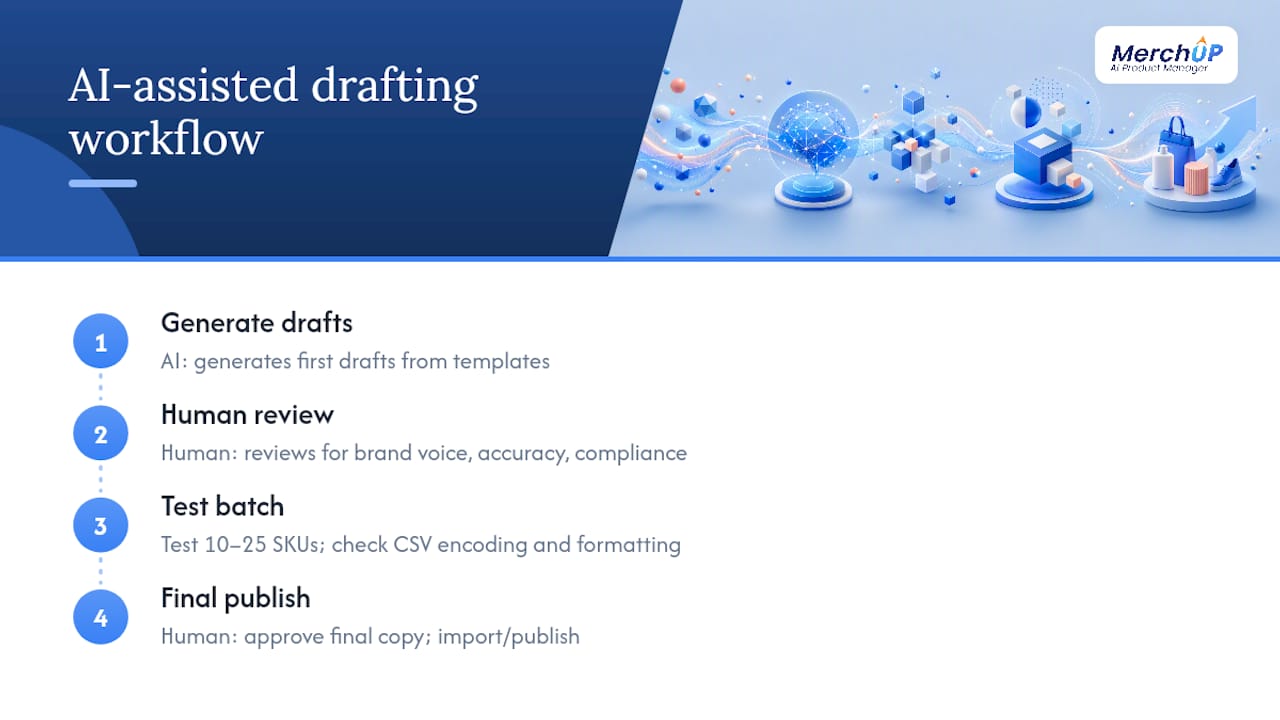
Pro Tip: Test on a representative batch of 10–25 SKUs before running a full import. Check that formatting, line breaks, and special characters survive the CSV round-trip. A catalogue-wide import with a character-encoding error is a painful fix.
Pre-publish QA checklist for UK Wix stores
Before you publish, run through this list. It takes ten minutes and prevents the kind of errors that erode customer trust.
- Price and currency: confirm all prices display in £ GBP. Wix Stores currency settings are site-wide, but check individual products if you have imported from a non-UK source.
- VAT display: if you are VAT-registered, confirm whether prices are shown inclusive or exclusive of VAT and that this is stated clearly on the product page and at checkout. UK Consumer Rights Act 2015 requires prices to be unambiguous.
- Delivery and returns: include a link to your delivery information and returns policy on or near the product page. Wix lets you add this as a page section or via the product page footer.
- Measurements: use metric as the primary unit (cm, kg, ml) with imperial in parentheses where your UK audience expects it (e.g. clothing sizes, screen sizes in inches).
- Mobile readability: preview every edited product page on a mobile template in the Wix Editor. Check font size, bullet spacing, and that images do not overflow their containers.
- Image alt text: confirm every image has descriptive alt text. Missing alt text is both an accessibility gap and a missed SEO opportunity.
- Factual accuracy: verify that specs, materials, and claims in the description match the actual product. Misleading descriptions can breach the UK Consumer Protection from Unfair Trading Regulations 2008.
- Product page conversion metrics: set up tracking for click-through rate from collection pages and add-to-basket rate before rolling out changes site-wide.
Pro Tip: Publish a small batch of updated products first and monitor internal KPIs for 48–72 hours. If add-to-basket rate holds or improves, roll out the rest. If it drops, you have a small problem to fix rather than a site-wide one.
What actually matters most with Wix product descriptions
Most guides on product descriptions tell you to “lead with benefits” and leave it there. That advice is correct but incomplete. The real discipline is prioritisation: not every product in your catalogue deserves the same level of attention.
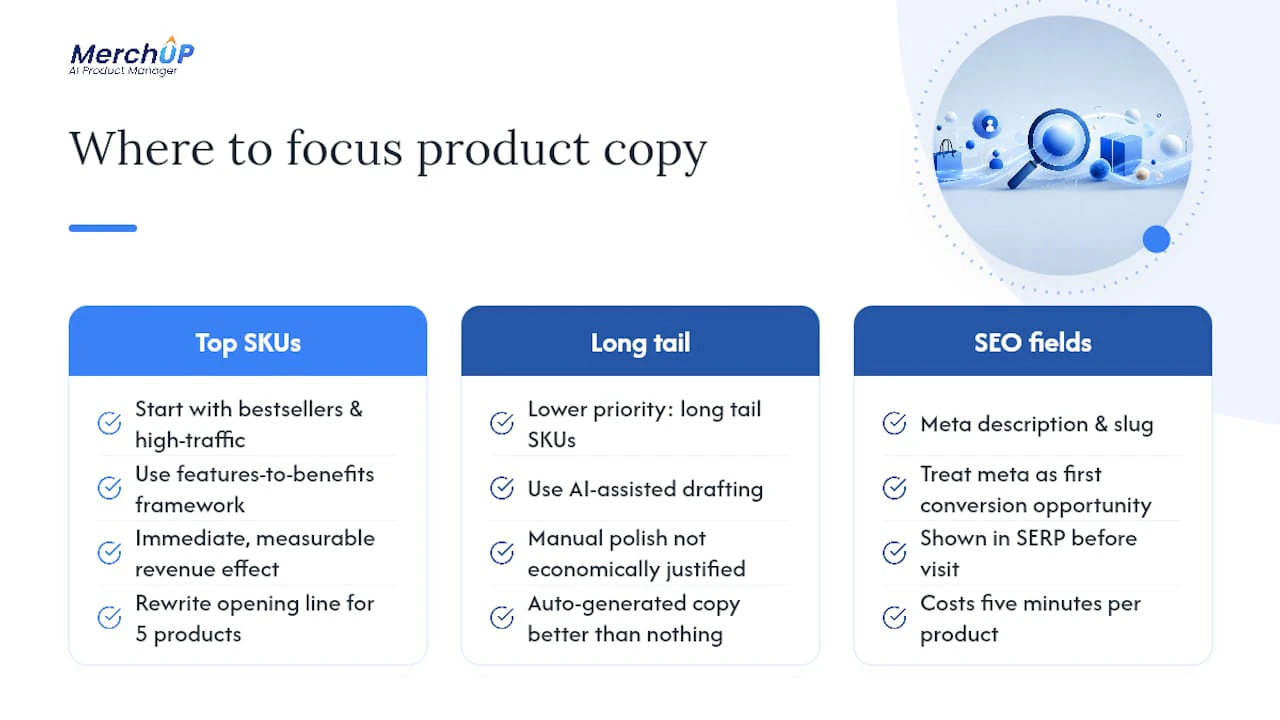
Start with your bestsellers and highest-traffic SKUs. These are the pages where a better opening line has an immediate, measurable effect on revenue. Use the features-to-benefits framework rigorously on these pages: every spec should connect to a concrete outcome for the buyer. Then use AI-assisted drafting for the long tail, where manual polish is not economically justified but thin, auto-generated copy is still better than nothing.
The other thing most guides understate is the SEO panel. Store owners spend time on the description body and ignore the meta description and slug entirely. Those two fields are what Google shows in the SERP before a shopper ever reaches your page. A well-written meta description is, in effect, your first conversion opportunity, and it costs you five minutes per product.
One immediate action: pick five products today and rewrite just the opening line of each using the hook template above. Measure add-to-basket rate over the following week. That single change, applied to your top SKUs, is where the return is fastest.
Scale your product content with Merchup AI
Writing great product descriptions for five SKUs is satisfying. Doing it for 500 is a different problem entirely.
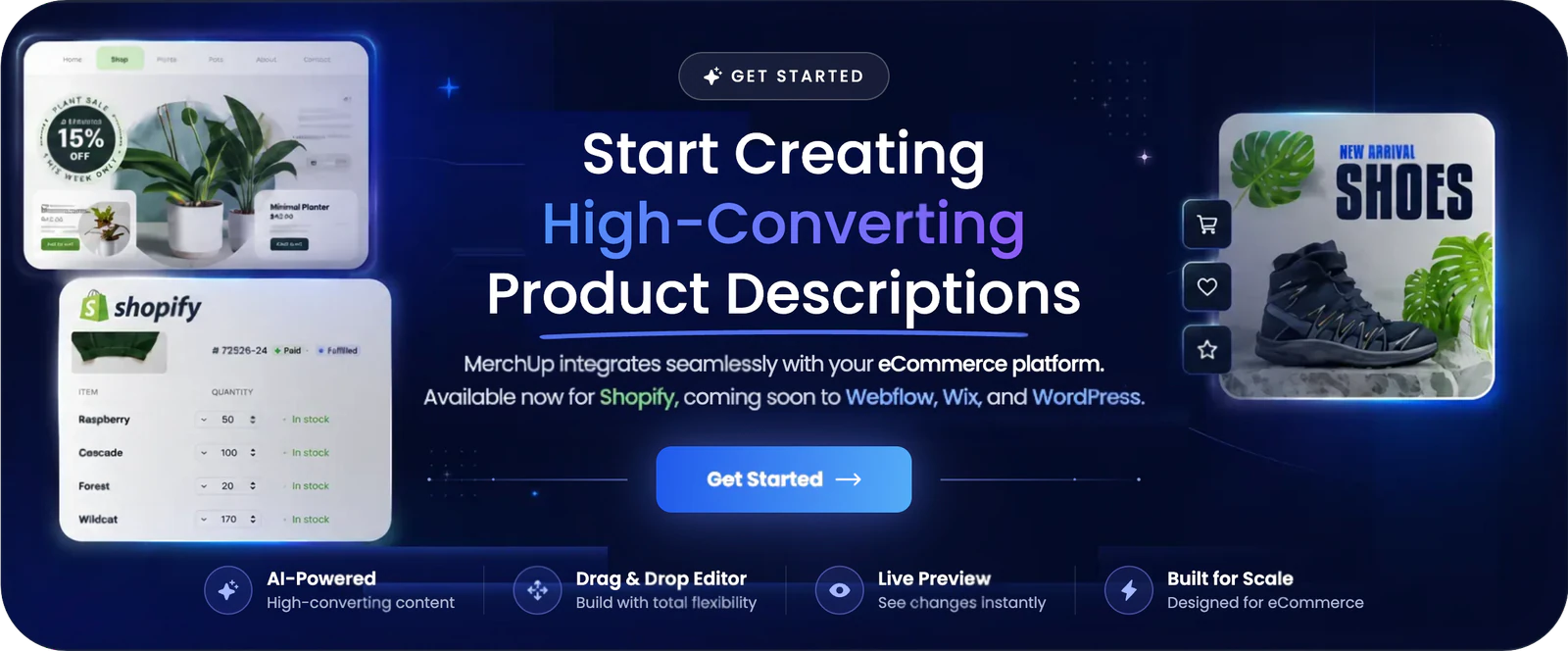
Merchup AI generates benefit-led, SEO-ready product descriptions at scale using customisable templates and a visual editor. You set the brand voice and category template; the AI produces first-draft copy across your catalogue, which your team then reviews and publishes. The platform currently offers live integration with Shopify, with Wix support in active development. For store owners who need volume now, the CSV workflow described above pairs well with AI-drafted copy: generate descriptions in bulk, paste into your spreadsheet, import to Wix.
Start a trial at Merchup AI to see how the template and bulk-publish workflow fits your catalogue size and category.
Sources
The resources below cover the technical steps, SEO fields, and copy best practices referenced throughout this guide.
- How to Write a Product Description That Sells
- 6 Key Tips to Write Great Product Descriptions (With Examples)
- Wix Stores: Customizing Your Product Page | Help Center


Comments
No comments yet — be the first to share what you think.