


WooCommerce stores product copy in two separate fields: the full description (long-form content, shown in the Description tab on the product page) and the short description (a brief hook, displayed by the Product Summary block near the Add to Cart button). Neither field appears on shop, category, or archive pages by default. To surface descriptions in listings, you have three practical options:
- Block theme / Site Editor: add the Short Description or Product Summary block directly to your archive or shop template via Appearance > Editor.
- Plugin: install a dedicated short-description plugin that outputs copy on shop, category, and tag pages with configurable word limits, position, and tooltip settings.
- PHP hook: add a small snippet that hooks into
woocommerce_after_shop_loop_item_titleand calls$product->get_short_description()to echo copy into the loop.
For stores with large catalogues, Merchup AI offers bulk AI-assisted generation and publishing so you can populate both fields at scale without writing each one by hand.
How do the two WooCommerce description fields actually work?
WooCommerce uses two distinct database fields, and mixing them up is the single most common reason descriptions either go missing or appear in the wrong place.
The full description lives in the main block editor at the top of the product edit screen. It maps to the standard WordPress post_content field and renders inside the Description tab (or the Product Details block in block themes). This is where you put the long-form copy: detailed specs, objection-handling, structured bullet lists, and the SEO-rich content that search engines index most heavily. According to the WooCommerce product editor settings documentation, the short description is a separate field that appears in the Product Summary block, positioned near the Add to Cart button.
The short description is stored in post_excerpt. It renders in the Product Summary block, just above or below the price and quantity selector depending on your theme. Think of it as a concise sales pitch that highlights the single most persuasive benefit, written for someone who is scanning rather than reading.
One behaviour worth knowing: if you leave the short description empty, WooCommerce may fall back to a truncated excerpt of the full description. That fallback is rarely ideal because the opening paragraph of a long description is almost never written as a punchy hook. Fill both fields deliberately.
Pro Tip: Write the short description last. Once you have the full description drafted, distil the single strongest benefit into one or two sentences. That discipline produces tighter copy than writing the short description first.
How to add or edit product descriptions in WooCommerce
Classic and block editor (WP Admin)
- Go to Products > All Products in your WordPress dashboard.
- Click Edit on the product you want to update.
- The full description is the large block editor area at the top of the screen. Write or paste your long-form copy here, using headings, bullets, and images as needed.
- Scroll down to find the Product short description panel below the main editor. This is a smaller rich-text box. Keep it brief, suitable for scanning.
- Click Update (or Publish for new products) to save.
The short description box supports basic formatting: bold, italic, and links. Avoid heavy HTML here because some themes strip it when displaying the excerpt in listings.
Block theme path via the Site Editor
If you are running a block theme (Storefront 2.x, Twenty Twenty-Four, or similar), you can control exactly where descriptions appear without touching PHP. Go to Appearance > Editor, open Templates, and select the Single Product template. From there, add or reposition the Product Summary block (which outputs the short description) or the Product Details block (which outputs the full description in an accordion or tab layout). The WooCommerce store editing documentation covers this in detail, including how to convert the default Description tab into an accordion without editing any template files.
Pro Tip: Create a custom Single Product template for your highest-traffic product category. Assign it via the template selector on the product edit screen. That way you can test a different description layout on a subset of products without affecting the whole catalogue.
How to display descriptions on shop, category, and archive pages
As noted above, neither description field shows on shop or archive pages by default. Here is how each approach compares:
| Display method | Ease of setup | Theme compatibility | Bulk/automation support | Cost |
|---|---|---|---|---|
| Block editor / Site Editor | Low effort, visual | Block themes only | Manual per template | Free |
| Plugin (short description) | Low effort, UI-driven | Block and classic themes | Per-archive toggle | Free or premium |
| PHP hook (code snippet) | Requires dev comfort | Classic and hybrid themes | One snippet covers all loops | Dev time only |
Block editor / Site Editor method
Open the Site Editor, navigate to your shop or archive template, and insert the Short Description block into the product card area. This is the lowest-risk approach for block themes: changes are theme-safe, reversible, and require no code. The downside is that it only works on block themes. Classic themes do not expose archive templates in the Site Editor.
Plugin method
Several plugins output the short description on shop, category, and tag archive pages. The WooCommerce short description plugin documentation lists the typical settings you can expect: enable output per archive type (shop, category, tag), set a word limit, choose position (above or below the product title), configure a tooltip on hover, and optionally disable the enhanced editor for the short description field. These UI controls make it the fastest option for non-developers.
PHP hook method
For classic themes or situations where a plugin adds too much overhead, a single function in your child theme’s functions.php does the job:
add_action( 'woocommerce_after_shop_loop_item_title', function() {
    global $product;
    echo '<div class="product-short-desc">' . wp_kses_post( $product->get_short_description() ) . '</div>';
}, 15 );
WooCommerce exposes get_short_description() and get_description() as the recommended programmatic methods for retrieving copy. Always test on a staging site first and check for style conflicts with your theme’s product card CSS.
Statistic callout: According to SeedProd’s WooCommerce display guide, the PHP hook and shortcode approaches are the most commonly documented solutions for classic themes, with the block editor method recommended for newer block-based setups.
How to write high-converting, SEO-friendly product descriptions
Good WooCommerce product descriptions follow a consistent structure. The Shopify Help Centre writing guide recommends leading with benefits, using sensory language where appropriate, and making copy scannable with bullets. The ConversionStudio product description guide adds that a structured description (benefit opening, bulleted features, objection handling) measurably improves conversion compared with unstructured copy.
The scannable template
- Opening sentence (short description): lead with the primary benefit rather than the product category. For example, “Keeps drinks cold for many hours” is more effective than “Stainless steel insulated bottle.”
- Benefit bullets (full description): map each feature to a real-world outcome for clarity, such as explaining how insulation prevents condensation on surfaces.
- Specs block: dimensions, materials, weight, compatibility. Use a table or definition list for scannability.
- Closing line: a brief social-proof note or a soft CTA. Include social proof such as positive customer ratings.
Two concrete examples
Short description (listing hook, ~60 words): The Kova 750ml Insulated Bottle keeps drinks cold for 24 hours and hot for 12. Leakproof lid, BPA-free steel, and a slim profile that fits standard car cup holders. Available in five colours. Free UK delivery on orders over £30.
Full description (~200 words): Start with the same benefit-led opening, then expand: explain the vacuum insulation technology in plain English, list the five colour options with a note on the powder-coat finish, include a spec table (height, diameter, weight, capacity), address the most common objection (“Will it fit my bag’s side pocket?” — yes, 7.2 cm diameter), and close with a returns note and a link to the care guide.
UK-specific notes
Use GBP for all pricing references and metric units (ml, cm, kg) throughout. Avoid unsubstantiated health claims (“clinically proven” requires substantiation under ASA guidelines). For variable products, write attribute-specific micro-copy: a size selector note (“Size M fits chest 38–40 inches”) prevents returns and reduces support queries. On accessibility: every product image needs descriptive alt text, and body copy should meet WCAG 2.1 AA contrast ratios. For product description SEO, include the primary keyword naturally in the first sentence of the full description and in the meta description, but never at the cost of readability.
How to scale product descriptions across a large catalogue
Rewriting 500 product descriptions one by one is not a workflow. Here is a repeatable five-step process:
- Export: download your product catalogue as a CSV from WooCommerce (Products > Export). Include columns for
ID,SKU,short_description,description, and any relevant attributes. - Generate or draft: use a template or AI tool to produce first drafts. Feed each row’s attributes and SKU into the template; output goes back into the
short_descriptionanddescriptioncolumns. - Human edit and brand template application: a human reviewer checks each draft against your brand voice guide, corrects factual errors (dimensions, materials), and flags any unsubstantiated claims.
- Import: re-upload the CSV via Products > Import. Map columns carefully; HTML in description fields must be properly escaped or WooCommerce will strip formatting.
- QA and publish: spot-check 10–15% of imported products on the front end. Confirm short descriptions render correctly in listings, full descriptions display in the tab or accordion, and no HTML artefacts appear.
CSV best practices
- Always include the
IDcolumn (not just SKU) to avoid duplicate product creation on import. - Preserve HTML for bullet lists: use
<ul><li>tags rather than plain hyphens, which WooCommerce may not convert automatically. - Test on a staging environment before importing to production. A malformed CSV can overwrite copy catalogue-wide.
- Keep a master spreadsheet with version history so you can roll back if an import goes wrong.
AI-assisted generation
AI tools can produce first drafts at catalogue scale, but they introduce specific failure modes: duplicate copy across similar SKUs, unsupported claims (especially for health or safety products), and a tendency to ignore brand voice without explicit prompting. A reliable QA checklist for generated copy should cover: uniqueness check (avoid manufacturer boilerplate), factual verification (dimensions, materials), UK pricing and units, accessibility (alt text), and a style/voice conformity pass.
Pro Tip: Before running AI generation across your full catalogue, test on 20 SKUs. Compare add-to-cart rate and listing click-through rate over two weeks against a control group. That data tells you whether the template is working before you commit to 500 rewrites. See product description examples that convert for annotated before/after comparisons.
For AI-assisted product descriptions at scale, Merchup AI fits into step 2 of this workflow: it generates short and full descriptions from product attributes using customisable templates, then lets you bulk-publish directly to your store.

Why aren’t your descriptions showing? A diagnostic checklist
Most display problems come down to one of four causes.
- Wrong field edited: you filled the full description but the theme is pulling from
short_description. Check both fields are populated. - Theme template override: your child theme may contain a
content-product.phporsingle-product.phpfile that overrides the default WooCommerce template and omits the short-description hook. Checkwp-content/themes/your-child-theme/woocommerce/for overrides. - Caching: a page or object cache is serving stale HTML. Clear all caches (server-side, plugin-level, and CDN) after any description update. WordPress support threads consistently list caching as a top culprit.
- Block vs template mismatch: in block themes, the Product Summary block must be present in the active template. If you deleted it during a Site Editor customisation, the short description will not render.
Quick fixes
- In the Site Editor, re-add the Product Summary block to the Single Product template.
- If you are on a classic theme, add the PHP hook snippet from the Display Options section above as a temporary measure.
- Switch temporarily to Storefront (the default WooCommerce theme) with no caching plugins active. If descriptions appear, the issue is theme-specific.
- Check the WooCommerce product editor settings to confirm both fields are visible in your product editor version.
When to call a developer
Escalate if: your child theme has heavily customised WooCommerce templates that would require merging upstream changes; you are seeing performance regressions after adding the PHP hook (usually a sign of an N+1 query issue in the loop); or the Site Editor changes are not persisting due to a theme conflict.
The part most guides skip about product copy at scale
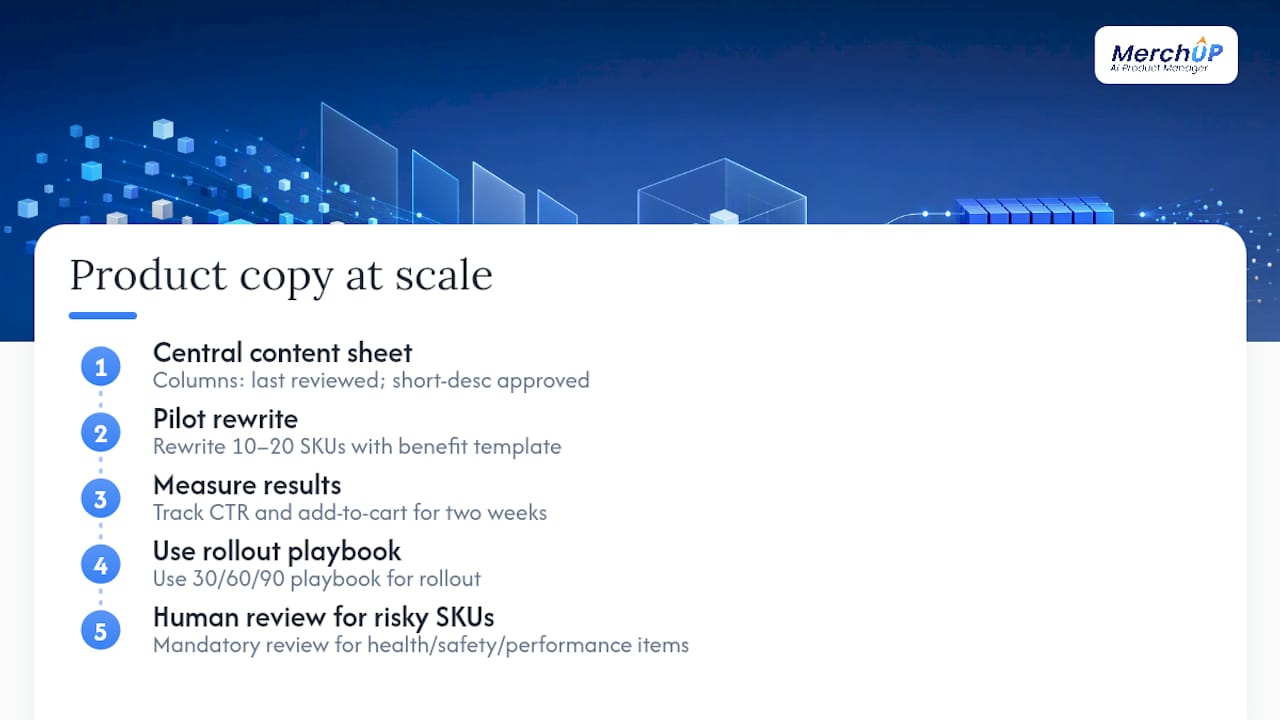
Most WooCommerce tutorials treat product descriptions as a one-time task. They are not. A catalogue grows, products get updated, and copy written two years ago often no longer reflects current pricing, specs, or brand voice. The stores that handle this well share one habit: they keep a central content spreadsheet linked to the CMS, with a column for “last reviewed” and a column for “short description approved.” That spreadsheet becomes the single source of truth, and it makes bulk CSV imports far less risky because you always know what version is live.
The measurement piece is equally underrated. Pick 10–20 SKUs, rewrite the short descriptions using the benefit-led template above, and track listing click-through rate and add-to-cart rate for two weeks. You do not need a sophisticated A/B testing tool for this; WooCommerce’s built-in analytics or a simple Google Analytics 4 event will do. The data either validates the template or tells you to adjust it before rolling out to the full catalogue. For a structured testing plan, the product page conversion playbook lays out a 30/60/90-day framework.
One more thing on regulatory safety: at scale, AI-generated copy will occasionally produce claims that cross ASA or Trading Standards lines, particularly for health, safety, or performance products. Build a mandatory human review step for any product in those categories. Brand voice consistency and regulatory-safe phrasing are not optional extras when you are publishing hundreds of descriptions at once.
Bulk product descriptions without the manual grind
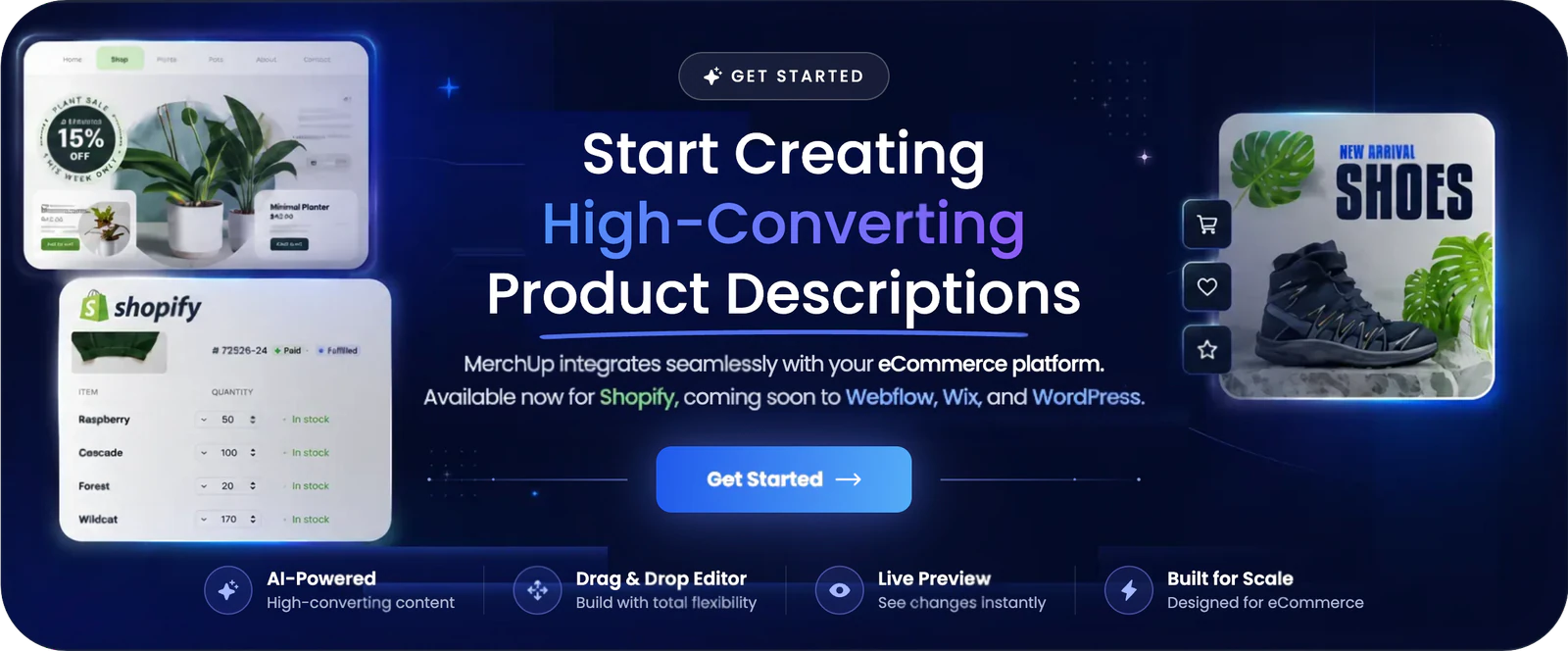
Writing and maintaining WooCommerce product descriptions at catalogue scale is where most store managers lose hours they cannot afford. Merchup AI is built specifically for that problem: it generates short and full descriptions from your product attributes using customisable drag-and-drop templates, lets you review and edit in a visual editor, and bulk-publishes directly to your store.
Key capabilities relevant to WooCommerce store owners:
- Short and full description templates with benefit-led structure baked in
- Bulk generation across hundreds of SKUs from a single attribute export
- Human-review workflow so every description gets a final check before it goes live
- Visual editor for quick copy adjustments without touching the CMS
- Shopify integration live now, with WooCommerce support on the roadmap
Merchup AI currently integrates directly with Shopify, with WooCommerce integration coming. In the meantime, the bulk CSV export/import workflow described above lets WooCommerce stores use Merchup AI’s generation engine today. Start your free trial on the Shopify App Store and see how many descriptions you can generate in a single session.
Sources
- Product editor settings (WooCommerce documentation)
- How to Get and Display Product Descriptions in WooCommerce
- Product description writing guide | ConversionStudio


Comments
No comments yet — be the first to share what you think.