


Yes, you can reliably generate product descriptions from a CSV. The fastest route: prepare one product per row with a stable ID, map the columns into a generation tool, produce a small pilot batch, review it, then import. This article walks through each checkpoint, from Shopify header rules to encoding fixes, so the process holds up at scale.
TL;DR:
- CSV-based product description tools are effective for bulk imports, producing HTML descriptions, SEO fields, and tags but are less suited for highly unique or premium products.
- Proper CSV preparation, including using immutable handles, matching exact headers, and ensuring image URLs are accessible and encoded in UTF-8, is critical to avoid import errors.
- Running a small pilot batch and manual review before full import helps identify header mismatches, encoding issues, and broken image links, avoiding widespread errors.
- Automation is best for large, repetitive catalogs; complex or differentiated products still require human oversight during final review and import.
- Using integrated platforms like MerchUp simplifies the process with visual templates, direct publishing, and streamlined mapping to save hours compared to manual spreadsheet handling.
What CSV to description tools can produce and when to use them
A CSV description generator typically works from a handful of input columns (title, features, category) and returns several output fields at once, so you are not writing each element by hand. Most tools cover:
- A long description formatted as HTML, ready to drop into a product page.
- A short blurb for cards, search results or social previews.
- Three to five bullet points summarising features or benefits.
- An SEO title (roughly 70 characters) and meta description (roughly 320 characters).
- A set of tags for filtering and internal search.
These tools suit a bulk catalogue launch, a seasonal refresh across hundreds of SKUs, or an SEO pass where every product needs a tighter meta description. They are less suited to one-off, highly differentiated listings that need a copywriter’s judgement. Before committing to a full run, check the practical limits: generation credits or quotas, row or file-size caps, and whether the tool lets you supply example outputs to steer tone. Skipping that check is how sellers end up with 3,000 rows of generic copy that all sound the same.
Prepare your CSV: required columns, templates and a data hygiene checklist
The CSV itself decides whether the rest of the process runs smoothly. Treat your SKU or handle as an immutable key: never overwrite it, and always write generated copy into new columns rather than replacing the originals. That single habit prevents most of the corruption that ruins a bulk update.
Build your working file around these columns:
- Title, Brand or Vendor, Type or Category and a features or specs field the generator can read from.
- Price, Image URLs and any Option or Variant fields for products with sizes or colours.
- An existing Body (HTML) column if you are refreshing rather than writing from scratch.
- Destination columns: Body (HTML), SEO title, SEO description and Tags, named exactly as your store expects.
If Shopify is the destination, match its header names and column order precisely. Shopify’s product CSV documentation lists the exact fields, including ‘Body (HTML)’, ‘SEO title’ and ‘SEO description’, along with image import rules and tag formatting. Save the file as UTF-8, strip out illegal characters, and confirm every image URL is final and publicly reachable, not a local file path. It also helps to add a ‘style and examples’ column holding one to three sample outputs written in your own voice. That column becomes the reference the generator uses to keep tone consistent across a large product family, rather than drifting from row to row.
Step-by-step: map columns, generate a pilot batch, review and import safely
Once the CSV is clean, the deployment itself follows a short, repeatable sequence.
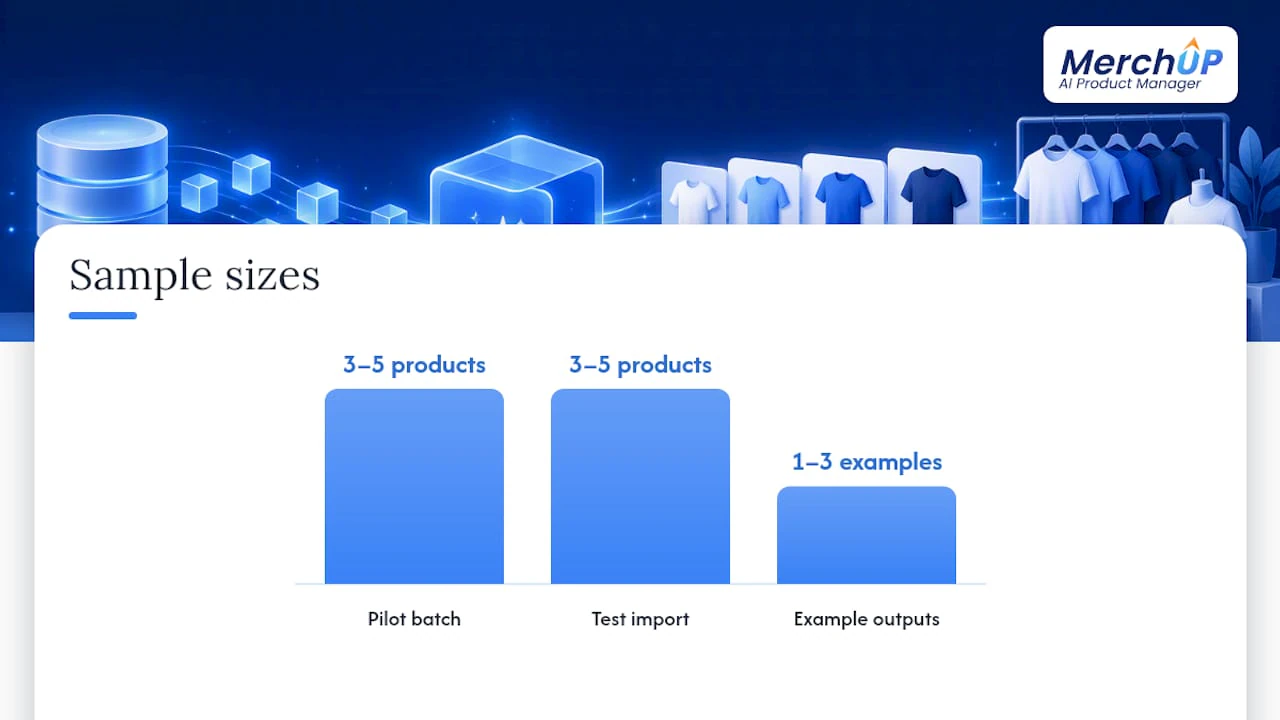
- Export and back up your current catalogue, then build a small test file of three to five rows pulled from a real product range.
- Map the CSV columns into the generation tool: tell it which column holds the title, which holds features, and which output columns you need back (long description, bullets, SEO fields).
- Supply a prompt plus one to three example outputs, and set length, tone and any prohibited claims before generating the pilot batch.
- Review and edit the pilot outputs by hand, then export using your store’s exact CSV template.
- Test-import three to five products into the store, checking variant rows, image links and SEO fields on the live preview before running the full catalogue.
Pro Tip: Never skip the test import. A pilot of three to five products surfaces header and encoding problems in minutes, before they touch your whole catalogue.
At each gate, confirm handles are preserved, encoding is still UTF-8, and images have actually downloaded rather than showing as broken links. Our pilot import checklist covers this in more operational detail, and our guide to bulk editing descriptions in Shopify walks through the publish step itself.
Prompt patterns, example outputs and settings that keep copy consistent
A reliable prompt follows a fixed shape: state the goal, name the tone and audience, specify the structure you want (short blurb, bullets, SEO fields), give one or two example outputs, then list constraints such as character limits and claims the model must not make. Keep that structure identical across every batch so the model has less room to drift between product families.
Fields worth locking down before you generate:
- Maximum characters per field, and which fields are required versus optional.
- A prohibition list for claims you cannot verify, such as medical or safety statements.
- Language, locale and whether the output should include HTML tags or plain text.
Pro Tip: When a spec is missing, tell the tool to leave the field blank and flag it for manual review rather than inventing a plausible-sounding detail.
Our field-template guide shows how examples baked into the CSV improve consistency across a range, and the copy-and-paste template guide gives ready-made structures for that style column.
Common import errors and how to fix them before a bulk publish
Most failed imports trace back to one of four issues, and each has a straightforward fix.
- Header mismatch: confirm your column names and order match the store’s sample template exactly. Shopify’s import guide notes that headers are case-sensitive, so ‘body (html)’ and ‘Body (HTML)’ are not the same field.
- Encoding problems: save the file as UTF-8 to stop accented characters or special symbols turning into garbled text on import.
- Variant-row mistakes: keep the handle consistent across all variant rows for a single product, since a missing or altered handle splits the listing.
- Image failures: use final, public URLs with correct file names, and keep alt text within the length your store’s schema allows.
If a bulk publish still fails, revert to your backup and rerun the pilot file rather than debugging live on the full catalogue.
When automation is the right choice
Automation earns its keep on large, repetitive catalogues where brand rules are already codified: sizing charts, care instructions, standard bullet formats. It struggles with premium SKUs, regulated claims or listings meant to stand apart from everything else in the store. The safest pattern is a pilot, a human review, then an import gate, with people still checking the edge cases a model will not catch.
— Jamie Moss
Try MerchUp: CSV import, templates and Shopify integration
Running this workflow by hand across a large catalogue is where most teams lose the afternoon. MerchUp AI takes the same CSV-to-live-description process and runs it inside one tool: import your file, map the columns, and generate copy using a visual template editor rather than juggling separate prompts and spreadsheets.

- CSV import that maps straight into customizable templates.
- Integration for publishing generated descriptions without a manual export step.
- Bulk publishing across an entire catalogue once your pilot batch checks out.
If you want to see the mapping and generation steps in practice, the MerchUp tutorial walks through it in under a minute. When you are ready to weigh cost against catalogue size, the pricing page lists the Starter, Growth, Pro and Scale plans. Start with a pilot of three to five products before committing to a full run.
Official docs and tools that verify import rules and file limits
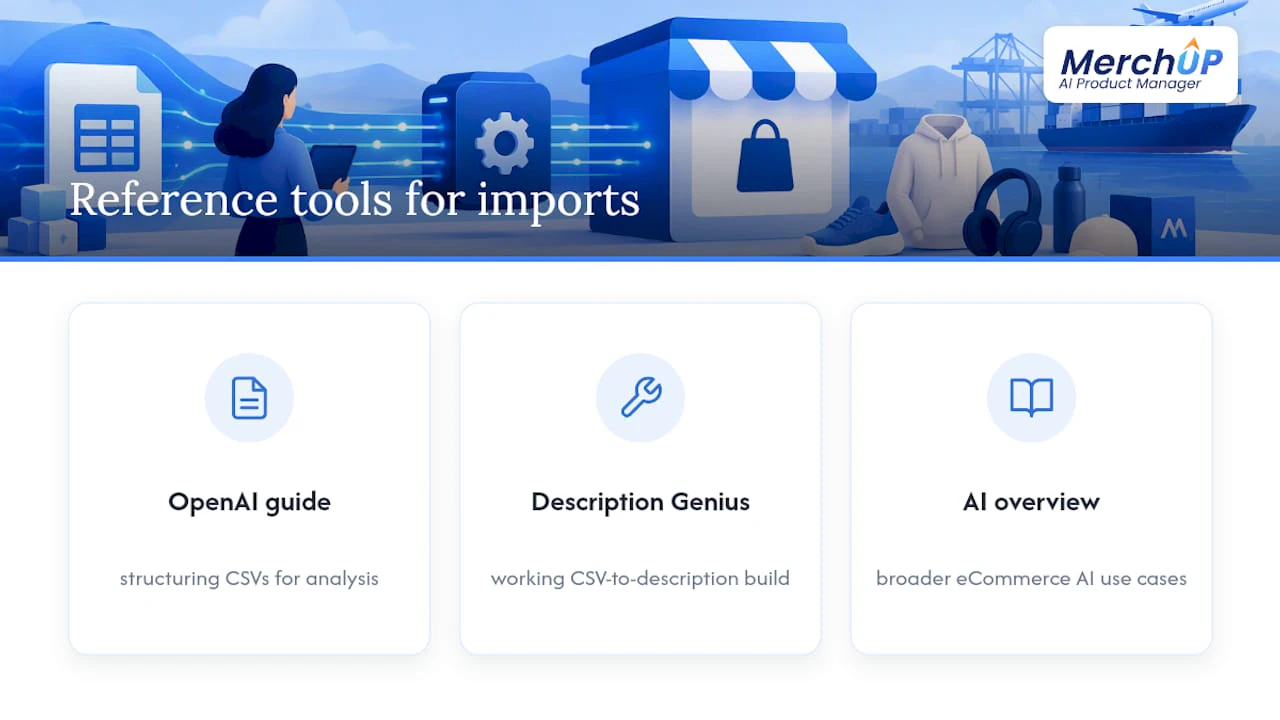
For the technical detail behind each step, OpenAI’s file-upload guidance covers structuring CSVs for analysis, and the Description Genius project shows a working CSV-to-description build. For a broader view of where AI fits into eCommerce operations beyond descriptions, this overview of AI use cases is a useful next read.
Sources
FAQ
Can ChatGPT analyse CSV data?
Yes, ChatGPT can read and analyse structured CSV files when you upload them, and it performs better with clear headers and one record per row. OpenAI’s guidance also notes a file-size limit of around 50MB for uploads.
What is the best CSV visualiser?
There is no single tool that suits every case, since the right choice depends on file size and what you need to see. Utilities that generate a data dictionary or markdown summary of a CSV’s columns are useful for a quick first look before you build a generation workflow.
How can I convert a CSV file to text?
You can open a CSV in a spreadsheet programme and export it as plain text, or use a script that reads each row and writes it out as sentences. For product descriptions specifically, tools built for that job, such as the Description Genius workflow, take a features CSV and generate formatted text output automatically.
Can Notepad++ edit CSV?
Yes, Notepad++ opens and edits CSV files as plain text, which is useful for spotting encoding issues or stray characters that a spreadsheet programme might hide. It will not validate headers or variant structure against a store’s schema, so it works best as a quick check rather than your main editing tool.
What columns does Shopify need for a CSV import?
Shopify requires exact, case-sensitive headers such as ‘Handle’, ‘Title’ and ‘Body (HTML)’, matched against its official CSV schema. Getting the header names and order wrong is one of the most common reasons an import fails.


Comments
No comments yet — be the first to share what you think.