


A Shopify product draft is a product that is saved in your admin but not yet for sale: customers cannot buy it until you set it to Active and publish it to a sales channel. You can build a draft slowly, check it, and release it when it is right. If you add new products every week, the real work is not the saving. It is filling every draft with a good title, description, price, tags and SEO fields quickly, and MerchUp AI is built to take that work off you by turning a product photo, barcode or card scan into a complete Shopify listing.
TL;DR
- A draft is a product whose details are not complete yet. Shopify only shows Active products in online stores, sales channels and apps, so a draft stays invisible to shoppers.
- New products are Active by default. Products you duplicate or unarchive arrive as Draft, so pick the status deliberately.
- Find drafts in Products using the Draft view or the Statuses filter, then edit them one by one or with the bulk editor.
- Before you activate, check the search engine listing, the URL handle and the Publishing section for the right channels and markets.
- With MerchUp AI, a photo, barcode or card scan becomes a full listing with title, type, vendor, price, tags and SEO, so each draft takes minutes rather than an evening.
What a product draft is, and the four statuses
Every Shopify product has a status. Shopify defines four: Active, Draft, Archived and Unlisted.
| Status | What it means | Can customers buy it? |
|---|---|---|
| Active | Details are complete and the product is ready to sell | Yes, once published to a channel |
| Draft | Details still need completing before it can be sold | No |
| Archived | Complete but no longer for sale, hidden from the storefront and the main product list | No |
| Unlisted | Complete and sellable, but not discoverable by customers | Only by those who have the link |
The rule that matters most is simple. According to Shopify, customers can buy a product in a sales channel only when it is Active or Unlisted and published to that channel. Developers get the same rule from the other side: Shopify’s API documentation says only products with an ACTIVE status appear in online stores, sales channels and apps. A draft is therefore a safe workspace. You can leave half a product in there for a week and nobody will see it.
One point of confusion is worth clearing up. Search results for this topic are full of “draft orders”. Those are a different feature: an order a staff member builds on behalf of a customer, with custom pricing, then sends as an invoice. This article is about draft products, the listings in your catalogue that are not live yet.
How to create a Shopify product as a draft
There are two routes, and the difference is which status the product starts with.
Route one: add a new product
In the Shopify admin go to Products and click Add product. Enter a title and whatever other details you have, then click Save. In the mobile app you tap the products icon, then + and Add product, enter the details and tap Save. These steps come from Shopify’s guide to adding and updating products.
The catch: new products are set to Active by default. If you start typing a title, save halfway and walk away, the product can be live in a sales channel in a half-finished state. When you want a draft, open the Status selector on the product page and choose Draft before you save.
Route two: duplicate an existing product
Duplication is the fastest way to build a family of similar products, such as the same T-shirt in a new colourway or a second set from the same publisher. Shopify’s steps are: go to Products, open the product, choose More actions, then Duplicate product, enter a title, select Draft as the status and click Duplicate product. Products created by duplicating, and products you unarchive, are set to Draft by default.
Duplicating copies the structure, so it saves typing, but it also copies the old description and SEO fields. The classic mistake is publishing a duplicate whose description still describes the original. Treat every duplicate as a draft that needs a rewrite of the title, description, images and search listing before it goes anywhere near Active.
Finding and updating a saved draft
Drafts are easy to lose track of when you have hundreds of products. In the Products area Shopify gives you default views for All, Active, Draft and Archived, plus a Statuses filter. Click the Draft view and you see everything saved but not live.
Two habits keep this tidy:
- Save a view. Shopify’s saved views update automatically as products change status, so a saved Draft view works as a live to-do list. When a product is activated it drops off the list.
- Use bulk actions. On any view you can select products and apply bulk actions or open the bulk editor, which suits a Friday session where you finish ten drafts in one go.
Shopify also says you can edit a product’s description, price and other details at any time, and saved changes take effect immediately in your online store. For a draft, that immediacy is harmless, because the product is not visible. For an Active product it means every edit is public the moment you save, which is another reason to do the heavy rewriting in draft status.
What to complete before you set a draft to Active
Shopify’s product details page lists what a product can carry: description, a category from the standard product taxonomy, product type and tags, SKU and barcode, price including sale price, unit price and cost per item. A draft is ready when each of these is either filled in or deliberately left empty. Here is a working checklist.
Title and description
Shopify advises being specific instead of using vague claims such as “excellent product quality”, and tells resellers not to copy the manufacturer’s exact description, so that your page stays unique to search engines (writing product descriptions). If you sell supplier stock, that means rewriting rather than pasting. Our guide to Shopify product description formatting covers how to lay the text out in the admin, and the product description editor workflow goes further on the editing side.
Price, SKU and barcode
These are the fields that are easiest to forget and hardest to fix once orders arrive. Set the price, the cost per item if you track margin, the SKU and the barcode. If you sell collectibles or trading cards, price against the current market rather than a stale list.
Category, type and tags
Tags are searchable keywords that help customers find products through store search and let you build collections. Shopify allows tags of up to 255 characters and up to 250 tags per product, with no limit on Shopify Plus. Fewer, consistent tags work better than a long inconsistent list, because collections built on tags depend on exact matches.
The search engine listing
On the product page the Search engine listing holds the SEO title and meta description. Shopify’s guidance is that titles over 70 characters or descriptions over 320 characters might be cut off in results. Write the title to fit and put the most useful words first. If you want to go deeper, our pieces on writing a product meta description and product description SEO show how to do it so shoppers click.
The URL handle
Shopify generates a URL and handle automatically when you create a product. You can edit the handle to match the title, and the address cannot contain spaces, but Shopify warns that editing it too often means the product might not display in search engine results. The sensible moment to fix a handle is while the product is still a draft, before search engines have seen it.
Publishing: channels, markets and catalogues
The Publishing section of the product page lists your sales channels and markets, and B2B catalogues if you use Shopify B2B. All of them are selected by default. Excluding a product from a channel hides it there, and you can publish or unpublish individual variants per channel and catalogue, as the product status page explains. If a product is Active but missing from a channel, this is the first place to look.
Preview, then activate
Preview the product from the admin or the app before you flip the switch. Read it as a shopper would on a phone: first image, title, price, description, variants. Then set the status to Active and save.
Why drafts pile up, and how to stop it
Most stores do not have a draft problem. They have a throughput problem. A draft sits unfinished because completing it means writing a description, choosing tags, writing a meta title and description, taking or editing photos and setting a price. Multiply that by twenty new products a week and the Draft view becomes a graveyard.
Shopify’s own documentation offers three ways to speed up:
- Duplicate and edit. Good for variations, risky for stale copy, as above.
- The bulk editor. Edit several products at once in a spreadsheet-style view.
- CSV import and export. The product CSV includes the SEO title and SEO description columns from the Search engine listing, so drafts can be created and edited in bulk.
Shopify’s help also notes that its assistant, Sidekick, can write a product page title and meta description that you review and edit before saving.
These all move text around faster. None of them creates the content from the product itself. That is the gap MerchUp AI fills.
Where MerchUp AI fits
MerchUp AI is an AI product manager for Shopify stores. It turns a product photo, barcode or trading-card scan into a complete Shopify listing: title, type, vendor, price, tags and SEO. It writes the description into a designed template, creates AI product photos, and publishes the product. Our AI product scanner handles the snap-to-listing step, and the AI description generator covers the writing. The fields on the checklist above are exactly the fields it fills.
For stores that sell trading cards, the work is heavier, because each card is a separate product. MerchUp AI identifies cards against real catalogues, prices them from the market and estimates centering and condition. The trading card scanner and AI card grading pages show how that works, and sellers can also buy, sell and trade stock in person with Shopify POS.
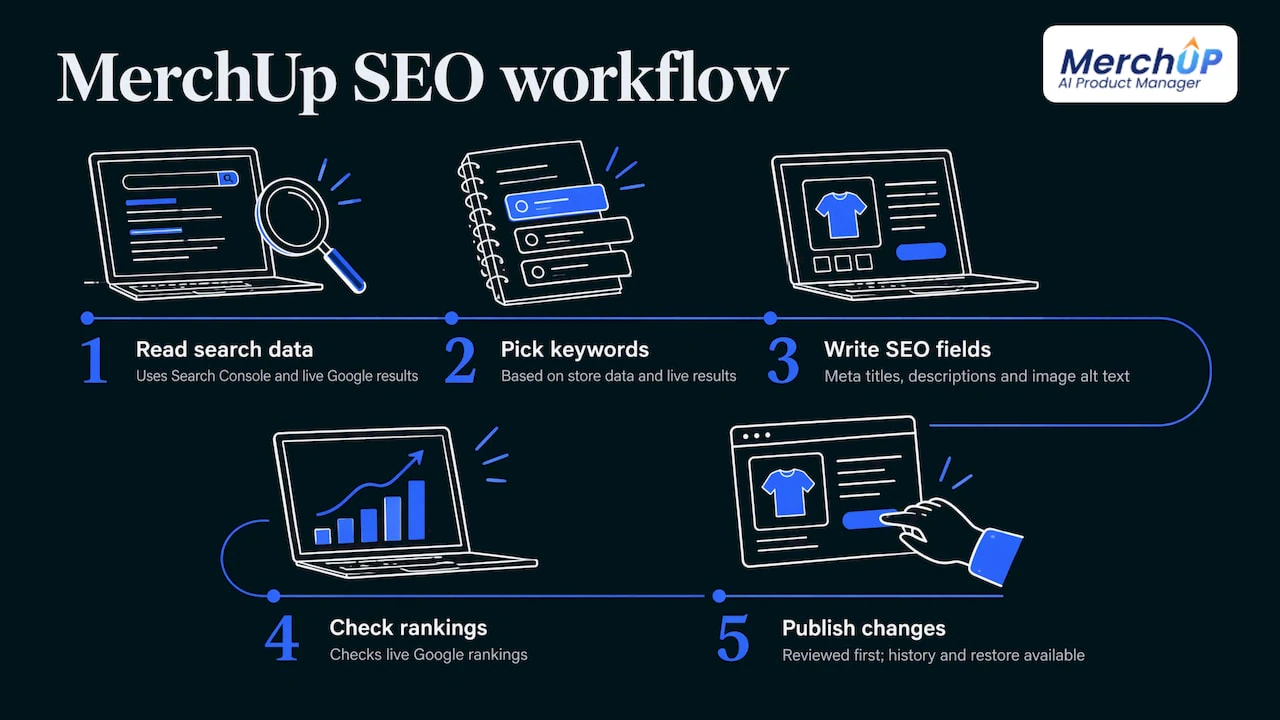
SEO is where unfinished drafts usually stall, so it is worth being specific. MerchUp AI does all your SEO in one click. It reads your store’s own Google Search Console data and live Google results, picks keywords, writes meta titles, descriptions and image alt text, checks rankings on live Google and pushes everything to your store. You need no SEO knowledge. Every change is reviewed before it goes live, with full history and restore, which suits anyone who likes to check before publishing.
If you also want to understand structured data on the product page, our guide to Shopify product schema explains it for merchants, and the templates and scale playbook shows how a consistent description design holds up across a large catalogue.
A worked example: ten new products in a week
Say you run a small shop and receive ten new products on Monday. Here is the routine that keeps drafts from piling up.
- Add each product with the status set to Draft, so nothing half-finished goes live.
- Fill the commercial fields first: price, cost, SKU, barcode.
- Write the description in your own words, specific rather than vague.
- Complete the category, type and tags.
- Write the search engine listing, with a title that fits in 70 characters.
- Check the handle once, then leave it alone.
- Check the Publishing section for the right channels and markets.
- Preview, then set to Active.
Done by hand, steps two to five take a while per product, and the time is where most weeks go. With MerchUp AI the scan or photo produces the listing fields in one pass, so your time goes on step seven and eight: reviewing and releasing. That is the difference between a Draft view that empties every Friday and one that never does.
Start with the plan that fits your volume
There is a free plan, so you can see a scanned product become a listing before you pay anything. Paid plans are Starter at £12.99 a month, Growth at £34.99 a month, Pro at £79.99 a month and Scale at £199.99 a month, all listed on the MerchUp AI pricing page. Trading-card sellers can add the card scanner from £7.99 a month for 1,000 scans, £19.99 a month for 5,000 scans, or £39.99 a month for unlimited scans.

If you want to see the flow before choosing, the short tutorial on AI product descriptions walks through it, and the tools overview shows how the pieces work together.
Our view on drafts
A draft should be a short stop, not a place where products live. When we talk to stores about their catalogues, the useful question is not how to save a product as a draft but what stops it becoming Active the same day.
Our answer is that a product should not need a separate afternoon of writing. MerchUp AI is designed as an AI product manager: you scan or photograph the item, and it builds the listing, designs the description into a template, creates the photos and publishes. For card sellers it adds identification, market pricing and centering and condition estimates, so each card is priced from the market rather than guessed.
We also think SEO belongs in the same step as the listing, not after it. Our SEO tool works from your own Google Search Console data and live Google results, and every change is reviewed before it goes live, with history and restore. That way a product leaves draft status already complete.
Jamie Moss
FAQ
Can customers see a Shopify product draft?
No. Customers can buy a product in a sales channel only when its status is Active or Unlisted and it is published to that channel. A draft needs its details completing first, so it stays hidden until you activate it.
Why did my new product go live when I meant it as a draft?
Shopify sets new products to Active by default. Only products you duplicate or unarchive start as Draft. Change the Status selector to Draft before you save, or duplicate an existing product and choose Draft in the duplicate dialogue.
Where do I find my saved drafts?
Go to Products in the Shopify admin and open the Draft view, or use the Statuses filter. Saved views update automatically as products change status, so a saved Draft view always shows what is still unfinished.
What should I check before I publish a draft?
Check the price, SKU and barcode, the description, category and tags, then the Search engine listing, where titles over 70 characters or descriptions over 320 characters might be cut off. Finally check the Publishing section for the right sales channels and markets, preview the product and set it to Active.
Can I create Shopify drafts in bulk?
Yes. Shopify’s product CSV includes the SEO title and SEO description columns, and the bulk editor lets you change several products at once. MerchUp AI goes a step further by building the listing fields from a photo, barcode or card scan.
Sources
- Shopify Help Center: Product status and availability
- Shopify Help Center: Adding and updating products
- Shopify Help Center: Searching and filtering the product list
- Shopify Help Center: Product details
- Shopify Help Center: Writing engaging product descriptions
- Shopify Help Center: Using CSV files to import and export products
- Shopify Admin GraphQL API: Product object


Comments
No comments yet — be the first to share what you think.