


A good specs table is a single column of labelled rows, grouped under short subheadings, with the deciding facts first, units on every number and the same labels on every similar product. If you add products every week, the hard part is not drawing one clean table. It is producing the same clean table across hundreds of listings. That is why we build listings from structured product data in MerchUp AI: a photo, barcode or card scan becomes a complete Shopify listing with a description set into a designed template, so every page starts from the same structure.
This guide covers when a table is the right format, what goes in it, how to format labels, values and gaps, how to keep it readable on a phone, and how to add it to a Shopify product page.
TL;DR
- Use a table when shoppers compare values across products or sizes. For one product’s simple facts, a heading and a short list can work better.
- Put labels on the left, values on the right, group related specs under subheadings, and lead with the details buyers ask about first.
- Keep the same label, format and unit for the same attribute on every similar product, and attach the unit to every number.
- Mark up headers properly (
th,scope,caption), keep the text as real HTML, and never let an empty cell silently mean “No”. - A specs table helps long-tail matching. Product structured data is a separate job and must match what the table shows.
When a table is the right format
A table answers a two-dimensional question: which model has which feature, or which size has which measurements. Shopify Text Academy’s accessibility guide makes this the test. For one product’s care instructions, it says a heading and a list may be clearer. It also advises splitting unrelated questions into smaller tables instead of building one giant grid.
Spec sheets earn their space on certain products. Baymard Institute’s research lead Edward Scott says, in Baymard’s spec sheet research, that usability testing showed spec sheets are immensely helpful to people considering spec-heavy products, people with high domain knowledge, and people choosing between products of the same type. Think electronics, tools, cameras, collectible cards and graded items. A scarf with three facts may not need one.
If your shoppers fit that description, the design goal follows: the table has to serve scanning, not just completeness.
What a specs table should include
The Nielsen Norman Group’s B2B specification guidelines list five basic attribute groups to cover, adapted to your industry:
- Footprint: size, weight, dimensions.
- Ingredients or components: what it is made of or contains.
- Requirements and integrations: power, compatibility, what else it needs to work.
- Performance: what it does, measured.
- Tolerances and durability: ranges, ratings, lifespan.
You rarely need all five. Shopify’s product comparison guide advises choosing details that apply to every product being compared, so shoppers do not leave to look elsewhere when a value is missing or irrelevant, and highlighting the most critical information.
A practical rule: start with the two or three specs that matter most for the product type, and add more only if you can fill them in for every product in the range. A table with three rows of data and five empty rows looks worse than no table at all, as one Shopify metafields practitioner guide puts it.
Examples by product type
| Product type | Rows that usually decide the purchase |
|---|---|
| Headphones | Driver size (mm), battery life (hours), weight (g), connection type, charging port |
| Backpack | Capacity (L), dimensions (cm), weight (kg), material, laptop sleeve size |
| Skincare | Volume (ml), key ingredients, skin type, free-from list |
| Trading card | Set, card number, year, language, condition or grade, centering |
The card row is worth a note. For trading-card and collectibles shops, the spec table is often the listing’s most important block, because buyers compare the same card across sellers by condition and centering. MerchUp AI’s card scanner identifies cards against real catalogues, prices them from the market and estimates centering and condition, so those values arrive ready to place in your rows rather than typed by hand.
Laying out rows and columns
Baymard’s recommended layout is simple: a single column of specs, attribute labels on the left, related specs grouped under subheadings, key details first. Add alternating row backgrounds or subtle borders so shoppers can match each label to its value. NN/g agrees on the scanning aid: borders or zebra striping support horizontal scanning, especially with numeric data.
For long lists, NN/g advises splitting information into several tables with clear subheader text. Do not make one 40-row block.
Serve two readers at once
DataSheets Pro’s Justin Batzel describes two audiences in one spec design: the scanner who needs a dominant product name, obvious section headings and a way to jump around, and the deep reader who needs every value with units and tolerances intact. The two goals do not conflict if structure is kept separate from detail, instead of making everything equally prominent.
In practice:
- Put the four or five deciding numbers near the top, above the full table. Faizan Designs’ datasheet guide suggests choosing them by asking what customers ask about first.
- Follow with the full table, grouped under subheadings such as Dimensions, Power, Compatibility.
- Keep performance attributes and purchasable configurations (colour, size, bundle) in separate tables, because they answer different questions.
Light row dividers beat heavy boxes. Align numbers consistently so the eye can run down a column.
Labels, values and units
Consistency across products
Baymard found that 30% of ecommerce sites have severe issues with specs across products of the same type: different labels, units or attribute ordering. Its advice is that the same attribute should always carry the same name, format and unit convention. If one headphone says “Battery life” and the next says “Playtime”, the shopper cannot compare them.
This is the real problem for stores that add products weekly. The table is easy once. Consistency is a data problem: define your attribute names once, and apply them to every product. Our guide to Shopify product metafields explains how to store specs as structured fields, and our piece on attribute-based descriptions shows how that data can drive thousands of SKUs.
Units and numbers
- Attach the unit to every number. Baymard says always append units to numerical values.
- Keep units in one place. Faizan Designs says to use a units column or the row label, never both.
- Never let formatting change a value. DataSheets Pro warns against rules that silently turn 0012 into 12 or that separate units from values. Preserve tolerances, symbols and leading zeros exactly.
- Keep decimals and symbols consistent. Small inconsistencies make buyers doubt the numbers, and figures should match everywhere they appear on the page.
- Explain jargon with a tooltip or a few words of inline text.
A before-and-after on one row:
| Before | After |
|---|---|
| Weight | 0.45 | Weight | 450 g |
| Size | 15x20 | Dimensions | 15 × 20 cm |
| Battery | approx 30 | Battery life | 30 hours |
Missing details
An empty cell is ambiguous. The Shopify Text Academy guide notes that a blank can mean data is unavailable, not applicable, or that the feature is absent. Use text such as “Not applicable” or “Not specified”, and never quietly turn an unknown value into “No”. Do not rely on icons or colours alone either: put equivalent text in the cell.
Better still, drop rows you cannot fill. Show only rows with a value.
Making the table work on mobile and for assistive technology
Most shoppers will see your table on a phone. Baymard recommends collapsible sections or truncation for long spec sheets on mobile, not compressed multi-column layouts. The single-column label-and-value layout above already fits a narrow screen.
For accessibility, Shopify’s official theme documentation gives the building blocks:
- Use the
tableelement for tabular data. - Add a
caption, which helps assistive technology identify that a table is being read. - Use
thcells withscope="col"for column headers andscope="row"for row headers.
The Shopify Text Academy guide adds that explicit id and headers associations are only needed when grouped or multilevel headers cannot be expressed with scope. Its practical advice is editorial: removing a decorative grouping row can eliminate a complex header relationship without removing useful information. It also notes that automated checks cannot tell whether “Not specified” is factually correct or whether two values were measured comparably, so someone has to read the table.
Keep spec text as text, not as an image, so it can be searched, zoomed and read aloud.
Adding a specs table on a Shopify product page
You have three routes, and the right one depends on scale.
Option 1: theme block
Many themes include a ready-made block. In one theme’s documentation, you open the Theme Editor, select Products, then Default product, add the Product details section and add a Specifications block, which displays a two-column table. Another theme’s Specifications block offers text alignment, a borders checkbox, a spacing slider and up to five rows, where each row’s heading and content can be static text or a connected metafield. Check your own theme’s docs for its options.
Option 2: table in the description
The Shopify Text Academy guide recommends product-description HTML for small, stable tables. It is quick, but it does not scale: change a unit convention and you edit every page by hand.
Option 3: metafields and a shared template
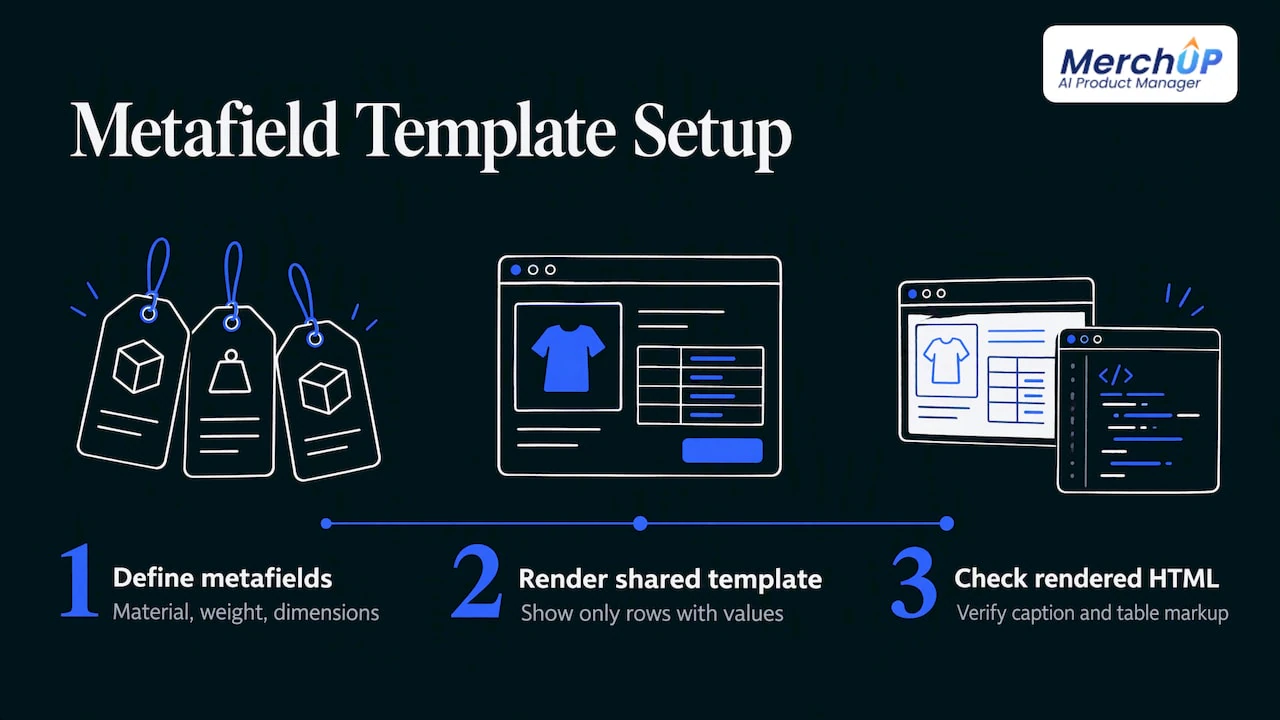
When the same comparison structure appears across many products, the same guide recommends structured metafields and a shared theme component. Each spec becomes a metafield (material, weight, dimensions), and the theme renders only the rows that have values. One warning from the guide: metafields do not automatically produce accessible tables, so check that the caption, th and scope markup survives in the rendered HTML after an editor or app processes it.
If you go this way, our walkthrough on creating a metafield definition and adding values covers the admin steps, and the section on the bulk editor, CSV and API options is the one to read if you have a large catalogue.
Where the table sits matters too. Our guides on product page sections, product tabs and conversion-first layout cover placement, and the piece on electronics product descriptions shows how to pair a specs table with copy that sells.
Does a specs table help you show up on Google?
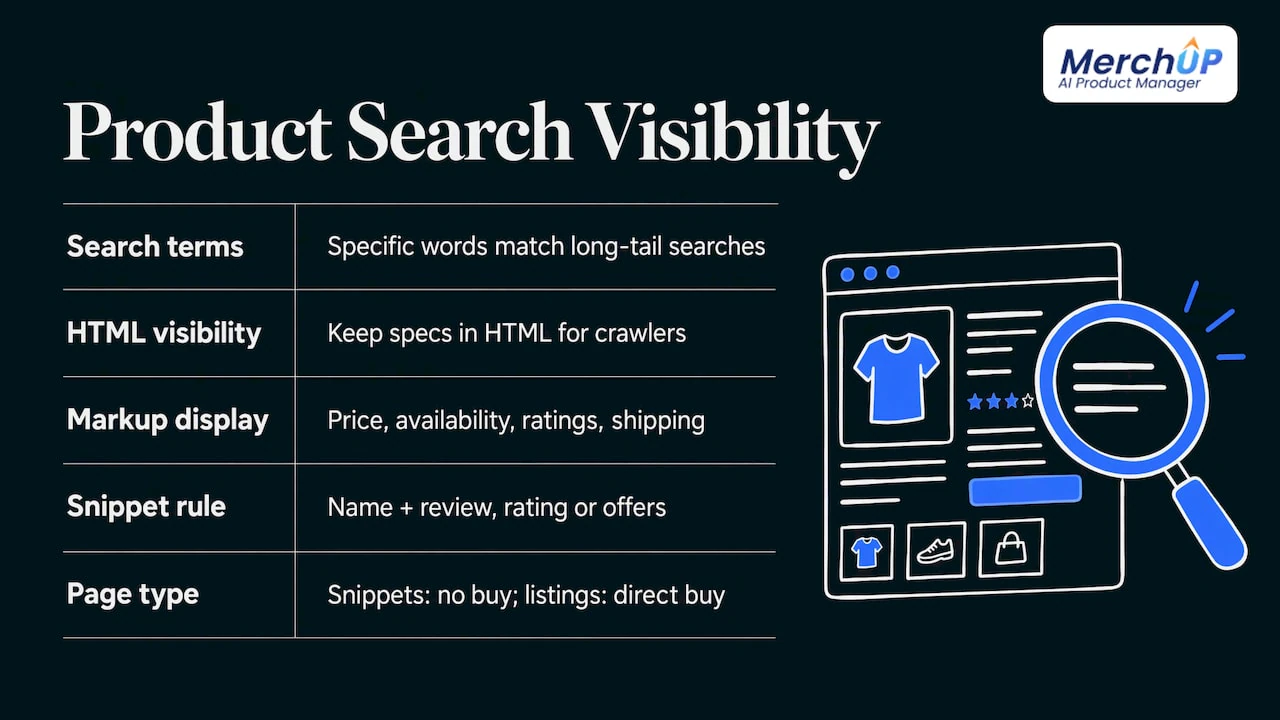
A specs table gives pages the specific words shoppers type, which can match long-tail searches. Keep it in the page’s HTML: a widget that loads only after a click may not be indexed, and if specs live in a JavaScript configurator they must still be present in the HTML a non-rendering crawler receives, as eSEOspace’s guide for manufacturers cautions. That guide also recommends exact model names, part numbers and GTINs in the table.
Product structured data is a separate layer. Google Search Central explains that Product markup can make product information appear in richer ways in Search, including price, availability, review ratings and shipping information. It distinguishes product snippets, for pages where people cannot buy directly, from merchant listings, for pages where they can. Google’s product snippet documentation requires the name property plus at least one of review, aggregate rating or offers, and supports pages focused on a single product or its variants, not category pages.
Two cautions. Google’s structured data guidelines say a markup problem can cost a page rich-result eligibility but does not affect how it ranks in web search, and that Google does not guarantee the markup will show. And the facts in your markup should match the facts on the page: if the material is in the schema, it belongs in the table. Our piece on syncing copy, schema and product pages covers keeping them aligned, and the guide on duplicate content on product pages matters when many variants share the same specs.
A checklist before you publish
- Is a table the right format, or would a short list do?
- Are the deciding specs first, with related rows grouped under subheadings?
- Does every number carry its unit, in one place only?
- Do labels, formats and units match across similar products?
- Do rows with no value disappear, and does “Not specified” appear only where it is true?
- Do
caption,thandscopesurvive in the rendered page? - Does it read cleanly on a phone?
- Does the structured data match the table?
Filling specs tables at scale with MerchUp AI
If you list new products every week, the formatting rules above only hold if every listing starts from the same structure. MerchUp AI is an AI product manager for Shopify: it turns a product photo, barcode or trading-card scan into a complete listing with title, type, vendor, price, tags and SEO, writes the description into a designed template, creates AI product photos and publishes it. Every change is reviewed before it goes live, with full history and restore.

There is a free plan, and paid plans start at £12.99 a month for Starter, with Growth at £34.99, Pro at £79.99 and Scale at £199.99 a month. Card sellers can add the scanner from £7.99 a month. See the plans and pricing, or look at the AI description generator and the AI product scanner to see how a photo becomes a listing.
Our view: consistency is a workflow, not a design
Most advice on specs tables is about the look: borders, stripes, column widths. Those matter, but the stores we talk about in this space tend to lose on something duller: the same attribute named three ways across the catalogue.
That is why we think of a listing as a product-management task, not a writing task. When a product enters the store from a photo, a barcode or a card scan, every listing gets the same fields filled in the same order, and the description lands in a designed template instead of a blank box. Reviewing each change before it goes live, with history and restore, means a bad value never has to stay.
The same thinking applies to search. Our AI reads your store’s own Google Search Console data and live Google results, picks keywords, writes meta titles, descriptions and image alt text, checks rankings and pushes it to the store, with no SEO knowledge needed. A clean specs table and a well-optimised page work best together.
Jamie Moss
FAQ
How many rows should a specs table have?
As many as you can fill in consistently, and no more. Start with the two or three specs that matter most for the product type, group the rest under subheadings, and split very long lists into several tables, as NN/g advises.
Should I use a table or bullet points for specifications?
Use a table when shoppers compare values across products, sizes or models. For a single product with a few simple facts, a heading and a short list can be clearer, according to Shopify Text Academy.
How do I show a spec that does not apply or is unknown?
Write “Not applicable” or “Not specified” in the cell, or remove the row. Do not leave it blank or convert an unknown value into “No”, because a blank can mean several different things.
Does a specs table improve my Google rankings?
It gives the page specific, searchable wording, which can help it match long-tail queries. Structured data is different: Google says markup problems affect rich-result eligibility, not web ranking, so keep the markup and the visible table in agreement.
Can I build a specs table on Shopify without code?
Often yes. Many themes include a Specifications block in the Theme Editor, and some let each row connect to a metafield. For a large catalogue, metafields with a shared template are easier to keep consistent.
Sources
- B2B Product Specifications Guidelines, Nielsen Norman Group
- What is a Product Spec Sheet? Baymard Institute
- Product Comparison Tables: Tips and Examples, Shopify
- How to Make Product Tables Accessible, Shopify Text Academy
- Product data sheet design: 12 best practices, DataSheets Pro
- How to Design a Technical Datasheet, Faizan Designs
- Ways to Use Shopify Metafields on Product Pages, TaskHusky
- Accessibility best practices for Shopify themes, shopify.dev
- Product details, Omni Themes Support Center
- Product section, Switch Docs
- GEO for Manufacturers: Specs, PDFs and Product Data, eSEOspace
- Intro to Product Structured Data, Google Search Central
- How To Add Product Snippet Structured Data, Google Search Central
- General Structured Data Guidelines, Google Search Central


Comments
No comments yet — be the first to share what you think.