


For most UK Shopify stores, the fastest path to organised product pages is already built into your theme. Shopify 2.0’s native collapsible row blocks, combined with product metafields, let you create per-product accordion tabs without installing a single app. That route takes roughly 30–60 minutes for a small catalogue and adds no third-party scripts to your page load.
When you need horizontal tab UI, bulk editing across hundreds of SKUs, or tight integration with review and size-chart widgets, a dedicated app makes more sense. The shortlist below covers the eight most-cited options.
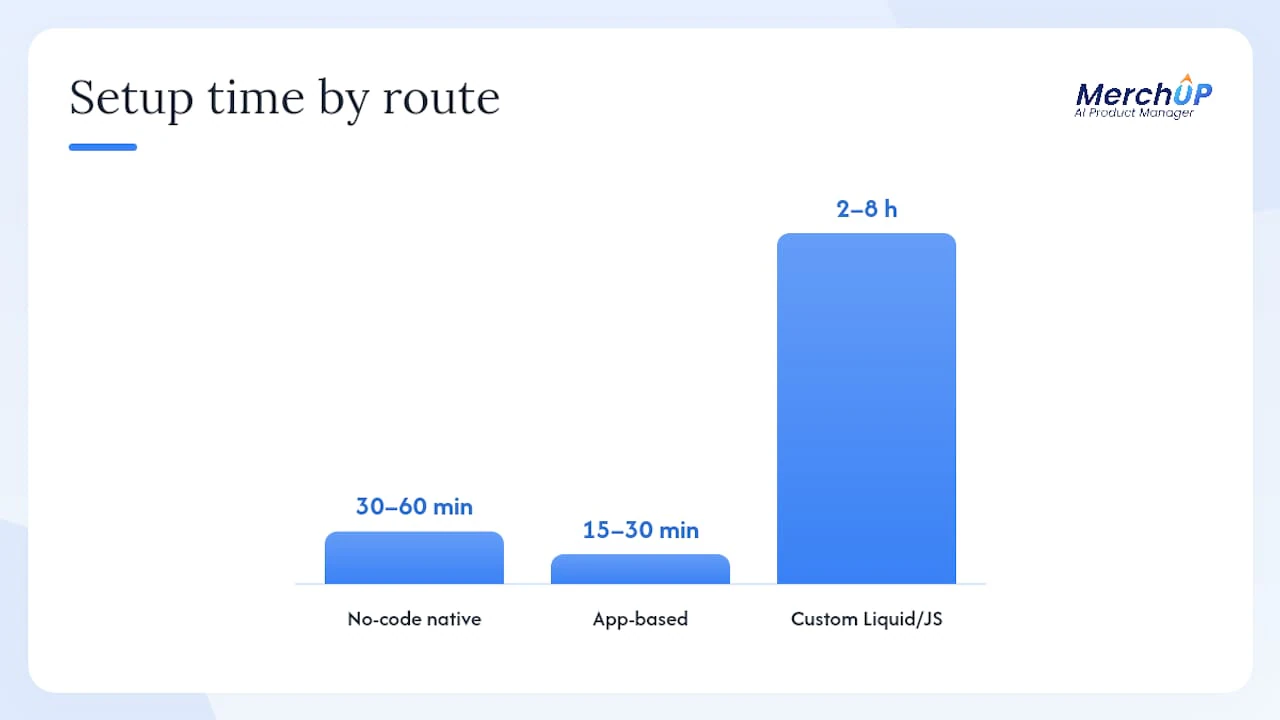
- No-code native route (metafields + collapsible rows): 30–60 minutes, zero monthly cost, minimal page-speed impact
- App-based route (Easy Tabs, FOLDER, Tabs Studio, and others): 15–30 minutes to install, free tiers available, small script overhead
- Custom Liquid/JS route (bespoke horizontal tabs, full control): 2–8 hours, developer time required
Pro Tip: Start with the native route on one product first. If it covers your needs, you save the app fee and keep your Core Web Vitals clean. Add an app only when the native method hits a genuine limit.
Which Shopify product tabs apps are worth installing?
The table below covers the eight apps that consistently appear at the top of the Shopify App Store for product-page tab management. Ratings and feature notes reflect publicly listed App Store data.
Before installing any of these, check the app’s current rating, review count, and permissions on the Shopify App Store. The ‘Built for Shopify’ badge signals that the app meets Shopify’s performance and security standards — prioritise it when two apps look otherwise equal.
Easy Tabs ‑ Product Tabs is the go-to for merchants who want something working quickly. The free plan covers most small stores, and the horizontal tab layout suits catalogues where shoppers expect to click between Specifications, Shipping, and Reviews side by side.
FOLDER ‑ Smart Product Tabs leans into accordion behaviour, which tends to perform better on mobile because it avoids horizontal scroll. If most of your traffic is on phones, the accordion-first approach is worth considering.
Tabs Studio and Tabs by Station (a variant in the same ecosystem) both offer a template gallery, which speeds up setup when you have a consistent product structure. Tabs Studio’s flexibility between horizontal and vertical accordion layouts makes it a reasonable middle ground.
FREE Tabs ‑ Product page tabs does exactly what the name says: basic collapsible tabs at no cost. The trade-off is limited metafield support and no bulk editing, so it suits stores with a small, stable catalogue.
Product Tabs by POWR.io and Size Chart Tabs by POWR.io are most useful when you are already using other POWR widgets. The size chart variant is purpose-built for apparel merchants who need measurement tables front and centre on the product page.
Product Description Tabs & FAQ by StarApps Studio solves a specific problem: combining tabbed product copy with an inline FAQ without needing two separate apps. For stores where customer questions are a conversion barrier, that combination is genuinely useful.
How to choose the right product-tabs solution for your store
The decision comes down to four variables: catalogue size, team skill level, performance targets, and whether you need per-product or global tab content.
Decision checklist:
- Catalogue under 50 products, simple content: native metafields + collapsible rows. No app fee, no extra scripts.
- Catalogue 50–500 products, consistent tab structure: an app with bulk editing (Tabs Studio or FOLDER). Saves hours of manual work.
- Apparel store with size guides: Size Chart Tabs by POWR.io or Product Tabs by POWR.io. Built-in size chart templates reduce setup time.
- Store with active review integration: check whether your review app (Okendo, Judge.me, Yotpo) has a native tab snippet before adding a tabs app on top.
- Need FAQ on the product page: Product Description Tabs & FAQ by StarApps Studio handles both in one install.
- Budget is zero: FREE Tabs covers basic accordion needs; native metafields cover more complex per-product content at no cost.
UX and conversion considerations: place your most decision-critical content in the first visible tab or the first open accordion panel. On mobile, accordions outperform horizontal tabs because they do not require horizontal scrolling. Keep the first panel open by default so shoppers see content immediately rather than having to click.
Technical constraints matter more than most merchants realise. Apps inject JavaScript and CSS into every product page, which can affect Core Web Vitals scores, particularly Largest Contentful Paint and Total Blocking Time. Dawn and other Online Store 2.0 themes handle native blocks cleanly; third-party scripts add overhead that varies by app.
Pro Tip: After installing any tabs app, run a Lighthouse audit on a product page before and after. If your Performance score drops more than five points, check whether the app offers a native OS 2.0 block rather than a script injection method, and switch to that mode if available.
How to install a tabs app and what to expect during setup
Pre-install checklist
- Duplicate your live theme before installing. Shopify’s theme duplication takes under a minute and gives you a clean rollback point.
- Note any existing product-page customisations (custom Liquid sections, third-party scripts) that could conflict.
- Check the app’s permissions list on the App Store page. A tabs app should not need access to customer data or order history.
Installation steps
- Open the Shopify App Store and search for your chosen app (e.g. Easy Tabs ‑ Product Tabs).
- Click Add app and approve the permissions. Shopify will redirect you to the app’s onboarding screen.
- Follow the onboarding flow. Most apps offer two integration modes: a native Online Store 2.0 block (preferred) or a script-injection method. Choose the OS 2.0 block wherever available.
- In the app dashboard, create your tab structure. Typical tabs: Description, Specifications, Shipping & Returns, Reviews.
- Map each tab to a source: either the product’s existing description field, a metafield, or app-managed content you write directly in the app.
- Set a global default template for your main collection, then override per product where needed.
- Save and publish.
Testing checklist
- View the product page on desktop and mobile. Confirm tabs render correctly and accordion panels open and close.
- Check that tab content is visible in the page source (right-click > View Page Source). Content that only appears after a JavaScript event may not be crawled reliably.
- Run a Lighthouse audit. Compare the Performance and Accessibility scores against your pre-install baseline.
- Test keyboard navigation: press Tab to move between tab controls and Enter/Space to activate them.
- Rollback plan: if anything breaks, switch your live theme back to the duplicated original in Shopify Admin > Online Store > Themes.
A common pitfall flagged in Shopify community threads is pasting app widget code directly into an existing theme block. This frequently causes JavaScript conflicts. The safer pattern is using a Liquid render tag inside a custom section, or choosing apps that provide native theme blocks from the outset.
How to add tabs without an app using Shopify 2.0 metafields
The native Shopify 2.0 workflow is the most underused option. Most merchants assume tabs require an app; they do not, provided you are on a theme that supports Online Store 2.0 blocks. Dawn, Sense, and most modern themes include a collapsible row block that works as a no-code accordion, as confirmed by Shipaid’s implementation guide.
Step-by-step: Dawn theme example
- Go to Shopify Admin > Settings > Custom data > Products. Click Add definition and create a multiline text metafield for each tab you want (e.g.
product.metafields.custom.specifications,product.metafields.custom.shipping_info). - Go to Online Store > Themes > Customise on your live or duplicate theme.
- Navigate to Products > Default product template.
- In the product information section, click Add block and select Collapsible row.
- In the block settings, set the heading (e.g. “Specifications”) and for the content field, click the dynamic source icon and select your metafield.
- Repeat for each tab/accordion panel you need.
- Save the template.
As the Shopify community’s Dawn thread demonstrates, you can also create a duplicate product template for specific collections, giving different product types a different tab structure without touching code.
Bulk-populating metafields: for a catalogue of up to 100 products, use Shopify Admin’s individual product editor. For larger catalogues, export a product CSV, add columns for each metafield using the Metafield: custom.specifications header format, and re-import. A catalogue of 500 products typically takes 1–2 hours to populate via CSV once the metafield definitions exist.
If you need icons, custom headings, or a collapsible description block without any app, theme JSON and code snippets exist for adding a collapsible_description block directly to your theme files. That route requires basic comfort with theme code but adds zero ongoing cost.
Pro Tip: Use native metafields when your tab content varies significantly by product (different specs, different care instructions). Use a global app template when most products share the same tab structure and you want to update all of them from one place.
Performance, SEO, and accessibility: what to check after adding tabs
SEO checklist
- Content must be in the DOM. Search engines can index JavaScript-rendered content, but it is slower and less reliable than static HTML. Confirm your tab content appears in the raw page source, not only after a click event.
- Avoid iframes for critical copy. Specifications, returns policies, and shipping information should not live inside an iframe or a delayed-load widget if you want them indexed reliably. See the product description SEO guide for structuring tab copy to maximise crawlability.
- Structured data: adding tabs does not break product schema, but verify your schema markup still validates after install using Google’s Rich Results Test.
Performance checklist
| Check | Tool | Target |
|---|---|---|
| Largest Contentful Paint | Lighthouse / PageSpeed Insights | Under 3 seconds |
| Total Blocking Time | Lighthouse | Under 200 ms |
| Cumulative Layout Shift | Lighthouse / WebPageTest | Minimal script overhead |
| Third-party script weight | WebPageTest Waterfall | Minimise per-app JS |
Lazy-load non-critical tab content (review widgets, size chart images) where the app allows it. Native metafield blocks add no third-party script weight at all, which is why Shogun’s own guidance recommends starting with native options and reaching for page builders or apps only when the native method falls short.
Accessibility checklist
- Tab controls should use
role="tab",role="tablist", androle="tabpanel"ARIA attributes. Most reputable apps handle this; verify with the aXe browser extension. - Keyboard users must be able to navigate between tabs using arrow keys and activate panels with Enter or Space.
- Focus styles must be visible. If your theme suppresses focus outlines globally, tab controls become inaccessible to keyboard users.
- Test with a screen reader (NVDA on Windows, VoiceOver on macOS) to confirm panel content is announced correctly when a tab is activated.
An editor’s view on app vs. app-free for mid-size UK stores
The conventional wisdom is that you need an app to do tabs properly. Having worked through both routes across stores of different sizes, that framing misses something.
For a store with under 200 products and a reasonably consistent product structure, native metafields genuinely cover the job. The maintenance burden is lower, the page stays faster, and there is no monthly fee to justify. The limitation is visual: collapsible rows are accordions, not horizontal tabs. If your brand demands a horizontal tab bar, you need either an app or custom Liquid.
Where apps earn their keep is bulk management. Updating a global shipping tab across 800 products from one dashboard is a different proposition from editing 800 metafield entries. FOLDER and Tabs Studio both handle that well. The cost is a small but real script overhead on every product page load.
My practical recommendation for a mid-size UK store: start with native metafields on your top-selling products, measure the conversion impact over four weeks using your existing analytics, and only then decide whether the visual upgrade of a paid app justifies the fee and the script weight. Most stores find the native route sufficient. The ones that genuinely benefit from an app are those with large catalogues, complex per-product content, or a specific need like inline size charts or FAQ blocks.
Better tab content lifts conversions more than better tab design

Tabs organise your product page. What fills them determines whether shoppers convert. Consistent, SEO-optimised product copy inside each tab — specifications written to the same standard, returns policies that answer the actual question, size guides that remove doubt — does more for conversion than the choice between horizontal tabs and accordions.
Merchup AI connects directly to Shopify and lets you generate, edit, and bulk-publish tab content across your catalogue from one place. You can build a template for your Specifications tab, apply it to 500 products in one run, and push it live without touching each product individually. The same workflow covers size chart copy, care instructions, and FAQ answers.
If you are setting up tabs for the first time or rebuilding product copy at scale, start with Merchup AI to populate your tab content before you configure the tab UI itself. Getting the copy right first means you are not rewriting it after the tabs are live.
Quick links and official resources
The sources below are worth bookmarking before you start implementation.
- Shopify 2.0 metafields + collapsible row workflow — step-by-step guide covering the Settings > Custom data route and theme customiser binding
- Shipaid’s tabs implementation guide — covers all three methods (native, app, custom Liquid) with page-speed context
- Dawn theme collapsible row community thread — real merchant examples of metafield definitions and dynamic source binding
- No-app collapsible description with theme JSON — code snippets and theme JSON for merchants comfortable editing theme files
- Shopify community: adding tabs for description, reviews, and shipping — covers common pitfalls and the
rendertag pattern for safer integration - Shopify community: bulk collapsible rows for all products — CSV bulk-population method and admin UI approach
- Product schema markup guide — verify structured data stays intact after adding tabs
On verifying app trust signals: before installing any tabs app, open its Shopify App Store listing and check the star rating, total review count, the ‘Built for Shopify’ badge, and the permissions it requests. An app asking for broad data access beyond product and theme content warrants scrutiny. Ratings above 4.5 with more than 100 reviews are a reasonable baseline for a production store.
Sources
- Adding Custom Product Tabs to Your Shopify Product Page: A Step-by-Step Guide | Shopify Customize
- How to Add Product Description Tabs in Shopify: A Comprehensive Guide | Shipaid
- The easy way to add tabs to your Shopify product pages | Shogun
- Collapsible Product Description in Dawn Theme


Comments
No comments yet — be the first to share what you think.