


You can give every Shopify variant its own description in one of two ways: add variant metafields and expose them through your theme, or install an app built for the job. Metafields are the better route for most stores, since they keep your SEO content inside Shopify’s own data model and cost nothing extra. Apps make more sense when you can’t touch theme code or want a ready-made editor.
Here’s what each route involves:
- Metafields: Settings > Custom data > Variants, a Rich text field definition, and a small Liquid or JavaScript tweak to display it.
- Apps: install from the Shopify App Store, fill in variant text through a dashboard, publish without touching code.
- Bulk changes: the Shopify bulk editor, CSV import, or the Admin API once you’re managing more than a handful of products.
- Search visibility: the Storefront API and Schema.org’s ProductGroup markup, which decide whether variant text actually gets indexed.
How Shopify stores variant data: options, variants, and metafields
A Shopify product has options (colour, size, material) and variants, which are the specific combinations a customer can buy. You can set up to three options per product, and Shopify supports up to 2,048 variants on a single product. That’s the ceiling most stores never touch, but it matters if you sell something like made-to-order furniture with dozens of finish and size combinations.
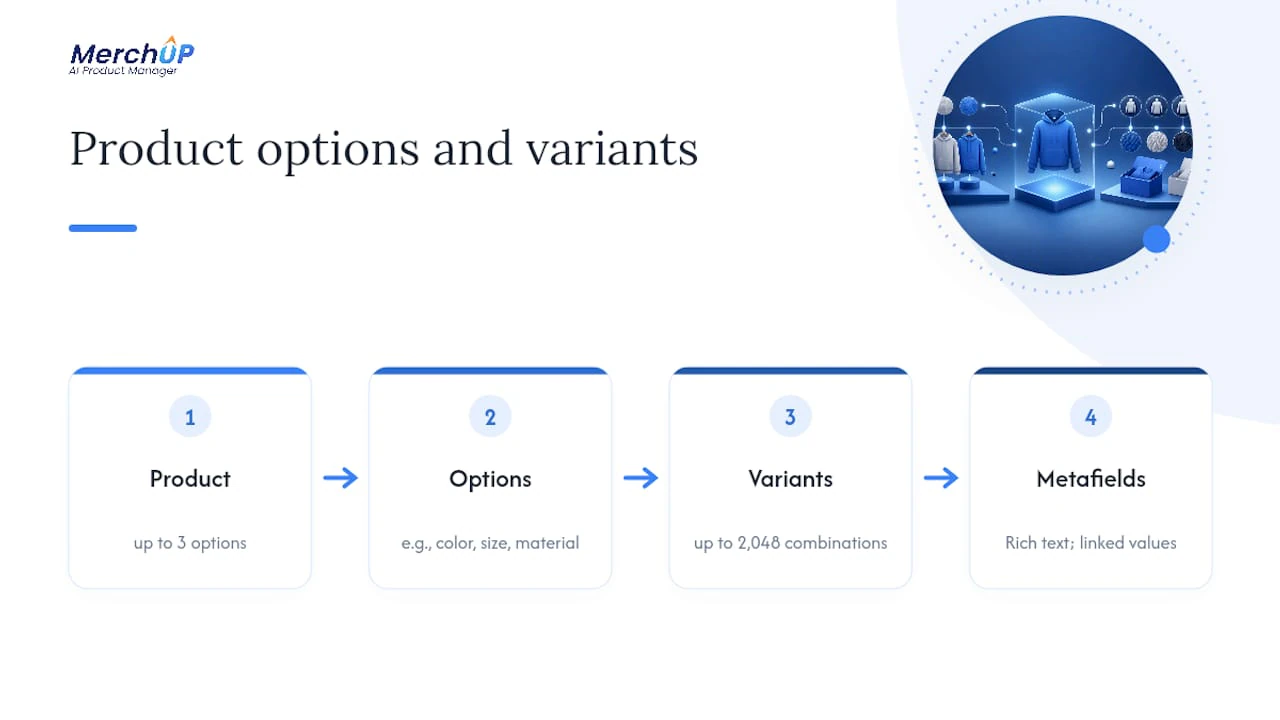
Standard Shopify only gives you one product description field. Everything variant-specific has to live somewhere else, which is where metafields come in. A metafield is a custom data field attached to a variant, product, or other resource, and Shopify supports several types: single-line text, multi-line text, and Rich text, which preserves bold, italics, and paragraph breaks. For anything reading like actual copy rather than a label, Rich text is the type worth using.
One detail that saves real time later: category metafields. Instead of retyping “hand-finished walnut” into fifteen separate variant fields, you link them to a single shared value. Update the wording once and every linked variant updates with it.

Step-by-step: creating and displaying variant description metafields
Here’s the full sequence from admin setup to storefront output.
- Go to Settings > Custom data > Variants and click Add definition.
- Name the field something clear, such as “Variant Description,” and set the type to Rich text. Note the namespace and key it generates, for example
custom.variant_description. - Open a product, click into each variant, and fill in that variant’s unique description.
- Edit your product template’s Liquid to check for the metafield and fall back to the standard product description when it’s empty:
{{ product.selected_or_first_available_variant.metafields.custom.variant_description | default: product.description }}. - If your theme only renders content on page load rather than reacting to variant changes, output all variant descriptions as a JSON object using the
jsonfilter, then use JavaScript to swap the visible text when a shopper picks a different option, a pattern Craftshift documents in detail. - Preview each variant combination before publishing, since a missing value will silently fall back to the product description.
Merchants on the Shopify Community forum have built this exact setup using a Custom Liquid block that loops through variant metafields, so you’re not improvising something unusual.
Pro Tip: Pick Rich text over multi-line text if you need bold or bullet formatting inside the description. Switching a metafield’s type later usually means re-entering the data from scratch, so decide up front what the field actually needs to hold.
How do you show variant descriptions on the storefront?
Getting the metafield created is only half the job. The description also needs to appear, and update, without confusing the shopper.
- If your theme supports app or theme editor blocks, some let you drop a “variant description” block directly into the product template with no code.
- Otherwise, edit the product Liquid template directly and insert the metafield reference where the description normally sits.
- For instant switching as a shopper changes size or colour, use the JSON-plus-JavaScript pattern rather than reloading the page. It’s noticeably smoother on mobile.
- When content swaps dynamically, keep an
aria-liveregion on the description container so screen readers announce the change, and make sure the default variant’s description is still present in the page’s initial HTML for indexing. - If the text won’t appear, check three things first: the metafield actually has a value for that variant, the theme isn’t caching an old template version, and your namespace/key in the Liquid code matches what you set in Settings > Custom data exactly.
Managing variant descriptions at scale
Fifty products with three variants each is 150 descriptions. That’s where manual editing stops being realistic.
- Lean on category metafields wherever option values repeat across your catalogue, so a single update to “100% organic cotton” cascades everywhere it’s referenced.
- The built-in bulk editor handles moderate batches well; for larger catalogues, a CSV import with the correct metafield columns, or the Admin API, gives you programmatic control.
- Developers automating this often work directly with the
ProductOptionValueobject in Shopify’s Admin GraphQL API, which links option values to metafields and flags whether a value is currently used by any variant. - For first drafts across hundreds of variants, AI generation followed by a quick template pass is far faster than writing each one from scratch by hand.
Pro Tip: Draft variant descriptions in batches by product family rather than one at a time. A single template with two or three swapped-out details per variant is faster to review than a hundred unrelated blocks of text.
What are the limits and best practices for variant descriptions?
Shopify provides one description field per product; variant-specific details can be added using metafields as supplementary information. Keep your primary SEO copy, the content that actually ranks, in the standard product description or on the default variant.
- Aim to keep most content shared across variants and vary only the specific details that differ, such as material or care instructions.
- Don’t split near-identical variants into separate products just to give each its own description. Reserve separate product listings for real differences in price, inventory logic, or shipping.
- Where variant content matters for search, render it server-side rather than relying purely on client-side JavaScript, so crawlers see it without executing scripts.
- Pair variant metafields with structured data, since Google’s own guidance treats variant-level content as a ranking and display signal.
Pro Tip: If you’re rewriting variant copy at scale, a product description SEO framework will keep your shared 80% consistent while you vary the rest.
What does Google’s ProductGroup guidance mean for variant descriptions?
Shared attributes belong at the ProductGroup level. Variant-specific titles and descriptions belong at the Product level, one entry per variant, each with its own ID.
That’s the structure Google recommends for showing individual variants in merchant listing experiences. The key properties are productGroupID, variesBy (which attribute defines the variants, such as colour), and hasVariant, an array listing each variant Product.
Practically, this means every variant needs a unique identifier in your structured data, and wherever a variant’s description genuinely differs from its siblings, that text should sit in its own Product entry rather than being folded into one generic block. Merchants often underestimate how much this affects visibility. A variant with server-rendered, unique descriptive text is far more likely to surface correctly in search than one relying entirely on JavaScript to fill in the gaps. Reviewing product schema markup alongside your metafield setup catches most gaps before they cost you traffic.
When I’d choose metafields over an app
If you or a developer can edit theme files, metafields win on control and SEO every time. If you need a non-technical editor with a bulk import workflow and no code, an app fits better. There’s a middle path too: metafields as the data layer, with a lightweight app or MerchUp handling the editing interface on top.
Generating and publishing variant descriptions with Merchup AI
Writing 150 unique, well-formatted variant descriptions by hand is slow, and it’s the kind of task that quietly stalls a catalogue expansion for weeks.

Merchup AI generates variant-level copy from templates you control, applies it across an entire product family in one pass, and pushes the finished text straight back into your Shopify variant metafields through its live Shopify integration. Instead of opening fifty products one at a time, you draft a template once (colour, material, size swapped in per variant), review it in the visual editor, and bulk-publish. Store owners managing large variant counts use it to cut the drafting stage from days to a single sitting, then refine tone or SEO phrasing before anything goes live. If your catalogue has outgrown manual editing, start with MerchUp and see how quickly a full product line’s variant descriptions come together.
Frequently asked questions
Can I add a different description for each Shopify variant without an app? Yes. Create a Rich text metafield under Settings > Custom data > Variants, fill it in per variant, then reference it in your theme’s Liquid template with a fallback to the standard product description.
Why isn’t my variant description showing up on the storefront? Usually one of three causes: the metafield has no value for that specific variant, the theme is serving a cached template, or the namespace and key in your Liquid code don’t match what you set in the admin.
Do variant descriptions appear on Facebook or Instagram shopping channels? Those channels typically pull from the main product feed rather than variant-level metafields, so variant-specific text often won’t carry over automatically. Keep your core selling points in the main product description to make sure they show up everywhere.
How many variants can one Shopify product have? Up to 2,048 variants, built from a maximum of three options per product.
Should every variant have a completely unique description? No.
Sources
- Metafields: add variants with metafields | Shopify Help Center
- Product variant structured data (ProductGroup, Product) | Google Search Central


Comments
No comments yet — be the first to share what you think.