


Pick one master store, then sync only the fields that need to travel. That’s the whole strategy. Everything else in this guide is detail on how to do it without breaking your SEO or your sanity.
For ongoing updates across two or more channels, the safest route is a tool that supports delta sync, meaning it updates only the fields you’ve changed rather than overwriting a product’s entire record every time. For a one-off cleanup of a few hundred listings, a built-in bulk editor or a CSV export/import does the job without any new software.
Three paths, roughly in order of speed:
- Built-in bulk editor — fastest for small, targeted edits (a few dozen products, one field at a time).
- CSV export/import — best for large one-time updates where you’re comfortable editing spreadsheets.
- API or middleware with delta sync — the only sensible choice once you’re updating descriptions regularly across three or more storefronts.
Pro Tip: Before touching your live catalogue, run your chosen method on a single draft product first. If the description, HTML formatting, and metafields land correctly there, you’ve just saved yourself a very bad afternoon.
Three quick workflows to sync product descriptions today
You don’t need a full afternoon blocked out for most of this. Here’s what each path actually takes, start to finish.
15 minutes: fix a handful of listings with the built-in bulk editor
- Open your platform’s bulk editor and filter products by collection, tag, or vendor so you’re only looking at the items you need to touch.
- Edit the description field directly in the grid view, or open each product individually if the changes are more than a sentence swap.
- Save in small batches of 20 to 30 products rather than one giant save. If something goes wrong, you’ll know exactly which batch caused it.
30 to 90 minutes: a full catalogue update via CSV
Export your product catalogue, open it in a spreadsheet tool, and find the description or body_html column. Edit it there rather than in a plain text editor, since spreadsheet software handles quote marks and line breaks more predictably. Before you touch the whole file, copy one row into a test import and confirm it publishes correctly. Only then re-import the full file.
Keep the original export untouched in a separate folder. If the re-import corrupts formatting or drops a field, that untouched copy is your rollback plan, and CSV imports are genuinely high-risk for exactly this reason: a misaligned column or a stray character can corrupt an entire catalogue without throwing an obvious error.
30 to 90 minutes: connect a live spreadsheet for ongoing control
If your platform supports it, linking a Google Sheet directly to your store avoids the repeated export-edit-import cycle entirely. Changes in the sheet push to the store automatically, and most of these connectors keep a change history you can use to undo a bad edit.

Pro Tip: Never run your first sync on your best-selling collection. Test on a small, low-traffic collection first, watch it for a day, then scale up.
How description syncing actually works: methods and trade-offs
Four methods cover almost every situation you’ll face, and each one solves a different problem.
A platform bulk editor is built into your ecommerce platform and edits products directly, one field or one batch at a time. It’s fast and has no setup cost, but it doesn’t scale past a few hundred edits without becoming tedious, and it rarely offers real field mapping across multiple stores.
CSV export/import handles large volumes well and works on virtually every platform, but it’s manual, slow to iterate on, and unforgiving of formatting mistakes. A misplaced comma or an encoding mismatch on a special character can silently corrupt dozens of rows.
A connected spreadsheet or live editor sits between manual and automated. It gives you the readability of a spreadsheet with the safety net of built-in validation and undo history, which makes it a solid middle ground for teams that update descriptions weekly rather than daily.
API or middleware sync is the only method built for continuous, multi-store automation. It runs in the background, applies field-level rules automatically, and doesn’t require anyone to remember to run an export.
| Method | Best for | Main risk |
|---|---|---|
| Bulk editor | Small, occasional edits | Doesn’t scale, no cross-store mapping |
| CSV export/import | Large one-time updates | Column misalignment, formatting corruption |
| Connected spreadsheet | Recurring manual updates | Requires ongoing manual review |
| API/middleware | Continuous multi-store sync | Requires setup and field-mapping discipline |
A quick decision rule: if you’re touching a catalogue once or twice a year, CSV is fine. If you’re touching it monthly, use a live spreadsheet. If you’re touching it weekly across multiple stores, you need middleware.
One more thing worth knowing: large syncs should run asynchronously rather than synchronously. Shopify’s own developer documentation on the productSet mutation explicitly supports both synchronous and asynchronous modes, and for anything beyond a handful of products, asynchronous background processing avoids the request timeouts and throttling that hit synchronous calls at scale.
What to sync: field mapping rules that protect your SEO
Not every field belongs in your sync. Get this wrong and you’ll either overwrite a carefully optimised title or leave half your catalogue with mismatched data across channels.
Here’s the checklist worth working from:
- Title — usually global, syncs everywhere.
- Description/body_html — global by default, but flag any channel-specific promotional copy first.
- Short description — often channel-specific; many marketplaces truncate or ignore it entirely.
- Images — global, but check alt text separately since it’s frequently stored in a different field.
- SKUs and variants — must match exactly across every channel or your inventory tracking breaks.
- Prices — often needs to stay local if you run region-specific promotions.
- Metafields and schema data — sync selectively; these frequently carry SEO-relevant structured data that shouldn’t be blanket-overwritten.
Some fields should never travel automatically. Local promotions, country-specific compliance notes, and any custom SEO snippet you’ve hand-written for a specific storefront belong on a “do not overwrite” list. If your sync tool supports field-level locking, use it on these from day one.
HTML formatting causes more sync failures than any other single issue. When descriptions move through a CSV, hidden characters and charset mismatches can quietly strip formatting or, worse, break the HTML structure entirely. Business Central’s own documentation on syncing to Shopify treats description and marketing text as separate, toggleable fields precisely because merging them incorrectly creates duplicate or garbled content.
Pro Tip: Map your fields once, in writing, before your first sync. A simple two-column list of “field name → global or local” takes ten minutes and prevents most overwrite disasters.
Full overwrite vs delta sync: which one protects your data
This is the single decision that determines whether syncing product descriptions saves you time or quietly wrecks your SEO. A full overwrite replaces a product’s entire record every time it syncs. A delta sync (also called field-level sync) updates only the fields that have actually changed, leaving everything else untouched.
Delta sync is almost always the safer default. Full overwrite is faster to set up and fine for a first migration, but run it repeatedly and it will eventually clobber a manually optimised meta description or a store-specific tag nobody remembered to protect. Tools like Synkro build their entire pitch around this, letting you choose exactly which fields sync to each connected store rather than pushing the full record every time.
Choosing your master store also matters more than most people assume:
- Single master store — simplest to manage, works well if you sell largely identical products everywhere.
- Per-region masters — better if pricing, language, or compliance genuinely differs by market, but doubles your maintenance overhead.
- Hybrid — one master for core content (title, images, specs) with regional overrides for price and local promotions; the most flexible option, but it needs clear documentation or your team will lose track of which field lives where.
Before any sync that touches more than a few dozen products, run through this:
- Export a full snapshot of the current catalogue as a backup.
- Test the import on a draft collection, not your live store.
- Enable field locks on anything marked “local” in your mapping checklist.
- Check that timestamps and author metadata survive the sync, since some tools silently reset them.
Schedule heavy syncs outside your peak traffic hours. Asynchronous processing exists precisely so a 5,000-SKU update doesn’t time out or hit rate limits halfway through, leaving your catalogue in an inconsistent state.
Platform-specific quirks that trip up most syncs
Shopify stores descriptions in the body_html field, not a plain “description” field, which matters the moment you’re mapping CSV columns from another platform. Get the column header wrong and the import either fails outright or dumps raw HTML tags into a field your theme wasn’t built to render.
CSV structure also trips people up on the variant side. Shopify’s CSV format uses one row per variant, with product-level fields like the description repeated on every variant row of the same product. Miss this and you’ll end up with a description on the first variant and blank fields on the rest. For programmatic updates, the productSet mutation can either replace a product’s complete state or update only the fields you specify, and any field you don’t explicitly set stays untouched.
Channel feeds add another layer. Google Merchant Center, TikTok Shop, and most marketplaces each require their own specific set of fields, and a description that’s perfectly fine on your storefront can fail a feed validation check for missing structured attributes. Auto-sync toggles help here, but they can also mask failures. ShopSync’s TikTok Shop integration, for instance, shows a per-product sync status, flagging items as synced, not synced, or failed with a reason attached, which is exactly the kind of visibility you want before assuming a sync worked.
A few things worth checking whenever you connect a new channel:
- Confirm which fields that channel treats as required versus optional.
- Check whether the channel truncates long descriptions rather than rejecting them outright.
- Look for a status or log view before assuming silence means success.
Fixing common sync errors: a troubleshooting checklist
Most sync failures trace back to one of four causes: a missing required field, a misaligned CSV column, corrupted HTML or charset encoding, or the API simply throttling your requests.
Work through this when something breaks:
- Check the sync log or status panel first. Most middleware and channel integrations, including marketplace connectors like ShopSync, surface a specific failure reason rather than a generic error.
- Confirm every field the destination channel marks as required is actually populated, not just present as an empty column.
- Run a single-product sync in isolation. If it succeeds, the problem is almost certainly in your bulk file, not your connection or credentials.
- Open your field mapping and check it against the destination platform’s current field names, since these do change occasionally after platform updates.
If a bad sync has already gone live, rollback options depend on your method:
- Restore from your most recent full export if you were working from a CSV.
- Revert through your connected sheet’s built-in undo or version history if you used a live editor.
- Republish from a staging environment if your workflow includes one.
Fix formatting and mapping issues yourself where you can. Escalate to platform support when the failure looks systemic, such as an entire field type rejecting valid data across multiple unrelated products.
Time and cost: CSV versus middleware for ongoing sync
A stores with relatively small catalogues can usually manage CSV-based updates comfortably with moderate time investment. Larger catalogues or more frequent updates require substantially more time, including quality assurance.
Cost comparisons come down to time versus subscription fees:
- Custom API integration needs developer hours upfront and ongoing maintenance whenever a platform changes its schema.
- Middleware subscriptions cost monthly but remove nearly all the manual labour, including field mapping and error handling.
- Factor in QA and rollback testing time for either option; skipping it is how small errors become catalogue-wide ones.
A rough rule of thumb: if you’re syncing more than two channels or updating descriptions more than once a month, a paid middleware tool typically pays for itself within the first few months, purely on labour hours saved.
Avoiding SEO traps when descriptions live in multiple places
Reusing the exact same description word-for-word across every regional storefront risks duplicate-content issues in search, particularly when those storefronts target the same language and country. The fix isn’t rewriting everything from scratch. It’s structuring descriptions as a reusable core paragraph plus a smaller, genuinely local block you customise per region or channel.
That local block can cover shipping specifics, regional compliance notes, or a currency-specific promotion, while the core product description, features, and benefits stay identical everywhere. This keeps your product description SEO intact without duplicating a full page of text across five domains.
Track organic impressions and conversion rate for a sample of products before and after any large sync. A sudden drop in either signals that something in the sync stripped structured data or altered a field search engines were relying on.
CSV imports are frequent culprits here, since they can silently strip schema markup or critical HTML tags if the import tool doesn’t handle rich text cleanly. Always check a synced product’s rendered page, not just its raw description field, to confirm formatting and structured data both survived.
Pro Tip: Keep a small “SEO sample set” of five or six products you check manually after every sync. It takes two minutes and catches drift long before it shows up in your traffic reports.
How MerchUp keeps your descriptions synced without the SEO risk
MerchUp was built around the exact problem this guide covers: writing a description once shouldn’t mean manually pasting it into five different admin panels. The platform combines AI-assisted generation, a visual editor, and bulk publishing so a store owner can update a description, review it against a template, and push it live without touching a CSV file.
What makes this workable at scale is field-level control rather than blanket overwrites. MerchUp’s bulk editing and activity tracking let you see exactly what changed and when, which matters enormously the first time a sync doesn’t behave as expected and you need to trace it back to a specific edit.
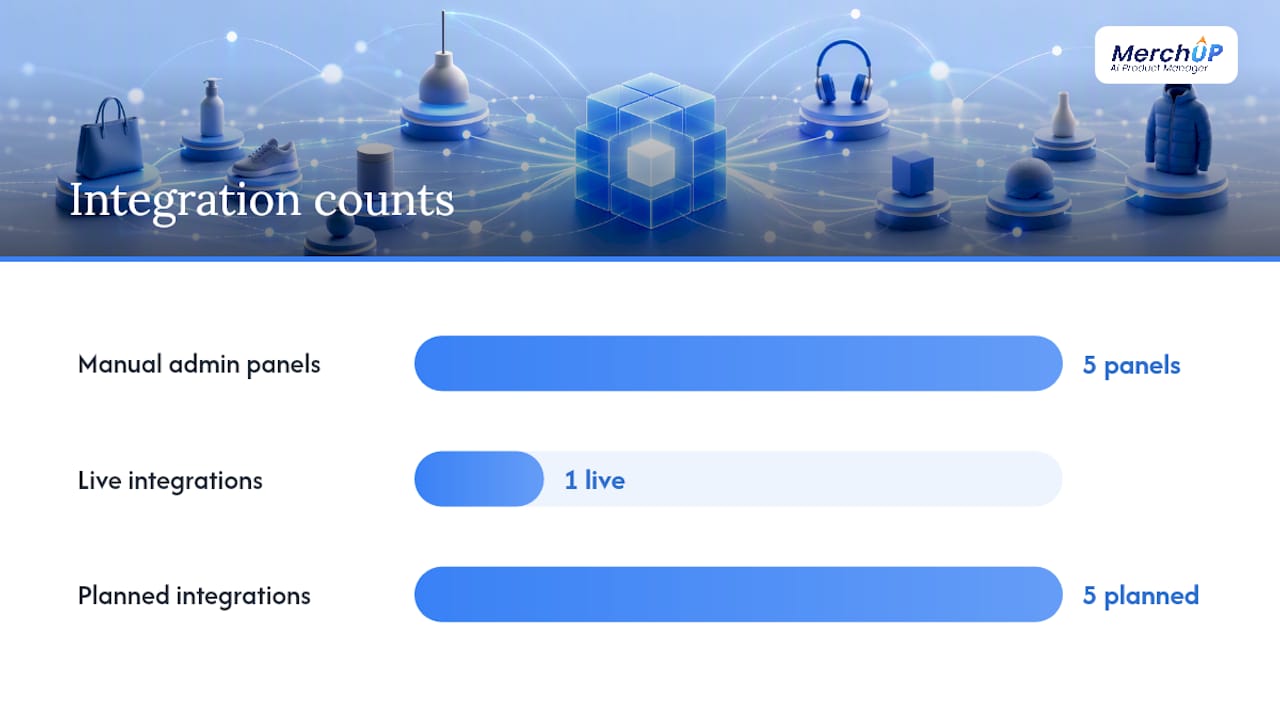
Integration-wise, MerchUp connects live with Shopify today, with Webflow, Wix, WordPress, WooCommerce, and eBay support coming. That roadmap matters if you’re currently running Shopify but expect to add a second channel later. You’d rather not rebuild your entire description workflow when that day comes.
Practical features that support the workflows covered above:
- Customisable templates so descriptions stay consistent in structure across hundreds of SKUs.
- A visual editor for making quick manual adjustments after AI generation, matching Shopify’s own guidance to generate a draft and refine it before publishing rather than publishing AI output unedited.
- Activity tracking that logs publish history, useful for the exact rollback scenarios covered earlier in this guide.
Descriptions written once and pushed everywhere only work if the tool respects which fields are genuinely global and which ones need to stay local to a store. That’s the design problem MerchUp set out to solve.
What most sync guides get wrong about the first rollout
Most advice on this topic treats syncing as a technical problem: pick a tool, connect an API, done. The actual failure point is almost always process, not technology. Teams pick a genuinely good sync method, then run it against their entire live catalogue on day one because testing on a single product feels like an unnecessary extra step.
It isn’t. A rollout that starts with one collection, run during a quiet traffic window, with a full export sitting untouched as a backup, catches nearly every problem this guide warns about before it touches revenue. The mistakes that actually cost people money are mundane: a CSV column that shifted by one position after a spreadsheet autosave, a field mapping that assumed “description” meant the same thing on both platforms, or a full overwrite running on a schedule nobody remembered to check.
Staging environments get skipped constantly, usually because setting one up feels like overhead for a “quick edit.” The stores that avoid the worst incidents are the ones that treat every sync, however small, as worth ten minutes of caution first.
Sync your descriptions once, publish everywhere with MerchUp
MerchUp gives you one place to write, edit, and publish descriptions instead of juggling separate admin panels or CSV files for every storefront. You get AI-assisted drafting, a visual editor for the final polish, and bulk publishing that respects field-level control rather than overwriting everything on every push.
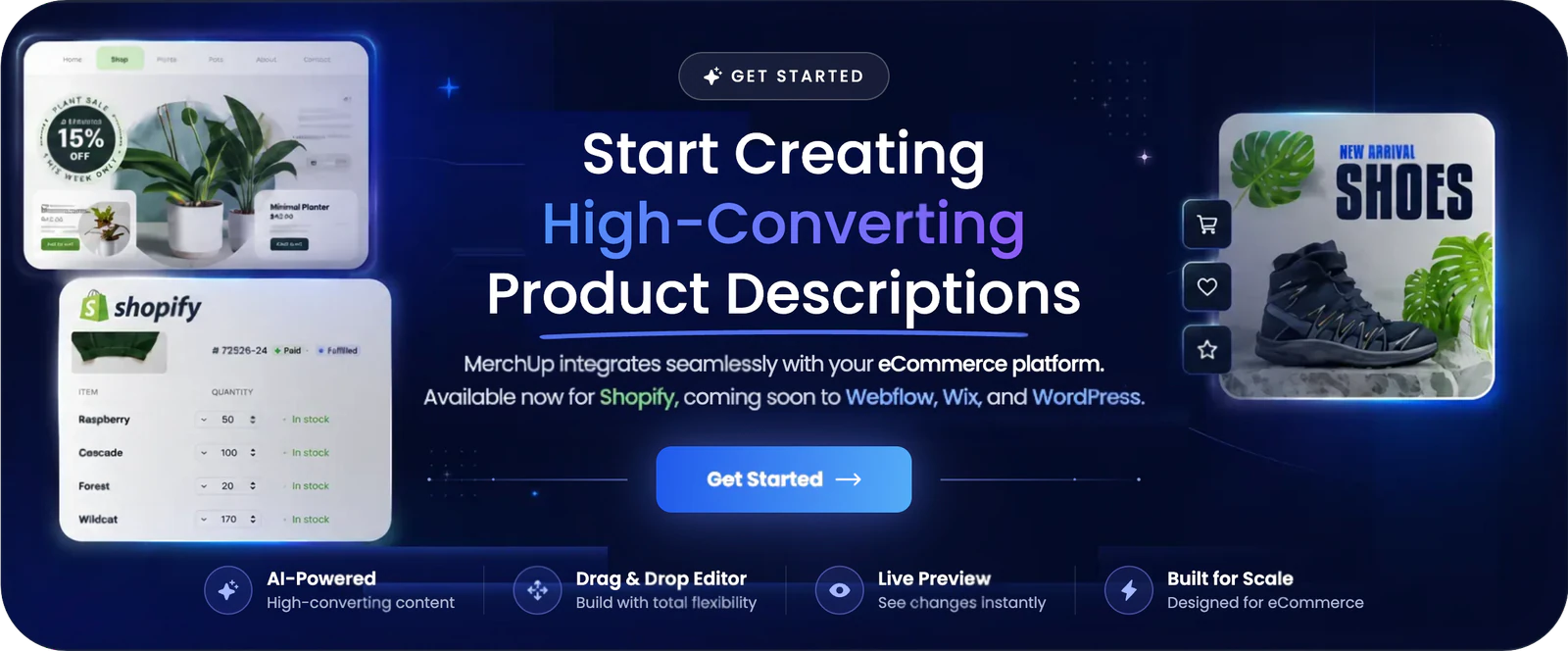
If you’re weighing this against a manual CSV routine, start small: pick one seasonal collection, run it through MerchUp, and publish to a staging or low-traffic set of products first, exactly as recommended earlier in this guide. That gives you a real read on how the workflow fits your catalogue before you commit it to your full product range. Visit the MerchUp product page to see how the editor and templates work, or check the pricing plans to find the tier that matches your SKU count and start a trial today.
Frequently asked questions
What does it mean to sync product descriptions across channels? It means keeping a product’s title, description, and related fields consistent across every storefront or marketplace you sell on, so a customer sees the same accurate information whether they’re on your Shopify store, a marketplace listing, or a Google Merchant feed.
Should I sync every field or just the description text? Sync selectively. Titles, core descriptions, and images usually work fine as global fields, but prices, local promotions, and custom SEO snippets often need to stay specific to one store. A field mapping checklist done upfront prevents most overwrite problems.
Is CSV import safe for syncing descriptions in bulk? It’s safe when you test first. CSV imports carry real risk of column misalignment and hidden character corruption, so always test on a single row before importing an entire file, and keep the original export as a backup.
How do I know if a description sync actually worked? Check the sync status or log in your platform or middleware. Tools built for multi-channel selling, such as marketplace connectors, typically flag each product as synced, not synced, or failed, often with a specific reason attached.
Does syncing the same description everywhere hurt SEO? It can, particularly across regional storefronts targeting the same market and language. Structuring descriptions with a reusable core section plus a smaller local block reduces duplicate-content risk while keeping most of the copy consistent.
Sources
- Use productSet to synchronise complete product state — Shopify developer docs
- Synchronize items and inventory - Business Central
- QuickSync product sync documentation


Comments
No comments yet — be the first to share what you think.