


A product description rollback means putting a listing’s text, SEO fields and details back to the last version you knew was right, after an edit, import or bulk change went wrong. The safest way to do it is to never rely on memory or luck: every change should be reviewed before it goes live and saved with a history you can restore from. That is how MerchUp AI works for Shopify stores, and the rest of this guide shows the routine, step by step, so you can recover from a bad edit and stop it happening again.
TL;DR
- A rollback restores previously correct content after an editing mistake. A product recall is a different, safety-driven action with its own rules.
- Shopify saves edits to the live store as soon as you save them, so a wrong bulk edit reaches customers and Google quickly.
- The reliable routine is: snapshot the fields before you change them, test on a few products, review the result, then publish.
- MerchUp AI reviews every change before it goes live and keeps full history with restore, so a rollback is a click rather than a rebuild.
- If a product has been recalled for safety reasons, do not roll back. Remove the listing and follow the official recall steps.
What a product description rollback actually is
In ecommerce, a rollback is a structured restore to an earlier known-good state, not a text-editor undo. You are not pressing Ctrl+Z in a box. You are bringing back what the title, description, SEO title, meta description, tags or image alt text said before something overwrote them.
The scope varies. Sometimes it is one product where someone pasted the wrong copy. Sometimes it is a whole collection where a find-and-replace changed a word in 300 descriptions. Sometimes it is every product, because a CSV import with a blank column wiped a field. The method is the same in each case: identify the affected products and fields, find the earlier text, restore only that, then check.
It also helps to know what a rollback is not. If you search this phrase you will find plenty of pages about product recalls. A recall is a safety action that removes a dangerous product from sale. A rollback is housekeeping for your content. The two meet only in one place, covered near the end of this article.
Why a bad description edit is so easy to make
Shopify’s own documentation says that saved changes to products take effect immediately in the online store, and that to edit several products at once you use the bulk editor. That speed is what you want when you are adding new products every week. It also means a mistake is public the moment you save it.
The usual causes are:
- A bulk edit with the wrong scope. You meant to change 20 products and changed 400.
- A CSV import with a bad column. A shifted column or an empty cell can overwrite good text. Our guide to avoiding broken Shopify imports covers how this happens.
- A find-and-replace that matched too much. Replacing “case” can also hit “staircase” or “pillowcase”. See how to find and replace text before a bad match goes live.
- A rewrite you regret. You regenerate copy, dislike the tone and want the original back.
- Two people editing the same product. One save overwrites the other.
None of these is a sign of carelessness. They are what happens when a catalogue grows faster than the process around it. The fix is a routine, and a routine only works if the restore step already exists before you need it.
The routine that makes rollback easy: before you change anything
Most rollback pain comes from skipping the first minute of work. Do these four things before any bulk change.
1. Decide the exact scope
Write down which products and which fields you are changing: descriptions only, or also SEO titles and meta descriptions? Narrow scope means a narrow rollback. If you are updating only the description field, nothing else should be touched.
2. Save a copy of the current state
Before you change anything, you need a record of what is live now. A Shopify product export gives you a CSV file with the description (in the Body (HTML) column), SEO title and SEO description. Name the file with the date and the job, for example “descriptions-before-spring-rewrite”, and keep it somewhere safe. Keep it for as long as the change could still matter. Price and SEO changes in particular can take weeks to show their effect, so do not delete the file after a day.
The weakness of this step is that it depends on you remembering to do it, every time, including on the busy Friday when you are rushing. A tool that records history automatically takes that memory test away.
3. Test on three to five products
Run the change on a small sample first and look at the live pages. Mistakes in formatting, missing line breaks and broken HTML show up immediately on a handful of products and are cheap to reverse. Our guide to a safe Shopify import of descriptions walks through a sensible test batch.
4. Review before it goes live
The best moment to catch an error is before publishing. Read the new text next to the old text, product by product for the sample, then by pattern for the rest. Look for the same wrong phrase repeating, empty descriptions and text cut off mid-sentence.
How to roll back a description after a bad change
Once a mistake is live, speed and precision both matter. Work through this order.
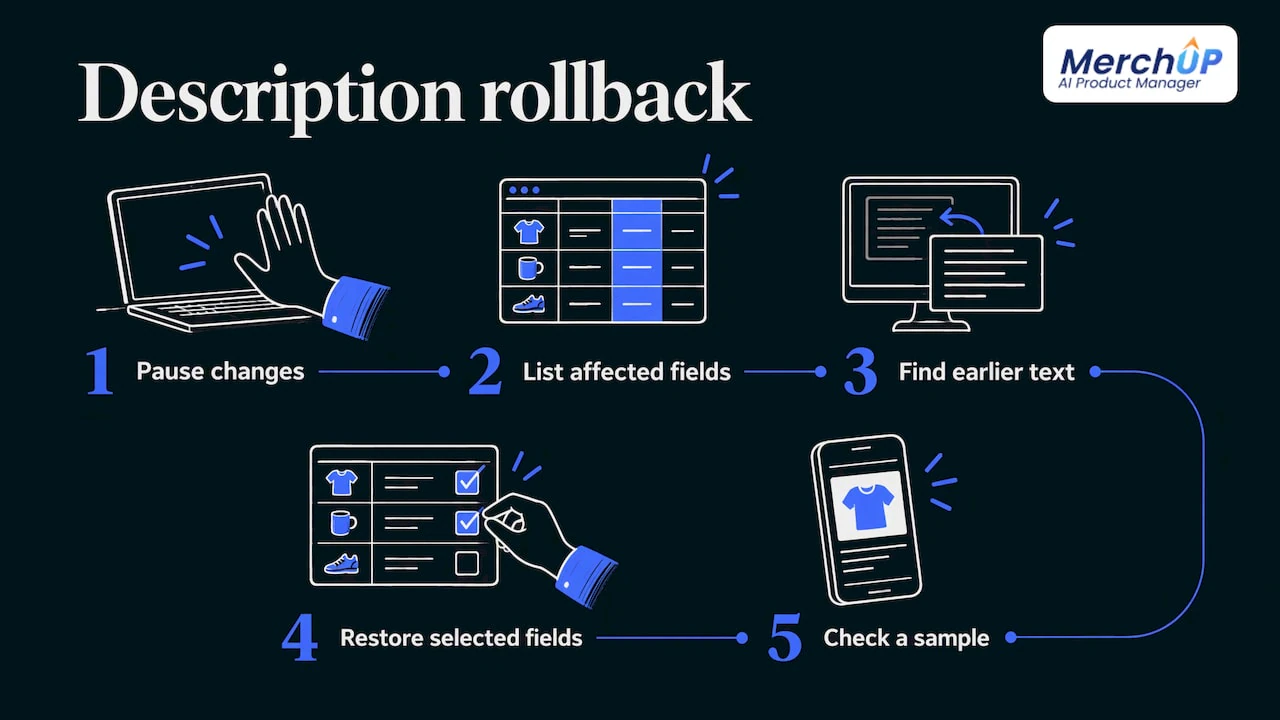
Step 1: Stop further damage
Pause whatever is still running: a scheduled import, a bulk job, a teammate’s edits. Tell your team not to touch the affected products until you have restored them, or you will create a new set of overwrites on top of the first.
Step 2: List what changed
Work out which products and which fields were affected. The product change log and your import file are the best evidence. Our article on where to check your Shopify product change log explains what you can and cannot see there. The key point: do not assume every field changed. Restoring only the damaged fields keeps good edits you made elsewhere.
Step 3: Find the earlier text
The old text must come from somewhere. In order of reliability:
- Your history in MerchUp AI, which records changes with the option to restore.
- Your pre-change export, if you made one.
- The text you first wrote, in your original documents, supplier sheets or earlier drafts.
If none of these exist, you are rewriting from scratch, which is exactly why a stored history is worth having. The cost of a rebuild across hundreds of products is far higher than the cost of a plan.
Step 4: Restore field by field
Restore the description, SEO title and meta description separately, and only for affected products. With a CSV, that means keeping only the product handle (the unique URL name) and the columns you are restoring, so blank cells cannot overwrite anything else. Restoring a whole row when only one field was wrong is the most common way to create a second problem.
In MerchUp AI the restore is built into the history: you pick the change and bring the earlier version back, then it goes through the same review as any other change.
Step 5: Check a sample, then the rest
Open five restored products on the live store. Check the description renders properly, the formatting is intact, and the SEO title and meta description match what you expect. Then spot-check by collection.
Rolling back in bulk
Bulk rollbacks are where the routine pays off. If a change touched 400 products, you do not want to restore them one by one, and you do not want to restore products that were fine.
The approach that works:
- Filter to affected products only. Use the handle list from the bad import or the collection you edited.
- Restore only the fields that were damaged. A description rollback should not reset prices or inventory.
- Restore a small batch first. Confirm it looks right, then run the rest.
- Keep the restore itself reversible. If the rollback turns out to be wrong, you want to undo that too.
Our practical guides on bulk editing descriptions in Shopify and on how to bulk rewrite product descriptions without wrecking your store show how to set up the batch so a restore stays small.
Version control for descriptions
Rollback is one half of a larger habit: version control. That means every description has a history, every change has a reason, and you can compare two versions side by side. For a small store this can sound heavy, but it comes down to three rules:
- Never overwrite without a saved earlier version.
- Make changes in batches you can name (“autumn rewrite, hoodies”).
- Review before publishing, not after customers notice.
We set this out as a five-step process in our guide to product description version control. If you sell on more than one channel, the same discipline applies to keeping text consistent, which syncing product descriptions across every sales channel covers.
Checks before you republish restored content
A restored description is only right if the facts in it are still right. The old text may be a month or a year old. Before publishing, check:
- Product facts: materials, sizes, compatibility, what is in the box.
- Price and promotions mentioned in the text. Old copy that quotes a sale that has ended is worse than no mention.
- SEO fields: title and meta description should match the product and not duplicate another product’s. Image alt text should describe the image.
- Safety and age information: Consumer Reports’ marketplace safety playbook says product pages should show required safety information, including warnings, intended users, age grading and supervision requirements. If a restore brings back an older version, make sure none of that has been lost.
- Formatting: headings, bullet points and line breaks in the template.
Our Shopify product description editor workflow covers how to read a description the way a shopper does before you press publish.
When it is a recall, not a rollback
A recall is a different situation, and rolling back to older text is the wrong response. The US Consumer Product Safety Commission’s recall handbook tells sellers to treat the product as recalled and illegal to sell, and to block online sales and remove the listing where appropriate. The same handbook sets out what a recall notice must contain, including the word “recall” in the heading, a product description with model or SKU numbers, a plain-language hazard description and the remedy with contact information.
For a Shopify seller this means: take the product off sale, do not restore or republish its old description, and follow the official notice. Consumer Reports’ playbook adds that recalled products should be removed promptly and listed on an easy-to-find recall page, updated the same day the notice is published. For a live recall, contact the CPSC or the manufacturer, and a lawyer if you have questions about your obligations as a seller. This guide is for ordinary content mistakes, not safety actions.
Making rollback part of how you list
If you add products every week, the best rollback is the one you rarely need. Three habits get you most of the way:
- Generate and review, then publish. Do not let anything reach the live store without a look.
- Change in batches with names. A named batch makes it obvious what to restore.
- Keep history automatically. Do not depend on remembering to export.
Trading card and collectibles shops feel this more than most. A card listing carries a title, set, grade, condition notes and a price taken from the market, and they change often. A bad bulk edit can put the wrong condition or price on dozens of cards at once. With MerchUp AI, cards are identified from a scan against real catalogues, priced from the market, and listed with estimated centering and condition, and the changes go through review with restore available.
Keep every change reversible with MerchUp AI

MerchUp AI is an AI product manager for Shopify. It turns a product photo, barcode or card scan into a complete listing with title, type, vendor, price, tags and SEO, writes the description into a designed template, creates AI product photos and publishes it. Every change is reviewed before it goes live, with full history and restore, so an unwanted edit is something you reverse rather than rebuild.
There is a free plan, and paid plans start at £12.99 a month on Starter, with Growth at £34.99, Pro at £79.99 and Scale at £199.99 a month. You can compare them on the MerchUp AI pricing page, or see how the tools work together.

If SEO is part of what you need to protect, MerchUp AI does all your SEO in one click: it reads your store’s own Google Search Console data and live Google results, picks keywords, writes meta titles, descriptions and image alt text, checks rankings on live Google and pushes everything to your store. No SEO knowledge is needed, and because those changes are reviewed and recorded too, they can be restored like any other.
Our view: a rollback should be a feature, not a rescue mission
Most store owners only think about rollback after the damage is done. A bulk edit goes wrong on a Friday, and by Monday the store has a hundred descriptions that read like nobody checked them. Then the question is where the old text is.
We built MerchUp AI around the idea that the AI does the heavy work and you stay in control. Every change is reviewed before it goes live, and every change is kept in a history you can restore from. That order matters. Review first means fewer mistakes reach customers. History second means the mistakes that do get through are not permanent.
This matters even more when the AI is doing more of the work. A tool that can write a full listing, a designed description, SEO titles, meta descriptions and image alt text from one photo is only safe to use at speed if you can see what it changed and put it back. For a store adding products every week, that confidence is the difference between automating the work and being afraid of it.
Our advice is simple: do not treat a restore as an emergency tool. Treat it as part of the normal listing process, as ordinary as saving a draft.
Jamie Moss
FAQ
Can I undo a product description change in Shopify?
Shopify applies saved product changes to the live store immediately, so the safest undo is a version you stored yourself or through a tool with history. With MerchUp AI, every change is reviewed before it goes live and kept with full history and restore. If you made a product export before the change, the old description is in its Body (HTML) column and can be re-imported.
What is the difference between a rollback and a product recall?
A rollback restores earlier, correct content after an editing mistake. A recall is a safety action where a dangerous product is removed from sale and customers are told what to do. If a product is recalled, take down the listing and follow the CPSC guidance rather than restoring any older text.
Should I restore the whole product or only the description?
Restore only the fields that were damaged. Bringing back the description, SEO title and meta description for the affected products leaves price, inventory and other good edits alone. Whole-product restores risk overwriting changes you want to keep.
How do I avoid needing a rollback in the first place?
Define the scope, test on three to five products, review before publishing and keep a history of changes. Working in named batches also makes any later restore small and precise.
Sources
- Shopify Help Center: Adding and updating products
- CPSC: Product Safety Planning, Reporting, and Recall Handbook
- Consumer Reports: Digital Marketplace Platform Safety Playbook


Comments
No comments yet — be the first to share what you think.