



Shopify Flow can automate the when and the if of product content: when a product is created, which products qualify, where the draft goes and who approves it. It is not a copywriting system on its own. The setup that holds up in practice pairs Flow’s triggers, conditions and metafields with a content engine that does the writing, and keeps a human approval step before anything goes live.
This guide walks through that setup step by step, shows what to store in metafields, where Flow’s own AI action helps and where it stops, and how to keep invented facts out of your listings.
TL;DR
- Flow is orchestration: it decides when work happens and under what conditions. Shopify’s Flow reference describes it through triggers, conditions and actions.
- Start narrow, with a product-created or product-updated trigger, not a workflow that touches the whole catalogue.
- Use metafields as the control layer: source facts, AI draft, approval status and last-reviewed date, kept separate.
- Automate drafting, not publishing. Generated text can include facts nobody supplied, so claims about condition, edition or authenticity need a person.
- If you want the whole product handled (photo to listing, description, images, SEO, publish), a dedicated Shopify app does that job and Flow can sit around it.
What Flow does well, and what it does not
Flow is built on three parts. According to Shopify’s Flow reference, triggers start a workflow (a store event, a schedule or an event from an app), conditions check the data, and actions change Shopify data or talk to an outside service. That model is excellent for rules: tag this, hold that, notify someone, write a value into a field.
Content is different. A good product description depends on accurate inputs, a consistent voice, a layout and a check against the physical item. Flow supplies none of those by itself. The practical design principle is separation of concerns:
| Layer | Job | Where it lives |
|---|---|---|
| Orchestration | Decide when work starts and which products qualify | Shopify Flow |
| Content engine | Produce the language and structured data | Generate text, Sidekick or a dedicated app |
| Persistence | Store facts, drafts and approval state | Product fields and metafields |
| Approval | Confirm claims before publishing | A person, triggered by Flow |
When teams try to make Flow the entire content system, the result is one giant prompt, no validation and a workflow nobody wants to edit. Keeping the layers apart is what makes it maintainable.
Step 1: Define your metafields before you build anything
The most common mistake is building the trigger first and asking “where does the output go?” afterwards. Decide the storage first.
Shopify’s metafield documentation for Flow confirms that Flow can read and update product metafields and create metafield definitions. That makes them a good place for content state. A simple schema for product content could be:
- Source facts: the verified details you supplied (dimensions, materials, set, edition, condition notes).
- AI draft description: the generated text, held separately from the live description.
- Approval status: for example “draft”, “needs review”, “approved”.
- SEO notes: the target keyword or the intent you gave the writer.
- Last reviewed: a date, so you can find stale copy later.
Two practical points from the documentation. Shopify distinguishes structured from unstructured metafields, so your workflow must point at the right resource and the right namespace and key. And the variable you select is the singular metafield, not the plural collection. Get those wrong and the workflow runs without writing anything.
The payoff is that you can rerun generation at any time without losing the evidence used to create the listing. The facts stay put, the draft is disposable.
Step 2: Pick a narrow trigger
Shopify documents a broad trigger catalogue covering products, collections, customers, orders, fulfilment and app events. For content, you need only two or three:
- Product created: draft content for new products.
- Product updated: refresh a draft when key facts change.
- Scheduled: a weekly sweep for products that still lack a description.
Start with product created. A workflow that fires on every update across the whole catalogue is hard to test and easy to get wrong. Shopify’s own guidance is to begin narrow.
The usual order of work is: choose the trigger, add conditions, add actions, preview the store data, test runs, then activate. Do not skip the preview and test runs. They are where you find that the trigger payload lacks the field you assumed it had.
Step 3: Use conditions as quality gates
Conditions continue a workflow only when rules are met, and they can check fields from the GraphQL Admin API such as the product title. This is where you protect quality. Only generate content when a product has:
- at least one image;
- a source identifier such as a SKU or barcode;
- the factual fields you require (product type, key features, condition for used goods);
- an approval status that is not already “approved” (so you never overwrite signed-off copy).
Route everything else to a review branch: add a tag such as “needs-info”, write the status to a metafield and notify whoever owns the catalogue. An incomplete record that is sent back is far cheaper than a confident description of the wrong product.
Step 4: Get the product data into the workflow
A frequent production failure is an action that does not have the right object. Shopify states that actions need the data they work on from the trigger or from a Get data step. Its example: a customer-triggered workflow cannot use an order-tag action without order data.
For content, the rule is simple. If your trigger is anything other than a product event, add a Get product data step before you try to update product content. Then test with a real product and inspect what the workflow actually received.
Step 5: Generate the draft
You have three realistic options for the writing step.
Option A: Flow’s Generate text action
Shopify’s Generate text documentation says the action works with any trigger and returns one field named text. That is useful and honest: it gives you a block of text to place somewhere. It does not, by itself, write a full listing (title, type, tags, SEO fields) or publish it. Treat it as a way to produce a first-draft paragraph and write it to your “AI draft” metafield, not to the live description.
Option B: Sidekick for building and editing
According to Shopify’s Sidekick documentation, Sidekick can create or edit Flow workflows from plain-language instructions when Flow is open, and it presents changes for review before applying them. That is a quick way to get a first workflow built. It does not validate the facts in the product copy, so the review step is still yours.
Option C: A dedicated content engine through a connector or HTTP request
Flow supports connectors and HTTP requests, so a workflow can pass data to an external content service and act on what comes back. This is the right route when you need more than a paragraph: structured fields, templates, images, SEO.
Write the prompt like a brief
Generated copy is only as good as its inputs. Shopify’s guidance on generated descriptions says to give the product title, at least two features or keywords, the product type, customer context, tone and any brand instructions. It also says to edit and format before saving, and that you remain responsible for accuracy.
A workable structured prompt has these parts:
- Role and audience: who is buying and what they care about.
- Facts you may use: pulled from your source-facts metafield, nothing else.
- Facts you may not invent: an explicit instruction to omit anything not supplied.
- Format: length, headings, bullet points, tone.
- Keyword intent: one primary phrase, used naturally.
If your catalogue is unusual enough that off-the-shelf prompts keep failing, some teams look at custom development for your business to build tailored AI features with proper evaluation. For most stores, a tight prompt and a review gate go a long way first. Our own list of product description prompts is a good starting point.
Step 6: Review before anything goes live
This is the step that separates a useful automation from a liability. Shopify’s guidance warns that language models can introduce facts that were not supplied, including benefits inferred from similar products. The safest pattern:
- Flow writes the draft to the AI-draft metafield.
- Flow sets approval status to “needs review” and notifies the reviewer.
- A person checks the claims and moves the status to “approved”.
- A second workflow, triggered by the status change, copies the approved text to the live description.
Focus the human check where buyers act on it: condition, authenticity, grading, edition, dimensions, compatibility, safety, scarcity and inventory. A pleasant sentence about “premium quality” is low risk. A wrong claim about a card’s condition is a refund and a dispute.
A worked example: a trading-card shop
Take a shop that lists 40 singles a week.
- Trigger: product created.
- Condition: image present, set name and card number filled in, condition metafield not empty. If not, tag “needs-info” and stop.
- Action: Generate text with a prompt built from those fields, written to the draft metafield.
- Action: set approval status to “needs review” and send an internal notification.
- Second workflow: when status becomes “approved”, write the draft to the description.
This works, but notice how much the shop still does by hand: photographing, identifying the card, pricing it, deciding condition and creating the listing in the first place. That is the part Flow cannot see, and it is where most of the hours go.
Where MerchUp AI fits
Flow answers “when and if”. It does not answer “what is this product and what should the listing say”. That is the gap MerchUp AI fills. We built it as an AI product manager for Shopify stores, so the content engine is not a single text field.
- Scan or photograph the product and get a full listing: title, type, vendor, price, tags and SEO.
- Descriptions written into a designed template, not a plain block of text. See the AI description generator.
- AI product photos for cleaner images, via the AI product photos tool.
- For trading-card sellers, the card scanner identifies cards against real catalogues and prices them from the market, and AI card grading estimates centering and condition.
- In-person selling: buy, sell and trade stock with Shopify POS.
- Every change is reviewed before it goes live, with full history and restore, which fits the approval gate described above.
There is a free plan, and paid plans are Starter at £12.99 a month, Growth at £34.99, Pro at £79.99 and Scale at £199.99, with a card scanner add-on from £7.99 a month. Details are on the pricing page. MerchUp AI is available now for Shopify; Webflow, Wix and WordPress are coming soon.
Perspective: automate the evidence, not just the words
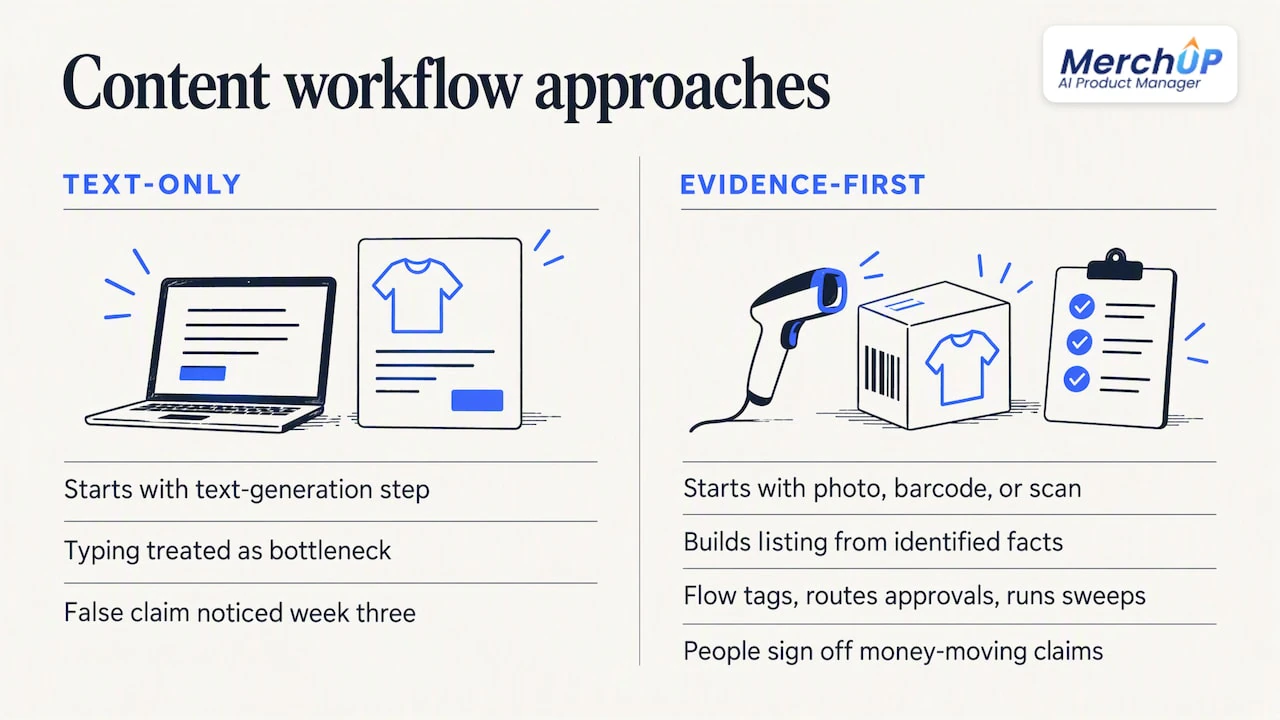
We talk to a lot of sellers who start with Flow and a text-generation step, and the pattern is consistent. The first week feels like magic. The third week, someone notices a listing that claims something the product does not have.
Our view is that the bottleneck in product content is rarely typing. It is turning a physical item into trustworthy data: what is it, what is it worth, what condition is it in, how should it be described and found. So we start from the item (a photo, a barcode or a card scan) and build the listing from identified facts. Flow is a good partner for the rules around that: tagging incomplete records, routing approvals, running scheduled sweeps.
We also think SEO belongs in the same loop, not in a separate project. MerchUp AI does all your SEO in one click. It reads your store’s own Google Search Console data and live Google results, picks keywords, writes meta titles, descriptions and image alt text, checks rankings on live Google and pushes everything to the store. No SEO knowledge is needed, and you review each change first. If you want to see how that works at catalogue scale, read our guide to scaling product pages with AI SEO or the SEO autopilot page.
The rule we apply to ourselves: let software draft and enrich, let people sign off the claims that move money.
— Jamie Moss
Common mistakes to avoid
- Building without a schema. Generated output with nowhere reliable to go makes later workflows painful.
- Triggering on every update. You will overwrite approved copy or loop. Gate on approval status.
- Writing straight to the live description. Use a draft metafield first.
- Trusting the prompt to prevent invention. A prompt reduces the risk, only review removes it.
- Wrong object type. Add a Get product data step and test the payload.
- Treating Sidekick’s review screen as fact-checking. It shows you what will change, not whether it is true.
If you also care about structured data around your products, our guide to Shopify product schema covers what to include. For bulk work with governed templates, see bulk generating product descriptions.
A sensible rollout plan
- Week 1: create the metafields and write the statuses down. Build one workflow on product created, tested on three products.
- Week 2: add the conditions and the review notification. Run it on new listings only.
- Week 3: add the approval-triggered publish workflow. Check twenty drafts against the physical stock and note every error type.
- Week 4: tighten the prompt using those errors, then decide whether the writing step should move to a dedicated engine.
If you want to see the engine side in action first, the MerchUp AI tutorial shows a description produced in about 30 seconds.
FAQ
Can Shopify Flow write product descriptions by itself?
Not on its own. Flow triggers and routes work, and its Generate text action returns a single text field you can store or send for review. A full listing with title, tags, SEO fields and images needs more than that one field, so pair Flow with a content engine and an approval step.
Should generated descriptions publish automatically?
We would not, especially for used or collectible items. Shopify warns that generated text can include unsupported facts and that you remain responsible for accuracy. Write drafts to a metafield, mark them “needs review” and publish only after approval.
Which trigger should I use for product content?
Start with product created, with conditions that check for an image, a source identifier and the required facts. Add product updated or a scheduled sweep later, once the first workflow is tested and stable.
Do I need to know SEO to automate content?
Not if the tool handles it. With MerchUp AI, the SEO step uses your Google Search Console data and live Google results to choose keywords and write meta titles, descriptions and alt text, and you approve the changes before they reach the store.
Sources
- Shopify Flow reference
- Triggers in Shopify Flow
- Conditions in Shopify Flow
- Actions in Shopify Flow
- Metafields in Shopify Flow
- Generate text action
- Sidekick
- Automatically generating product descriptions


Comments
No comments yet — be the first to share what you think.