


You can’t type a variable such as {{ product.title }} into the Shopify product description box and expect it to fill itself in. That field is a rich-text editor, not a template. Variables do work in your theme, through Liquid and through dynamic sources in the theme editor, and that is where reusable, product-specific content belongs. This guide shows where each option lives, what it can and can’t do, and how to check that every product shows the right text.
TL;DR
- The product description field stores formatted text and HTML. Liquid pasted into it is not processed as code.
- Variables live in the theme: Liquid templates, or theme sections and blocks with dynamic sources connected to product data and metafields.
- For repeated facts (materials, care, dimensions, part numbers) use metafields and display them through the theme, not copy and paste.
- For descriptions that must be unique per product, generate them per product and review before publishing, rather than forcing placeholders into one block of text.
- Always preview a sample of products, including ones with several variants, before you roll a template out across the catalogue.
What “variable” means in a Shopify description
When merchants search for product description variables, they usually mean one of three things.
- A placeholder that swaps in a product value. For example, one sentence reused across 200 products where only the product name changes.
- A Liquid variable or object. Shopify’s templating language exposes data such as the product’s title, price and description. Shopify’s Liquid reference frames this as a template system: one static template inserts the right product properties when the page is rendered.
- A reusable custom field. A value you define once, such as fabric type or country of origin, and display on many products. In Shopify this is a metafield.
The confusion starts because the product description sits inside the same admin as everything else, and it looks like it should understand the same syntax your theme does. It doesn’t. The Shopify Help Center describes the description as a rich-text editor for formatted text, and metafields as separate custom fields for specialised information such as part numbers, launch dates and downloadable files. Two different tools, built for two different jobs.
Why Liquid doesn’t run inside the description box
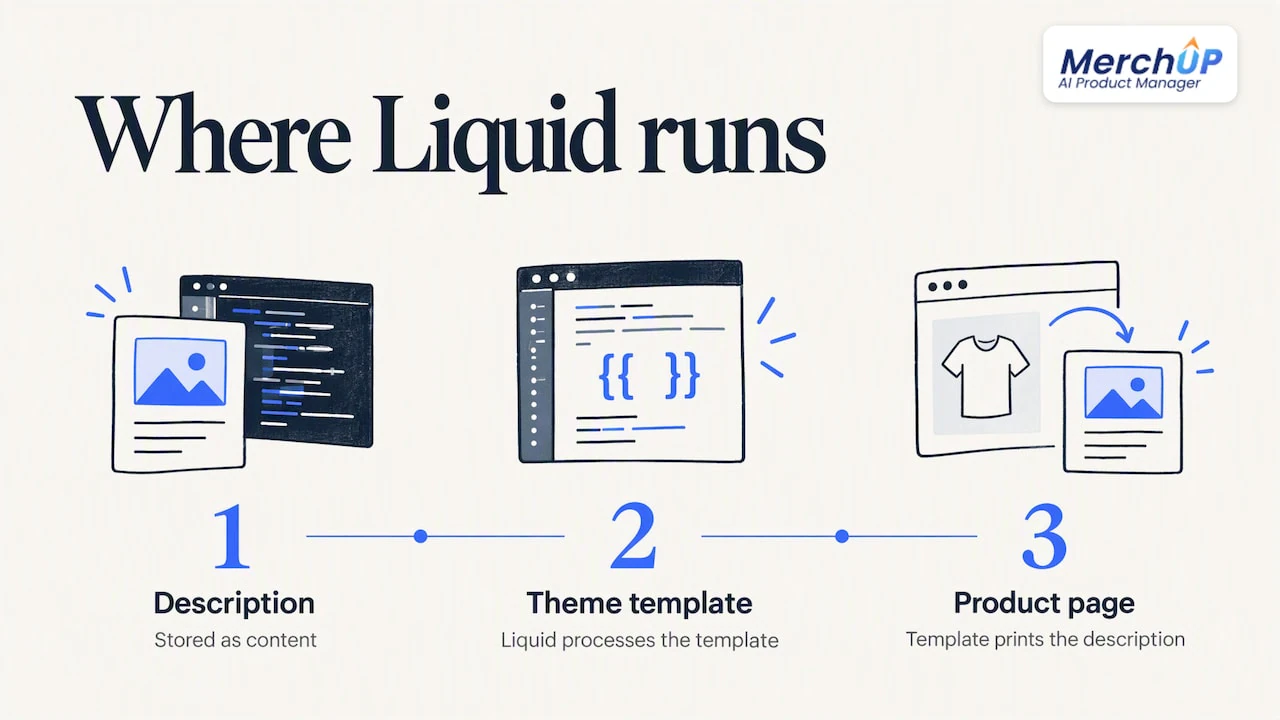
The description is stored as content. When your theme renders a product page, it outputs that content into the page. The theme’s own template files are what get processed as Liquid, and the description is just one value they print.
In practice, if you write Meet the {{ product.title }} in the description editor, shoppers will most likely see those curly braces as plain text. A 2025 Shopify-focused explanation of using product titles as variables makes the same point: the Liquid has to sit in the theme template that renders the product data, not in the editor.
That one fact settles most of the forum threads on this topic. The question is not “which syntax do I type” but “which layer of the store should hold the variable”.
Where variables do work
Liquid objects in theme templates
The Liquid product object includes a description property, the product’s description. Your theme templates read that and print it. If you or a developer edit the theme code, you can wrap content around it. For example, a template can print the title in a heading, then the description, then a block of care instructions that is the same for every product in a collection.
Two cautions apply:
- Edits to theme code change how every product using that template looks. Duplicate your theme and test on the copy first.
- Liquid is rendered on the server when the page is requested. Anything that has to change after a shopper picks a variant, such as a different sentence for each size, generally needs JavaScript or a fetch request on top. A Shopify developer-community reply on variant descriptions not updating describes exactly this limitation.
Stripping markup with filters
Because descriptions carry HTML, you sometimes need plain text, for instance in a card excerpt or a meta tag. Shopify’s strip_html filter removes all HTML tags from a string, including product.description. Pair it with a truncate filter and you can generate a short teaser from the full description without maintaining a second field by hand.
Dynamic sources in the theme editor
If you would rather not touch code, Online Store 2.0 themes offer dynamic sources. Shopify’s documentation on dynamic data sources explains that you can connect a product resource attribute, such as its title, or a metafield to a section or block setting in the theme editor.
This is the closest thing Shopify has to a no-code variable. You add a text block to your product template, click the connect icon, and pick the product attribute or metafield to show. The same block then displays a different value on each product page.
Themes decide which settings expose dynamic sources. The Help Center guidance on displaying metafields says availability depends on your theme, so check your theme’s documentation or ask its developer which sections support the connection.
Metafields: the right home for reusable facts
Most “variables” people want are really structured facts: material, fit, battery life, ingredients, warranty length. Put them in metafields.
The steps are short:
- In the Shopify admin, define the metafield (name, type, and whether it belongs to products or variants).
- Fill it in per product, or in bulk through import or the bulk editor.
- Display it with a dynamic source on a theme block, or with Liquid in the template.
For Liquid output, the metafield_tag filter generates an HTML element for the metafield, and the element varies by metafield type. A text value becomes text, a file becomes a link, and so on, so you don’t hand-write the markup.
Metaobjects go a step further. When several products share a whole group of fields, such as a size guide or a brand story, a metaobject holds it once. Shopify’s Help Center explains how to connect metaobjects to your store: they can be linked to theme blocks and compatible settings through dynamic sources. Fix a typo in the size guide once and every product using it updates.
For a deeper walkthrough of definitions and setup, see our guide to Shopify product metafields.
Choosing the right approach
| Your goal | Best fit | Skill needed |
|---|---|---|
| Show the same care or shipping text on every product | Theme block or template section | Low |
| Show a different material, size or part number per product | Metafield plus dynamic source | Low to medium |
| Share a size guide or brand story across many products | Metaobject plus dynamic source | Medium |
| Print the title or other product data inside custom markup | Liquid in the theme template | Medium to high |
| Change text when a shopper selects a variant | Liquid plus JavaScript | High |
| Write distinct, search-friendly copy for each product | Per-product generation and review | Low |
The last row matters. A common reason people go hunting for variables is a catalogue of 200 near-identical products and a wish to avoid writing 200 descriptions. A template with the title swapped in does save time, but it also produces pages that read almost identically. Shoppers notice, and search engines have little unique text to work with on each page.
A worked example: 120 enamel mugs
Say you sell 120 mugs in different colours and designs. You want each page to carry the design name, a consistent care note, and a capacity.
- Capacity: a metafield on the product, filled in via import or bulk edit.
- Care note: one theme text block, the same on every mug page.
- Design name: already the product title, so a heading block connected to the title through a dynamic source covers it.
- The paragraph about the design itself: this is the part no variable can write. It goes in the description field, written or generated for each mug.
Splitting the work this way keeps the description field for what is genuinely unique and moves the repeated facts to places where one edit updates the whole catalogue.
Editing many descriptions at once
If you already have descriptions and need to change them in volume, you have three routes in Shopify itself.
- The bulk editor. According to the Shopify Help Center, it lets you edit several products at once by choosing which properties to show as columns, in a table-like view inside the admin.
- CSV export and import. Powerful, but be careful: the Help Center’s export guidance warns that sorting a product CSV in spreadsheet software can leave variants or image URLs unlinked. Keep the original row order, or sort on a copy.
- Find and replace. Handy for swapping a phrase everywhere, with the risk of a bad match. Our guide to Shopify find and replace covers how to check matches before they go live.
For a step-by-step on the first route, read how to bulk edit descriptions in Shopify. If you are importing, start small with our advice on a safe import of descriptions.
How to check that each product shows the right content
A reusable block that is wrong on one product in fifty is worse than no block. Use this checklist before and after any rollout.
- Preview a sample. Open at least five products that differ from each other: one with many variants, one with no variants, one with an empty metafield, one with a very long title, one in a different collection.
- Look for empty states. If a metafield is blank, does the block disappear or show an awkward label with nothing under it? Many themes hide empty dynamic blocks, but confirm yours does.
- Click through variants. If you rely on variant-specific text, select each option and confirm the text changes. Remember that Liquid renders on page load, so the update after selection needs extra scripting.
- Check on mobile. Long dynamic text can push buy buttons far down the page.
- Check the plain-text outputs. If you use
strip_htmlfor excerpts or meta tags, confirm no stray tags or broken sentences appear. - Keep history. Before any bulk change, export your products or note what was there, so you can restore it.
For formatting the description itself once it’s in place, our admin formatting guide and the Shopify product description editor workflow go through headings, lists and spacing.
Our perspective
We built MerchUp AI around a simple observation: sellers reach for variables because writing a good description for every single product is slow, not because they enjoy templating. The workaround, one sentence with a product name swapped in, solves the time problem and creates a sameness problem.
So we take a different route. You start from a product photo, a barcode or, for trading cards, a card scan. MerchUp AI turns that into a full Shopify listing: title, type, vendor, price, tags and SEO. It then writes the description into a designed template, so the layout stays consistent while the words are specific to the product in front of it. In our view that is the right split: the design repeats, the facts live in structured fields, and the copy is written per product.
We also think nothing should go live unreviewed. Every change in MerchUp AI is reviewed before it is published, with full history and restore, which is the safety net a catalogue-wide edit needs.
And where variables genuinely are the best tool, such as shared care text, a size guide or a warranty line, use Shopify’s own metafields and dynamic sources. They are built for it, and they are free.
— Jamie Moss
Doing it at scale with MerchUp AI
If your problem is volume, adding new products every week and needing each one to have a distinct, search-ready description, MerchUp AI’s description generator is built for that job. It is available now for Shopify, and it also creates AI product photos so a new product can go from a single picture to a published listing.
SEO is handled in the same flow. MerchUp AI’s SEO autopilot reads your store’s own Google Search Console data and live Google results, picks keywords, writes meta titles, descriptions and image alt text, checks rankings on live Google and pushes the changes to your store. No SEO knowledge is needed.
There is a free plan. Paid plans are Starter at £12.99 a month, Growth at £34.99, Pro at £79.99 and Scale at £199.99, all listed on the pricing page. If you sell trading cards, a card scanner add-on starts at £7.99 a month.

For teams, our guides on governed templates for bulk generation and AI templates for bulk product descriptions explain how to keep a consistent structure across a large catalogue.
Common mistakes to avoid
- Pasting Liquid into the description and publishing. Shoppers see raw braces. Always preview a live product page, not just the editor.
- Hard-coding facts in the description that belong in metafields. When the warranty changes, you will be editing hundreds of products by hand.
- Editing the live theme. Duplicate it, test, then publish.
- Assuming every theme supports every dynamic source. Check your theme’s documentation first.
- Using one template sentence everywhere. Near-duplicate pages offer shoppers little reason to choose one product over another, and give search engines little to distinguish them.
- Forgetting the short description. Many themes show a separate summary near the buy button. Our note on adding a short description explains how to handle it.
For more on how Liquid fits into scaled description work, see our templates and scale playbook.
FAQ
Can I use Liquid variables directly in the Shopify product description?
No. The description field is a rich-text editor that stores formatted content, so Liquid typed into it is not processed as code. Put the Liquid in your theme template, or use dynamic sources in the theme editor to connect product data to a block.
How do I show the product title inside a description or text block?
In the theme editor, add a text or heading block to your product template and connect it to the product title with a dynamic source, if your theme supports it. Otherwise a developer can print the title with Liquid in the template file. Either way the title is pulled from the product, so it changes on each page.
What is the best way to reuse the same information across many products?
Use metafields for facts that differ by product, and metaobjects or a shared theme block for content that is identical across many products. Display them through dynamic sources or Liquid. This way one edit updates every product that uses it.
How do I bulk edit product descriptions in Shopify?
The built-in bulk editor lets you pick a description column and edit many products in a table view. You can also export to CSV, edit and re-import, but keep the row order intact so variants and images stay linked. Test on three to five products first.
Will descriptions change when a shopper picks a different variant?
Not by default. The product page is rendered on the server, so variant-specific text usually needs JavaScript or a fetch request that updates the text after selection. If you only need variant facts such as size or weight, a variant metafield is often simpler.
Sources
- Liquid reference, Shopify developer documentation
- Liquid product object
- strip_html filter
- metafield_tag filter
- Dynamic data sources
- Shopify Help Center: product details page
- Shopify Help Center: displaying metafields on your online store
- Shopify Help Center: connecting and displaying metaobjects
- Shopify Help Center: bulk editing
- Shopify Help Center: exporting products
- Shopify developer community: variant descriptions not updating dynamically
- Using product titles as variables in descriptions


Comments
No comments yet — be the first to share what you think.