


Stock level messaging is the availability signal on your product page: in stock, low stock, out of stock or back-order. It works when it is accurate, sits next to Add to Cart and changes with the variant the shopper picks. Set a low-stock threshold that matches how fast the item sells, only show a count you can stand behind, and keep online and in-person stock in one pool. If your listing copy is clear and consistent, the message does the rest. We built MerchUp AI to produce full Shopify listings, so the page around your stock message is complete from day one.
TL;DR
- Show one clear state near Add to Cart: in stock, low stock, out of stock or back-order, and make it variant-specific.
- Pick the low-stock threshold from sales speed. Fast sellers need a higher number than slow ones.
- Only show a count for tracked inventory with a positive quantity. Fake scarcity is a legal and trust risk.
- If you sell in a shop as well as online, both channels must draw from the same inventory count.
- Test the message against a control and look at purchases, returns and repeat orders, not clicks alone.
What stock level messaging actually is
It is any visible text that tells a shopper whether they can buy an item and how soon they will get it. That covers an in-stock confirmation, a “Only 3 left” count, a notify-me button, a restock date or a delivery estimate. An audit of 173 Shopify storefronts by EcomHint found that about 62% did not show availability near the main Add to Cart button. Many shoppers are left guessing, and that is the easiest gap to close.
Store platforms treat this as a setting. BigCommerce’s inventory tracking guide describes three choices: show stock levels always, show them only when inventory is low, or hide them. The same three choices exist, in spirit, on every store. The question is which one fits each product.
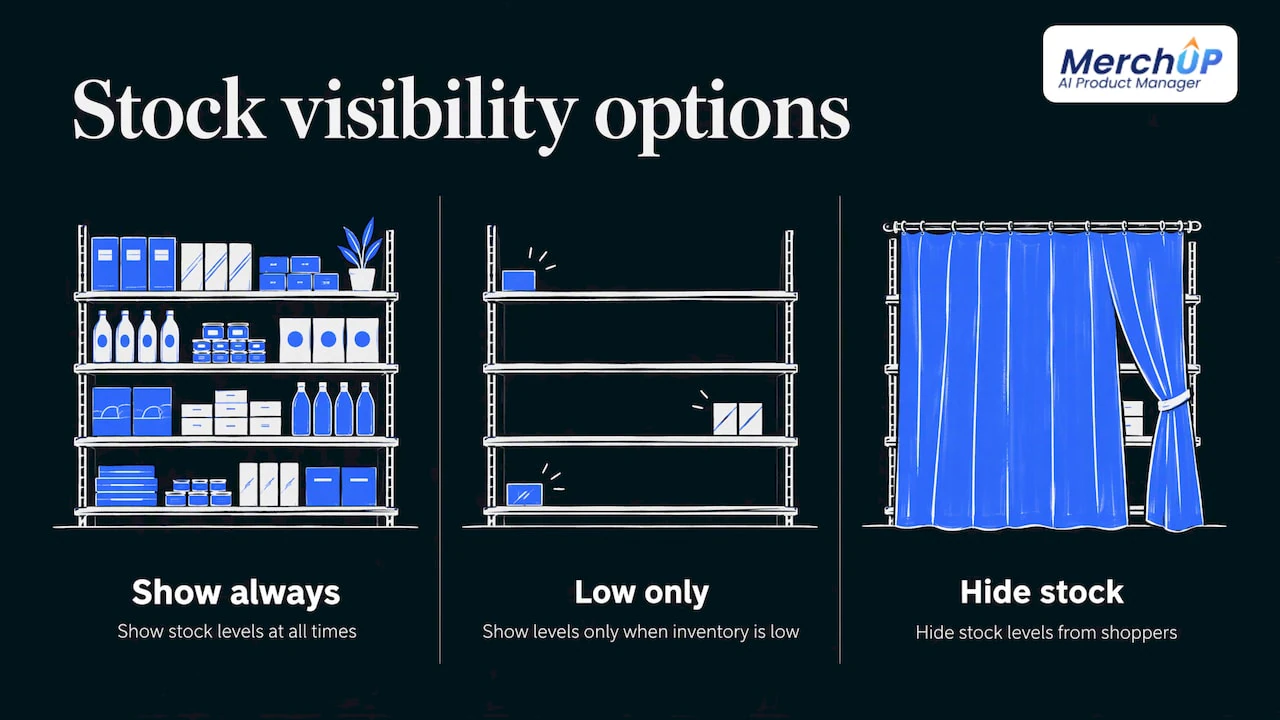
The phrase also has a second meaning in stock management, where a “stock level” is the quantity you hold. The two are linked: the message is only as good as the number behind it.
The four states every product page needs
Most stores need just four messages. Write each one in plain words and keep the wording the same across the whole catalogue.
| State | When it applies | What the shopper needs to see |
|---|---|---|
| In stock | Quantity is above your low-stock threshold | A calm, positive confirmation near Add to Cart, with a delivery estimate if you have one |
| Low stock | Quantity is between one unit and the threshold | The real count or a plain “selling fast” line, for that variant |
| Out of stock | Quantity is zero and you are not selling on | The state, a notify-me option, a restock date or alternatives |
| Back-order | Quantity is zero but you continue to sell | That the item ships later, and roughly when |
In stock
EcomHint’s 2026 guide recommends placing a clear positive availability signal near Add to Cart. It sounds trivial. But a shopper who has to scroll to find out whether a size is available will often leave rather than scroll.
Low stock
Definitions vary and that is fine, as long as yours is written down. Optimizely’s documentation defines low stock as anything from one unit up to the configured threshold. With a threshold of 5, quantities of 6 or more read as in stock and 1 to 5 read as low stock. A large fashion retailer, ASOS, defines “Low in Stock” as 10 or fewer units for the selected size and colour, counted within the shopper’s region. Notice both examples work at the level of the variant, not the whole product.
Out of stock
An out-of-stock page is not a dead end unless you make it one. Around 30% of shoppers leave to look elsewhere when an item is unavailable and they have no option to wait, buy or choose an alternative, according to Baymard research reported by EcomHint. Give them a notify-me option, a restock date or a close alternative. BigCommerce’s inventory guidance says merchants can customise the out-of-stock message and state restock timing or pre-order availability. For wording and email follow-ups, our guide to out of stock messaging has page copy and ten subject lines.
Back-order
When you keep selling at zero stock, say so in the message and say when it ships. Archetype Themes’ February 2026 documentation shows how a Shopify theme handles this: with Shopify’s continue-selling option enabled, the theme displays “Backordered, shipping soon”. That is a sensible default, and you can sharpen it with a date. See backorder product messaging for what to say and when.
Choosing your low-stock threshold
There is no universal number. The threshold should reflect how quickly the item sells and how long it takes you to restock.
Start with a reorder point. Shopify’s inventory alerts guide (published in 2019) bases it on average daily sales and supplier lead time, then adds a safety margin. Its example: five sales a day and a ten-day lead time gives 50 units before the buffer. The same guide suggests a higher low-stock quantity for popular, fast-selling products and for items that often run out.
A practical way to use that:
- Work out daily sales for each item over the last 30 days.
- Multiply by your restock lead time in days. That is your reorder point.
- Set the shopper-facing threshold below it. The warning is for the shopper, the reorder alert is for you. A shopper should see “Only 4 left” when the number is genuinely small, not when you still have two weeks of stock.
- Use different thresholds by product type. A fast-moving £10 accessory and a one-off collectible should not share a number.
A worked example: a store sells 3 units a day of a popular tee and restocks in 7 days. The reorder point is 21 units, so you should be ordering more by then. The customer-facing low-stock message might appear at 5 or fewer, which is roughly a day and a half of demand, so the count really is small.
One-off items
For singles such as trading cards, vintage pieces or one-of-a-kind stock, a count is usually unnecessary. If every item is one of one, “1 available” is simply how the listing reads. The message that matters there is accurate availability once it sells, which is where in-person sales can catch you out (more on that below).
Keeping the message accurate on Shopify
A wrong message costs more than no message. Three rules keep it honest.
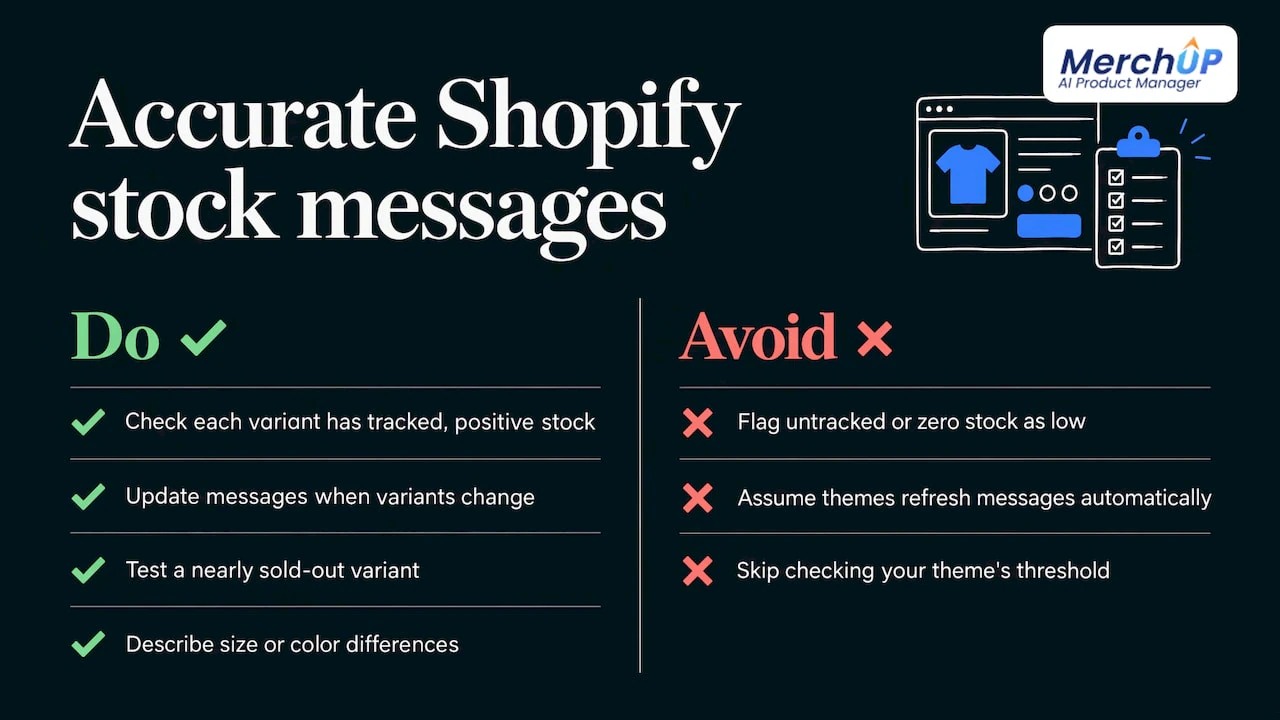
Gate the count on tracked inventory. A guide from learnshopify.dev points out that an exact-count warning should only show for tracked inventory with a positive quantity, otherwise an untracked item can be falsely labelled low stock. In Shopify, check that inventory tracking is switched on for each variant before you rely on any count.
Work at variant level. A product with ten sizes is really ten stock records. The same guide advises updating the message when the shopper changes variant, because many themes will not re-render it by themselves. Archetype’s documentation gives a concrete case: its theme uses a threshold of 6, so a variant with 5 units on hand triggers the low-stock notice when the block is enabled. Check your own theme’s documentation for its default and test it with a variant that is nearly sold out.
Describe variants properly. If sizes or colours differ in more than stock, the shopper needs to see that too. Our piece on Shopify variant descriptions covers how to add and show them.
If you want updates to flow to other systems when a product or its inventory changes, Shopify webhooks for product updates explains the mechanics, and where to check your Shopify product change log helps when a message changes and you want to know why.
Selling online and in person without overselling
Shops that trade at a counter, a market stall or a card show face a specific risk: someone buys the last unit in person while the website still says it is available. Stoq’s 2026 guide says Shopify POS tracks stock across locations and syncs it with the online store. The practical checks:
- Make sure both channels use the same tracked inventory pool.
- Run a test: sell one unit through POS and one online, and confirm each changes the shared count.
- Keep what staff say about shipping times consistent with what the website says.
Some platforms also let you hold units back. BigCommerce’s guidance describes a safety-stock quantity that shoppers cannot buy online, which can be used to reserve inventory for in-person sales. The idea is useful on any store: if the shop floor matters, decide how many units are reserved for it and make the online message reflect only what is truly available.
For trading-card and collectibles sellers this matters even more, because each card is a unique record. MerchUp AI lets sellers buy, sell and trade stock in person with Shopify POS, and the listing for each card is created from a scan, so the item exists in Shopify before it hits the counter. See buy, sell and trade cards.
Making low-stock messages trustworthy
Scarcity works because it is believable. It stops working, and can cause trouble, when it is not true. Scandiweb’s 2026 article cites the FTC’s 2022 “Bringing Dark Patterns to Light” report as identifying fake low-stock messages and false urgency claims as potentially deceptive. If you operate in the US, treat that as a firm line: never show a count that is invented, rotated or reset on a timer.
A short honesty checklist:
- The number comes straight from tracked inventory.
- It is shown only above zero and only at or below the threshold.
- It changes when the variant changes.
- When stock is replenished, the message disappears.
- You can explain every message you show to a customer who asks.
If you cannot meet those five, use a neutral message such as “In stock, ships in 1 to 2 business days” instead.
Measuring whether it works
Do not assume urgency sells. Test it. Scandiweb’s testing perspective is to run an A/B test against a no-scarcity control and compare conversion, click-to-cart and cart-to-checkout, and also to track returns, refunds and repeat purchases. A lift in conversion alone is not enough if it brings returns or hurts trust later.
Crometrics reported in 2026 examples in which low-stock badges on product-listing pages increased revenue by 3 to 3.2%, and noted that urgency can lift clicks without lifting purchases. So judge the result on completed orders.
A simple plan for a small store:
- Pick ten products that regularly run low.
- Show the low-stock message on half and leave the rest as a control.
- Run for at least a few full sales cycles.
- Compare add-to-cart rate, checkout completion, orders, returns and repeat buyers.
- Keep the message only where purchases improved.
If you want a wider view of what moves purchases, this guide to improving sales conversion is a good companion, and our product page conversion 30/60/90 day playbook puts availability messaging in the context of the whole page. To find which pages deserve the test first, the Top 20 SKU audit shows how to review product description analytics.
Where MerchUp AI fits
A stock message sits on a product page, and the rest of that page has to carry it. MerchUp AI is an AI product manager for Shopify: it turns a product photo, barcode or card scan into a complete listing with title, type, vendor, price, tags and SEO, writes the description into a designed template, creates AI product photos and publishes it. Every change is reviewed before it goes live, with full history and restore, so you can adjust a page and roll it back if needed.
It also does your SEO in one click. It reads your store’s own Google Search Console data and live Google results, picks keywords, writes meta titles, descriptions and image alt text, checks rankings on live Google and pushes everything to the store, with no SEO knowledge needed. That means the pages where your availability messages sit can also be found.
There is a free plan, and paid plans start with Starter at £12.99 a month, with Growth at £34.99, Pro at £79.99 and Scale at £199.99 a month. Card scanner add-ons start at £7.99 a month for 1,000 scans. Details are on the MerchUp AI pricing page, and you can see how the tools work together.
Our perspective
We think of stock messaging as part of the product page, not a plugin sitting on top of it. A shopper reads the photo, the title, the description and the availability line as one answer to a single question: can I buy this, and will it be right?
That is why we built MerchUp AI around the whole product. You scan or photograph the item, get a complete Shopify listing, a description in a designed template and AI product photos, then sell it online or in person with POS. When the listing is complete and consistent from the start, a simple honest message such as “In stock” or “Only 3 left” reads as credible.
For trading-card shops, we add identification against real catalogues, market pricing and AI centering and condition estimates, so each single card is listed accurately before it is sold at the counter or online. And because our SEO runs from your own Google Search Console data and live Google results, with every change reviewed before it goes live, the pages carrying your availability messages are built to be found.
Our advice: keep messages true, keep them variant-specific and test them against a control.
Jamie Moss
FAQ
What does stock level messaging mean?
It is the text on a product page that tells shoppers whether an item can be bought and how soon it will arrive. Typical examples are “In stock”, “Only 3 left”, “Out of stock, notify me” and “Back-ordered, shipping soon”. It should be based on your real inventory count.
How do I decide when to show a low-stock message?
Base it on sales speed and restock time. Work out your average daily sales, multiply by your lead time to get a reorder point, then set the shopper-facing threshold well below that. Shopify’s guide suggests a higher low-stock quantity for fast sellers and items that often run out.
Is it legal to show “Only 2 left” messages?
It is fine when the number is true. The FTC’s 2022 dark patterns report, as summarised by scandiweb, identifies fake low-stock messages and false urgency as potentially deceptive. For a legal view on your specific wording, speak to a lawyer who handles US advertising law.
Should I show exact counts or just a general warning?
Both work. BigCommerce’s settings let a merchant show exact levels, show them only at or below a low-stock level, or hide them. Showing the count only when it is low is the most common choice, since a high number adds little.
How do I stop overselling between my shop and my website?
Use one tracked inventory pool for both channels and test it with one POS sale and one online order. Confirm each reduces the same count. Staff should also quote shipping times that match the website.
Sources
- EcomHint: Shopify product availability signals
- EcomHint: Ecommerce product page statistics 2026
- BigCommerce: Inventory tracking
- BigCommerce: Inventory functionality
- Optimizely: Manage inventory and availability messaging
- ASOS Customer Care: Sale terms
- Archetype Themes: Understanding inventory status
- Shopify: Inventory alerts
- learnshopify.dev: Low-stock warning in Shopify
- Stoq: How Shopify POS pre-orders work
- Scandiweb: Scarcity marketing examples
- Crometrics: Urgency that actually works
- AutoFront: How to improve sales conversion


Comments
No comments yet — be the first to share what you think.