


Content decay on a product page is a slow, steady loss of organic clicks and rankings from a page that used to perform. The fix is a routine: compare matching periods in Search Console, confirm the drop is real, rank the pages by the revenue they put at risk, then refresh, consolidate or redirect each one according to the cause. You can do it by hand for a dozen products. At a few hundred, the work is in doing it every quarter, which is where MerchUp AI takes over for Shopify stores: it reads your own Google Search Console data, picks keywords, rewrites meta titles, descriptions and image alt text, checks rankings on live Google, and pushes the changes to your store for your review.
TL;DR
- Decay is a downward trend against the matching period, not a bad week. Compare against the same period last year so seasonal dips do not fool you.
- Sort by money, not by clicks. A product page that lost 300 clicks and converts well matters more than a blog post that lost 1,200.
- Read impressions, clicks and position together. They tell you whether you are facing true ranking loss, a search results change, or lower demand.
- Match the action to the cause: refresh, consolidate, redirect or leave alone.
- Schedule a quarterly check so decay never builds up unseen. MerchUp AI can run the SEO side of it for you.
What decay looks like on a product page
Blog posts decay because information ages. Product pages decay for the same reason, plus several that are specific to shops: stock changes, prices move, variants multiply, seasons turn, and competitors publish better pages for the same product.
The usual causes fall into three groups. The facts on the page stop matching the query, such as old specs, a discontinued size or a stale price. Another page, often a rival store or a marketplace listing, offers clearer detail. Or several of your own URLs compete for the same search, which happens a lot with near-identical variants and overlapping collection pages. Our guide to duplicate content on product pages covers that last one in detail.
There is also a newer cause that has nothing to do with your page. Search Engine Land reports that in 2026 about 68% of Google searches end without a click, and that where an AI Overview appears the top organic result loses around 58% of its clicks. Your page can hold its position and still lose visits. That is why diagnosis comes before any rewrite.
Decay, seasonality or demand: tell them apart first
Three things look alike in a traffic chart and need different responses.
| Pattern in Search Console | Likely meaning | What to do |
|---|---|---|
| Clicks and impressions both down, average position worse | Ranking decay: others now outrank you | Refresh or consolidate the page |
| Impressions flat or up, clicks down, position steady | Search results changed (AI answer, rich result, better snippet elsewhere) | Improve title and snippet appeal, rethink the page’s promise |
| Clicks and impressions down, position held or better | Demand fell for the product or query | Usually leave the page alone |
| Dip that repeats last year’s shape | Seasonality | Leave alone, prepare the page before the season |
This table follows the four decay types Search Engine Land describes: ranking decay, zero-click capture, intent drift and demand decay. Google’s own guidance agrees on the key signal. In its documentation on debugging traffic drops, Google says that when impressions stay the same but clicks fall, the likely cause is a weak page title or snippet, or a more appealing result elsewhere.
The lesson for a shop: never call something decay until you have compared like with like. A candle page that drops 40% in February against December is normal. A candle page that drops 40% against last February is a problem.
Step 1: Find the pages that are losing ground
You need only Search Console, which is free.
- Open the Performance report and use the date filter’s Compare tab.
- Compare the last three months with the same three months a year earlier. Google’s documentation also allows comparing with the previous period, but the year-over-year view removes seasonality.
- Switch to the Pages table and sort by the clicks difference, biggest loss first.
- Click through the other tabs (queries, countries, devices, search appearance) to see where the loss concentrates.
The steps come from Google’s Search Central debugging guide, which also points you to the Page indexing report when many pages fall together, and to the URL Inspection tool when a group of URLs looks affected.
Write the finding down properly. “Traffic is down” is not a finding. “Clicks to our five best-selling product pages are down 27% over the last three months against last year, mostly on mobile” is one. It names the metric, the periods, the size and where it concentrates. That sentence tells you what to fix.
Confirm the drop is real
Before touching copy, rule out measurement problems. Check whether Google Analytics 4 organic sessions to the same landing pages moved the same way. If Search Console clicks fell and GA4 fell with them, the loss is real. If Search Console is flat but GA4 dropped, suspect tracking, a theme change or a consent banner. If every channel fell on the same day, look at what you changed on the site that day.
A sudden cliff, rather than a slope, is a different problem. Check for manual actions or security issues in Search Console, indexing errors, and server errors first. Decay is gradual. A cliff is usually technical.
Step 2: Rank the decaying pages by revenue at risk
A store with 400 products will find dozens of declining pages. You cannot fix them all in a week, and you should not try.
A workable method, described by Analistable, is to export click changes per page for two periods, join them with conversion rates by landing page, and sort by lost clicks multiplied by conversion rate. Its worked example shows a blog post losing 1,200 clicks but only about 7 estimated conversions, while a pricing page losing 310 clicks lost about 17. The page with fewer lost clicks cost more business. It also suggests ignoring pages with very few clicks in the earlier period, around 100 or fewer, because their changes are mostly noise.
For a store, a simple version works:
- List pages that lost clicks year over year.
- Drop pages with tiny traffic in the earlier period.
- Multiply lost clicks by the page’s conversion rate and average order value.
- Start with the top ten.
Best sellers and high-margin products go first. A page that quietly slips while total site traffic looks fine is the classic way a store loses revenue without noticing.
Step 3: Choose refresh, consolidate, redirect or leave alone
The action depends on the cause you found.
| Situation | Action |
|---|---|
| Product is live but facts, coverage or snippet have aged | Refresh the page |
| Two or more URLs chase the same search | Consolidate into the strongest page |
| Product is permanently gone | 301 redirect to the closest useful replacement |
| Product is temporarily out of stock or seasonal | Keep the page, mark availability correctly, leave the rest |
| Demand fell for the whole category | Leave alone |
Two cautions on removal. A page with backlinks, strong internal links or a history of top-ten rankings carries authority, and deleting it throws that away. Redirect it to the closest intent-matching page instead. And avoid redirect chains: point old URLs straight at the final destination. If you retire a product, decide in advance between three outcomes: keep the page live and mark it unavailable, redirect to a similar product, or redirect to its category. Never let it quietly turn into a 404.
For Shopify collections that overlap, see our guide to collection SEO fixes.
Step 4: Refresh the page properly
A refresh is not a new coat of adjectives. It is a correction of everything on the page that no longer matches reality or the search.
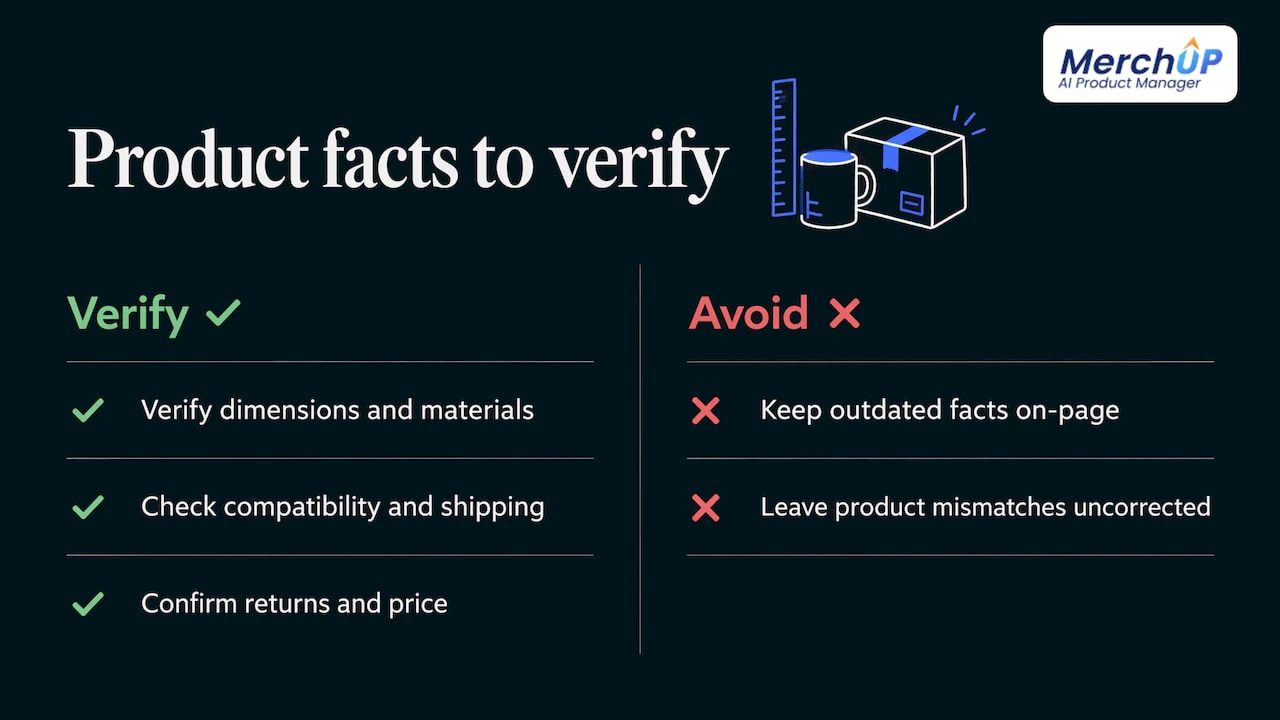
Facts. Check dimensions, materials, compatibility, shipping, returns and price against the real product. Replace anything old. Remove paragraphs that no longer fit what shoppers search for.
Title and meta description. If impressions are steady and clicks are falling, this is the first place to look. Make the title say what the shopper wants, with the main keyword in it, and write a description that promises what the page delivers. Our guide to optimising product titles shows how.
Description structure. Lead with what the product does for the buyer, then specifications, then detail that answers pre-purchase questions. See product description structure and the product description SEO guide.
Variants. If every colour has the same copy, each variant has nothing of its own to rank for. Give variants distinct detail, or point them to one canonical page deliberately.
Images and alt text. Replace dated or low-quality photos and write alt text that describes what is actually in the picture.
Structured data. Price, availability and the visible page must agree. A product page that says in stock in its markup while the shopper sees sold out is a mismatch that can cause trouble in Google’s product features. Update availability when a line sells out, and keep price data current.
Keyword placement. One primary keyword in the right places beats many keywords scattered. See product page keywords.
Before publishing, read the page as a shopper arriving from the search. Does it deliver what the title promised? Do the links work? Does the buy button agree with the stock status?
Step 5: Measure whether it worked
Give the change time. Search Console reports lag by a few days, and Google has to recrawl and reprocess the page, so judge after several weeks, not several days. Compare the same page, same metric, same window length, against the pre-change period and against last year.
Track three things per page: clicks, average position and conversions. If impressions rose but clicks did not, work on the title and snippet next. If position rose but conversion fell, the page now attracts the wrong visitors or the content no longer sells. Make one meaningful change at a time on your priority pages so you know what moved the numbers.
Prevent decay: a quarterly routine
Decay is cheaper to prevent than to rescue. A page that slips 20% is easier to recover than one that has lost most of its traffic.
- Each quarter: run the year-over-year comparison and flag pages down by a meaningful margin, say 20% or more. Review them in revenue order.
- Each season: update seasonal pages before the season, not during it. Swap in the new range, refresh images and keep availability accurate.
- On every product change: a new variant, a discontinued size or a price update should trigger a page check, not just a catalogue edit.
- Twice a year: review your top earners by hand, even if their numbers look fine.
If you add new products every week, build the SEO fields right at creation, so pages are not born half-finished. Our 30/60/90 playbook for AI product page optimisation and the guide to scaling Shopify product pages with AI lay out how to do that in stages. For pages that must stay accurate and consistent, syncing copy and schema keeps them aligned.
Where MerchUp AI fits
The slow part of fighting decay is not understanding it. It is the repetition: pulling Search Console data, choosing keywords, rewriting meta titles and descriptions, fixing image alt text, and checking whether rankings moved, page after page.
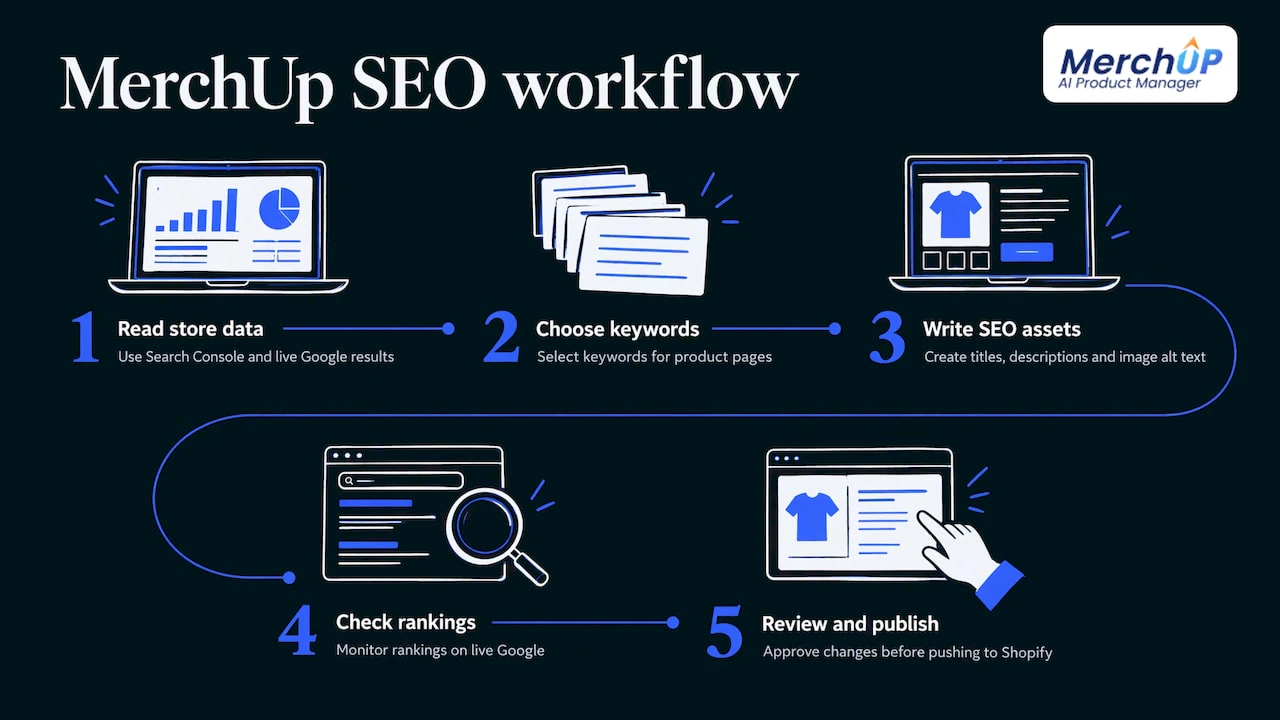
MerchUp AI does all your SEO in one click. It reads your store’s own Google Search Console data and live Google results, picks keywords, writes meta titles, descriptions and image alt text, checks rankings on live Google and pushes everything straight to your Shopify store. No SEO knowledge is needed. Every change is reviewed before it goes live, with full history and restore, so you can see what was changed and roll it back.
For new and refreshed listings, it also builds the complete product: a title, type, vendor, price and tags from a photo or barcode, a description written into a designed template, and AI product photos. Trading-card shops can scan cards to identify them, price them from the market and estimate centering and condition. You can try it on the free plan, and paid plans start with Starter at £12.99 a month. See the plans and pricing, or look at how the AI product descriptions work.

If you want to see the workflow first, the 30-second tutorial walks through it.
Our view on decay
Most stores treat decay as a writing problem. We see it as a catalogue-maintenance problem. Pages do not fail because the copy was bad on day one. They fail because nobody has time to revisit them when the product, the season or the search changes.
That is why we built MerchUp AI as an AI product manager, not only a description writer. The listing, the designed description, the photos and the SEO all come from the same product record, and the SEO runs on your own Search Console data and is checked on live Google. A store that can refresh a page in one reviewed step will refresh it. A store that needs an afternoon per page will not.
Our advice: pick your ten most valuable product pages, set up the year-over-year comparison today, and put a quarterly reminder in the calendar. Consistency beats a one-off audit every time.
Jamie Moss
FAQ
How do I know if a product page has content decay or just seasonal dips?
Compare the same period year over year, not month to month. A seasonal dip repeats last year’s shape, while decay shows a weaker result than the matching period a year ago. Check impressions and position too: if position held and impressions fell, demand is the likely cause.
How often should I check my product pages for decay?
Quarterly is a practical rhythm for most stores, with a hand review of your best sellers twice a year. Seasonal products need a check before each season starts. Stores that add products every week benefit from setting SEO fields correctly at creation.
Should I delete product pages that have lost traffic?
Not as a first move. Refresh pages whose facts have aged, consolidate pages that compete for the same search, and redirect retired products to a close replacement. A page with backlinks or past top-ten rankings should be redirected, not deleted, so its authority is not lost.
Will a refresh work if clicks fell but my ranking did not?
Possibly, but look at the cause first. If impressions are steady and clicks are down, Google’s guidance points to a weak title or snippet, or a more appealing result elsewhere. Improving the title and meta description is the first step, and some of the loss may come from search features that sit above every organic result.
Sources
- Debug Google Search traffic drops, Google Search Central
- 4 types of content decay and how to fix each one, Search Engine Land
- How to find pages losing clicks, and which ones matter, Analistable


Comments
No comments yet — be the first to share what you think.